
In this guide the NaviScan Online component of NaviScan is described.
NaviScan Online is the online part of NaviScan Config, working as a monitor of the configuration file (NaviScan.bin). It can be launched from C:\EIVA\NaviScan\bin\NaviScan.exe or from NaviScan Config by pressing the right most icon from the toolbar (human icon) . NaviScan Online runs based on NaviScan.bin or it can run with recorded SBD files in playback mode (single file or files in a playlist).
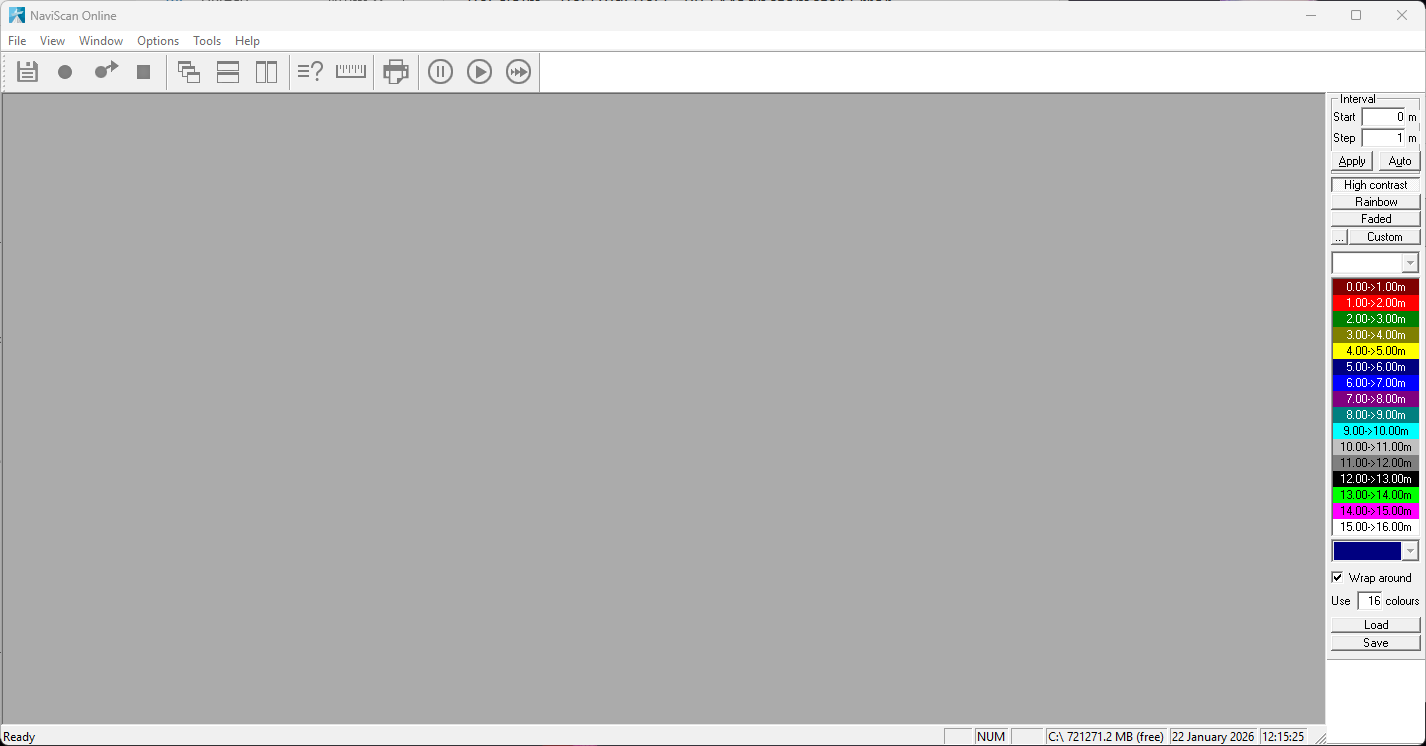
Fig 1. NaviScan Online main window, including the palette bar
The NaviScan configuration window contains the following:
1. Main bar (File, View, Window, Options and Help)
2. Toolbar buttons (Save, Start Line, New Line, Stop Line, Cascade Windows, Tile windows - horizontal or vertical, Toggle legend, Create ruler, Print, Pause playback speed, Normal playback speed and Increase playback speed)
3. Palette bar
4.Workspace area
1.The main bar
The main bar contains the following:

Fig 2. NaviScan Online main bar
1.1 File menu
File menu contains the following commands: Start Online, Playback file, Playlist, Start Line, New Line, End Line, A list of the recent files used, Close and Exit.
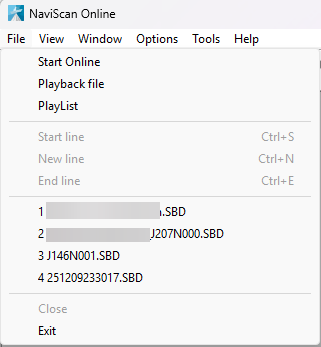
Fig 3. File list
Start Online will start the program, reading the configuration from NaviScan Config. Once pressed a new window will appear on the screen containing an overview of: port type, IP address, sensor type, names and properties of the sensors interfaced.
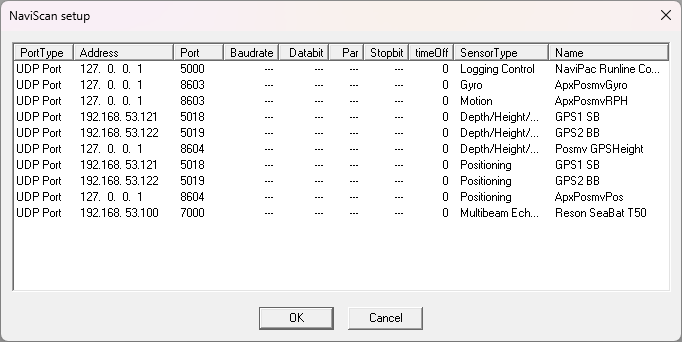
Fig 4. NaviScan Setup - list of available instruments read from naviscan.bin
Playback file will open a browser to let the user to choose an SBD file that wishes to playback. This helps the user to review what happened during data acquisition if necessary.
Playlist will open a selector that helps the user to create a playlist with multiple SBD files to play in the chosen order. This is useful if the user wants to review multiple files one after another.
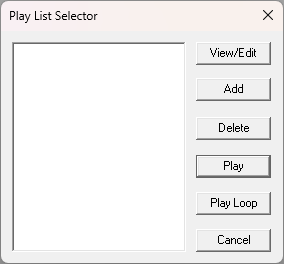
Fig 5. Playlist selector
Start line (available also as a button) is available once NaviScan Online is already running, giving the possibility to record sbd files. The button can be red (when NaviScan Online has passed all the checks and can record sbds) or greyed out (when NaviScan Online did not meet all the conditions to start recording sbds/ started without being connected to NaviScan config or the recording is started already).

Fig 6. The "rec" symbol is in a grey-out state, meaning the recording is ongoing
New line will switch the recording to a new file.
Stop line will stop the recording. Notice how the rec button is red again and ready for a new recording.

Fig 7. The "rec" symbol is in a red state, meaning the recording can be started any time
1.2 View menu
The available options under the View menu are related to the sensors interfaced in NaviScan Config and to the other options available in the NaviScan Online (toolbar, palette bar etc.)
The grey-out items do not exist in the current example project, although, these instruments are still described in the current document under the 4. workspace area chapter.
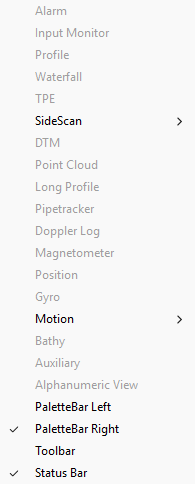
Fig 8. The "View" menu
1.3 Window menu
Window menu includes options for the window arrangements on the screen (Cascade, Tile Vertical or horizontal, arrange windows and save windows setup) and for selecting current available instruments as primary window.
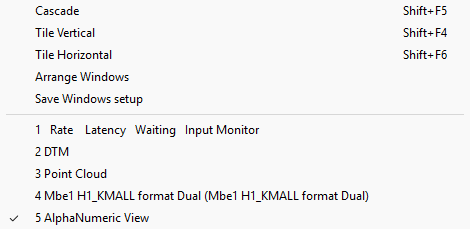
Fig 9. The "Window" menu
The windows already open can be arranged in this menu, tile vertical or horizontal, or in a different way. In the lower part, the currently open windows are shown and the selected one is ticked. Next, an example of tile windows:
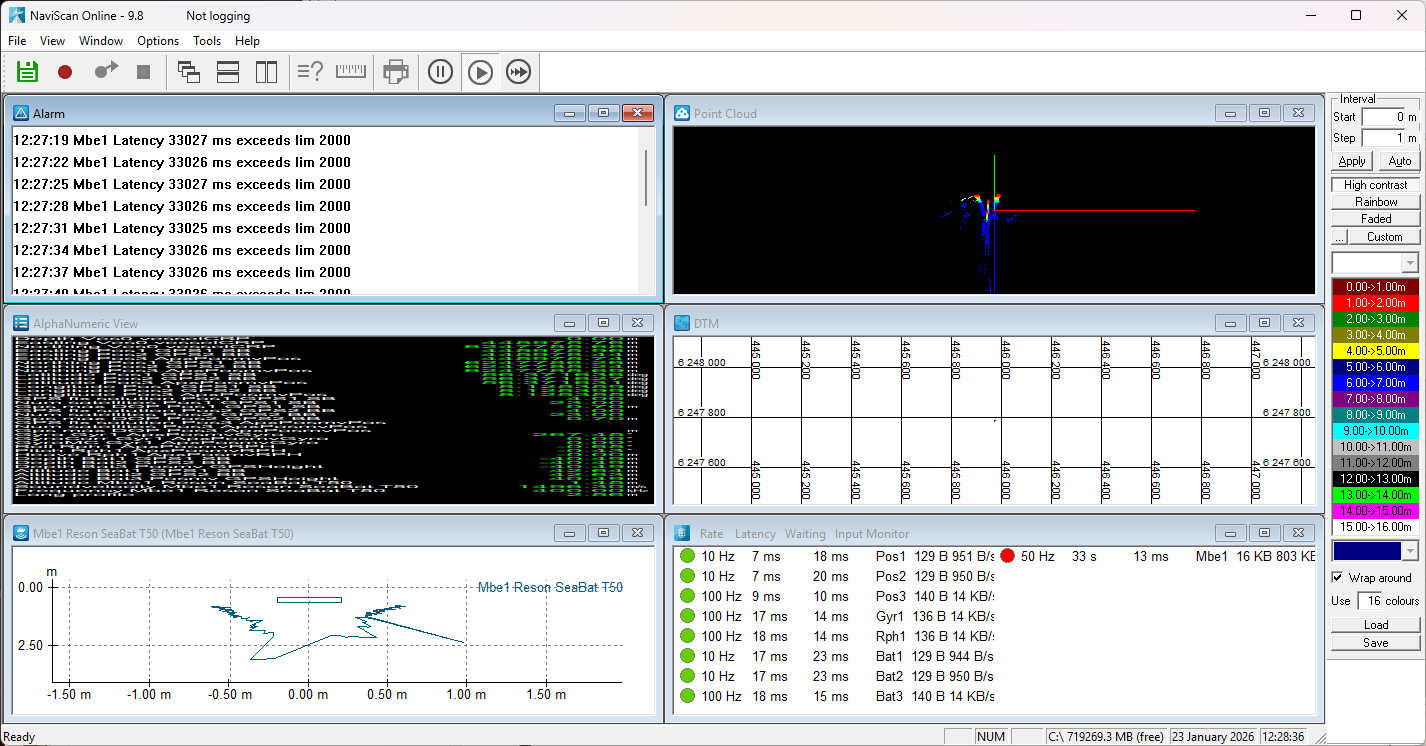
Fig.10 Online window populated with different instrument information
1.4 Options menu
Under the Options menu, general settings, different filters or options regarding multibeam auxiliary data can be found (Settings, Sonar controls, Scan Filters, Alarm Settings, Load/Reload SVel profile, Remove SVel profile, Load/Reload CTD for bathy, Remove CTD for bathy, Load Tide table, remove Tide table and Print).
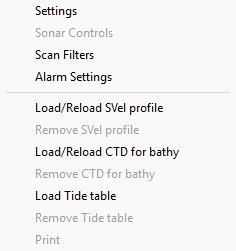
Fig.11 Options
Settings option contains important settings that the user can set for his configuration. Settings has the following tabs: scan select, send reduct, system params, advanced and logging.
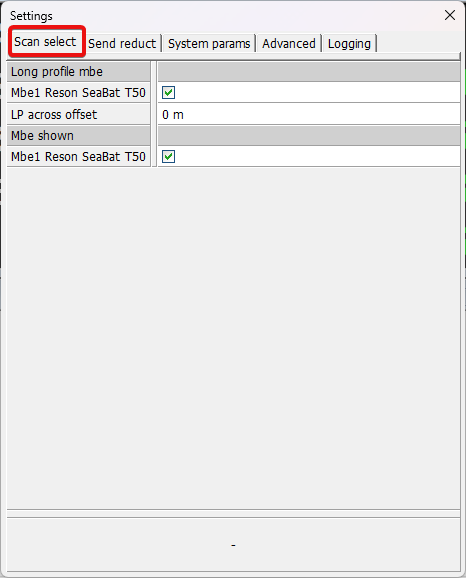
Fig. 12 Scan select
Scan select will add depth data from the MBES source into long profile depth calculation.
LP across offset is the offset from nadir to the measured depth sample
MBE shown will select the MBES to be used in DTM and point cloud, local and external
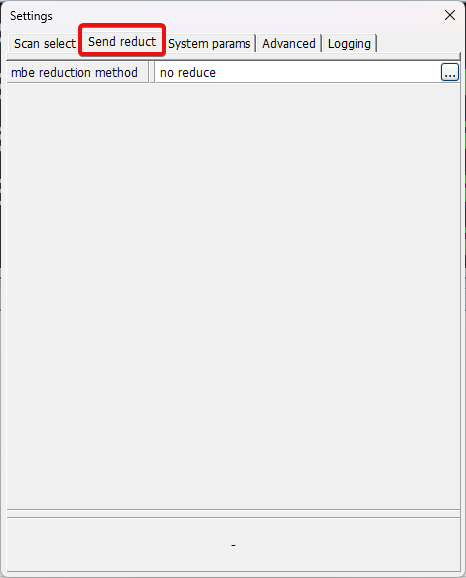
Fig. 13 Send reduct
Send reduct is the MBE export reduction method. Examples: no reduce, along down sample, across down sample etc.
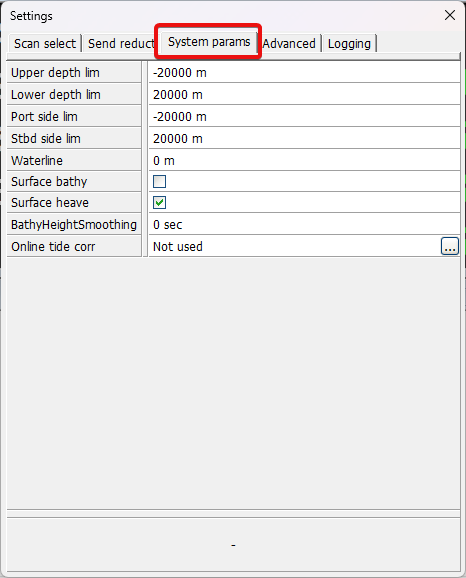
Fig. 14 System Params
System params has different option relating to lower depth limit, upper depth limit, surface bathy or heave etc.
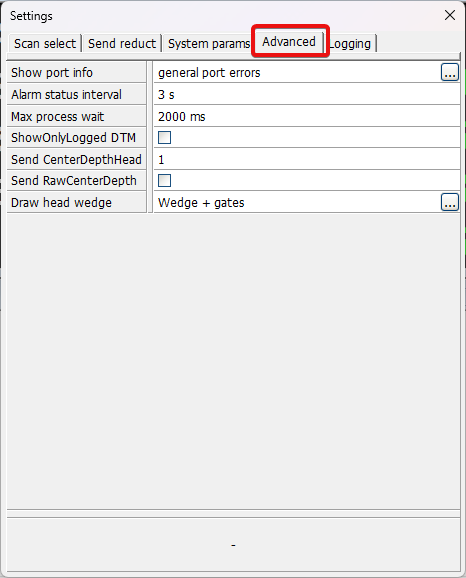
Fig. 15 Advanced
Advanced – information and options regarding the port, alarm status interval, if DTM is showed only when logging etc.
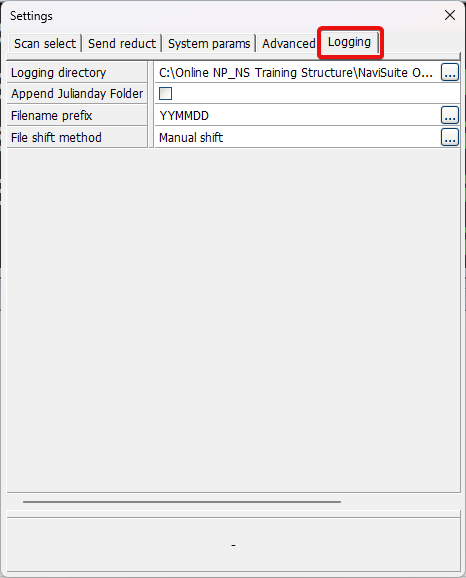
Fig. 16 Logging
Logging – setting the logging directory, file name prefix, or splitting method (shifting).
Sonar controls option is active only when the sonar can be remotely controlled (R2Sonic, Norbit). This lets the user to control the sonar properties without accessing the GUI of the sonar.
Scan filters will give the user the possibility to set filters, quality threshold or range and angle beams filters. Changes will be saved in SBD file and in config file (modified_naviscan.bin)
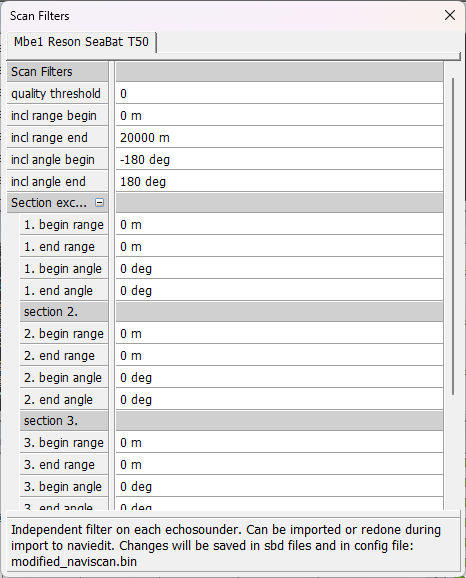
Fig.17 Scan filters
Alarm settings gives the user the possibility to set limits in sensor rates or different viewing tweaks in the Input Monitor window. Along with different data views, like packet size, user can set the waiting alarm limit (how much time NaviScan needs to process the data) or sensor rate limit (reaching the set limit will trigger the alarm).
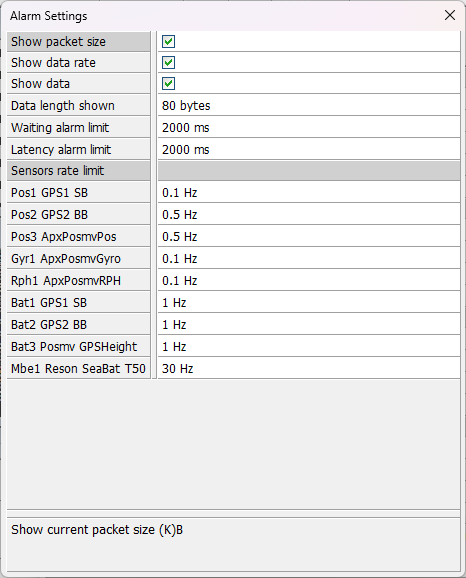
Fig. 18 Alarm settings
Load/Reload SVel profile will load or reload a sound velocity profile (an ASCII file).
Remove SVel profile will be active only if it is already loaded a sound velocity profile.
Load/Reload CTD for bathy will allow the user to choose a CTD file to load. There are a significant number of predefined templates, but users can define their own template.
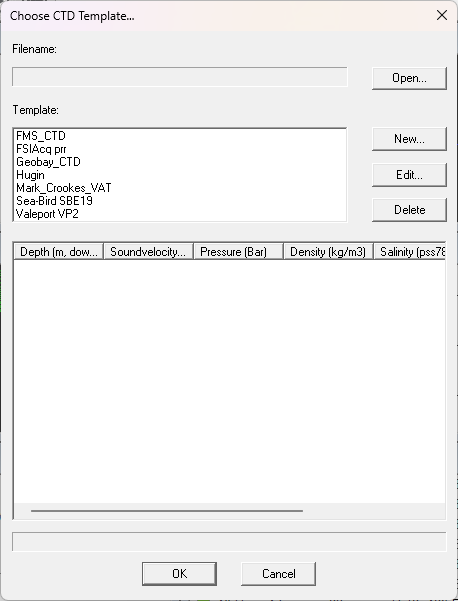
Fig. 19 Loading a CTD file with the help of a template
Remove CTD for bathy will remove an already loaded file.
Load tide table is loading a tide file. In order to use predefined or new templates, a tide file must be first loaded.
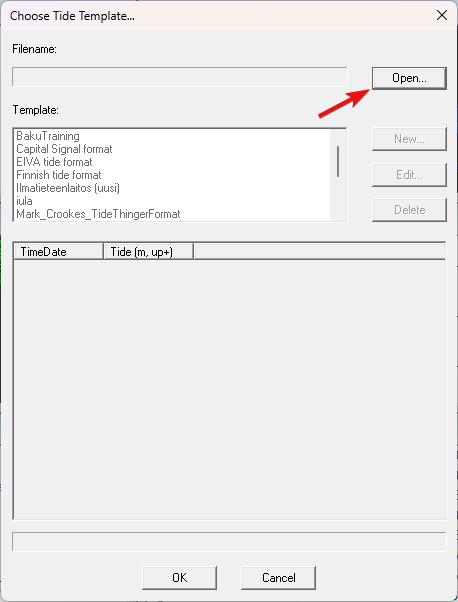
Fig. 20 Loading a tide file with the help of a template
Remove Tide table will remove the tide file.
Print is active when a window can be plotted to a selected printer (ie Profile window).
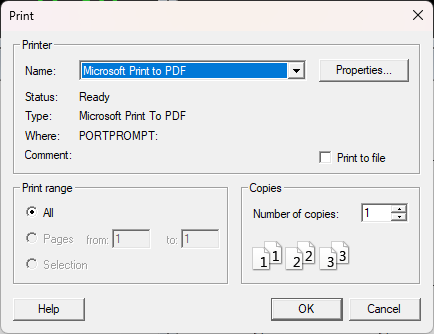 Fig. 21 Print option
1.5 Tools menu
The tools menu includes the following options: ATTU Monitor, Extract, NaviScan Exporter, SV Profler, SV monitor, SVP2Fansweep, SBD Splitter, SBD minimizer and Simulator.
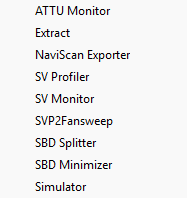
Fig. 22 Tools
1.5.1 ATTU Monitor
Used for ATTU Time Synchronization program (AttuMon.exe). It was created for the purposes of monitoring the ATTUs and synchronization the system time of the computer with one of them.
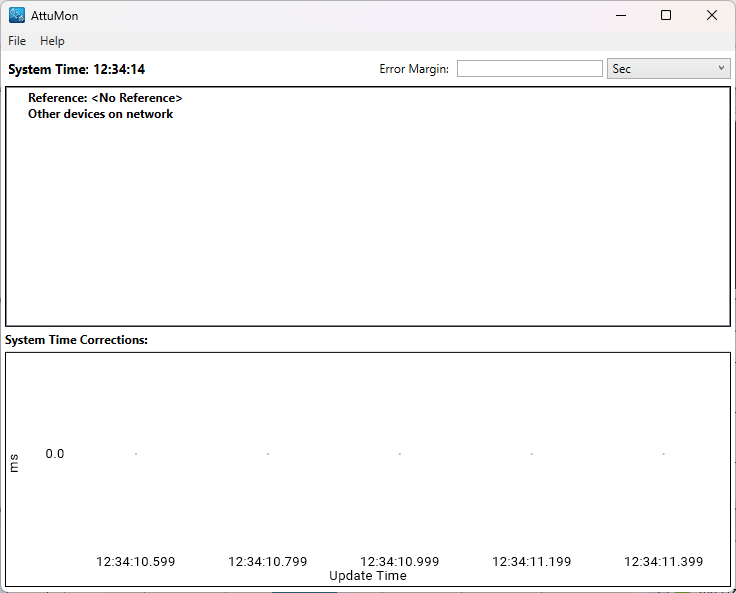
Fig. 23 - ATTU Monitor
Extract - to extract information to MS Excel readable files for quality control.
NaviScan Exporter To convert sbd files into different formats (.xyz, .fau, .bxyz, .ned, .xtf, .ori, .fld, .xyzi) and modify the data inside (swap bytes and invert depths).
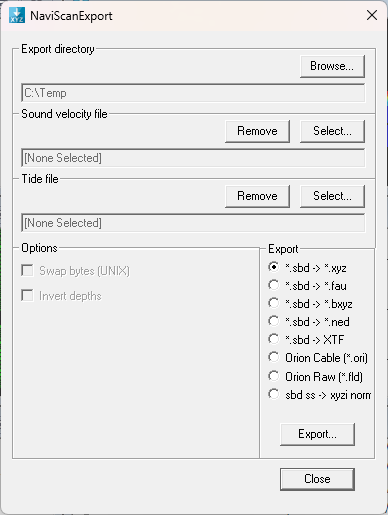 Fig. 24 NaviScan Export
SV Profiler To read/show and edit sound velocity profiles.
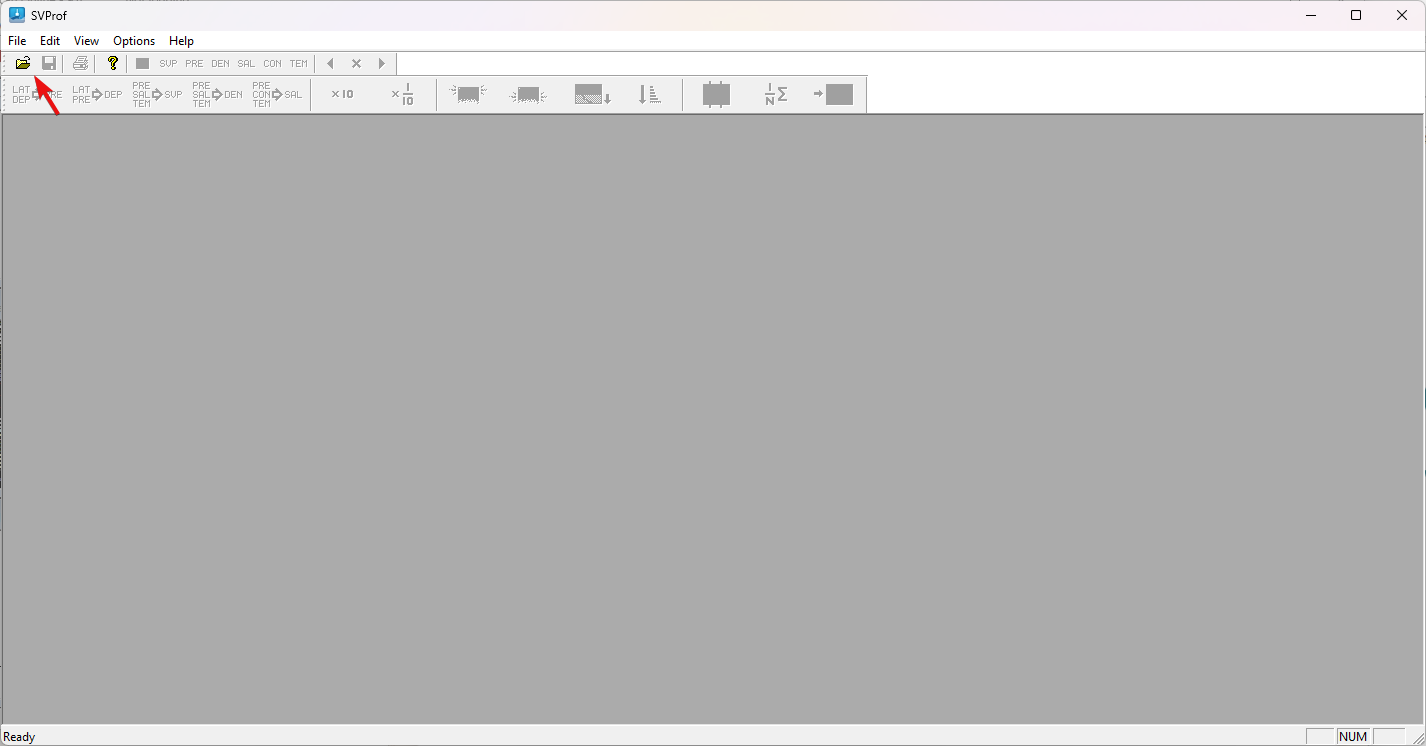 Fig. 25 SVProf window
SV Monitor To monitor sound velocity read from ScanFish software.
SVP2Fansweep For Hydrosweep inbound server, these setup items are used (here with default settings): hmsystemid=9 hmasddatatype=8 hmmbechannel=es_targets_port hmmotionchannel=fs20_motion_1 For the SVP to Fansweep program these items are used: XDR Port=3070 z-keel=0.050 .
SBD Splitter To split an SBD file, by kp or size.
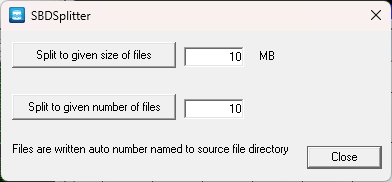
Fig. 26 - SBDSplitter
SBD Minimizer will strip from an SBD file the echosounder, sidescan and motion data.
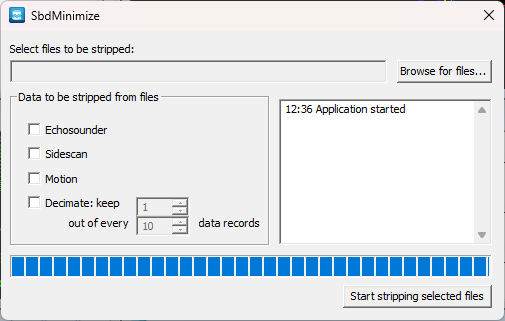
Fig. 27 SbdMinimize
Simulator open a simulator application to help users simulate different equipment like echosounders, gyros etc. User can choose the instrument, the port settings (UDP/COM etc) and interval for sending data (frequency of the data, in ms).
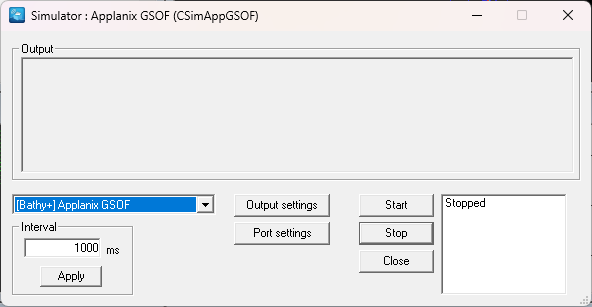
Fig.28 NaviScan Simulator
1.6 Help menu
This menu contains information about port settings, licence activator and the current software installed.
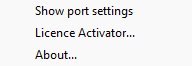 Fig. 29 help menu
Show port settings will bring the NaviScan setup window, so the users can check, in a single view, the port type, IP address, COM ports and others.
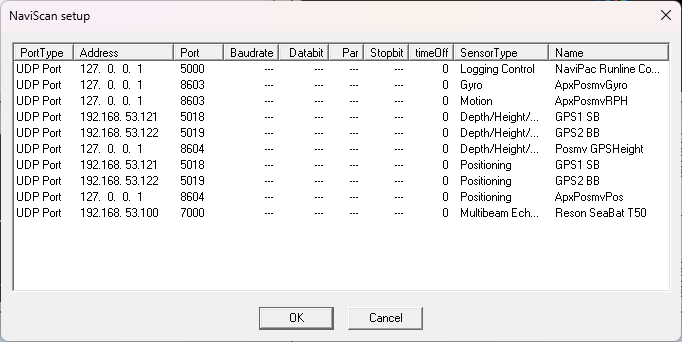
Fig.30 NaviScan setup one view window
Licence Activator will open the LicenceActivator program, where the PC code and other information is displayed.
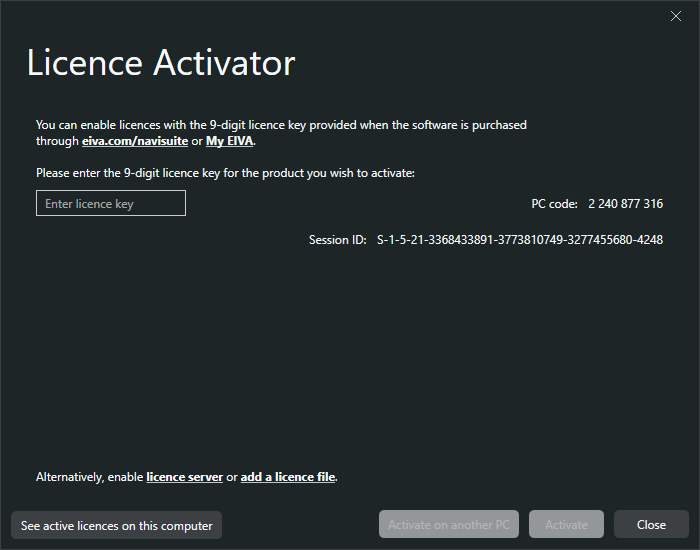
Fig. 31 Licence Activator
About opens the program information, like the version number and licence information.
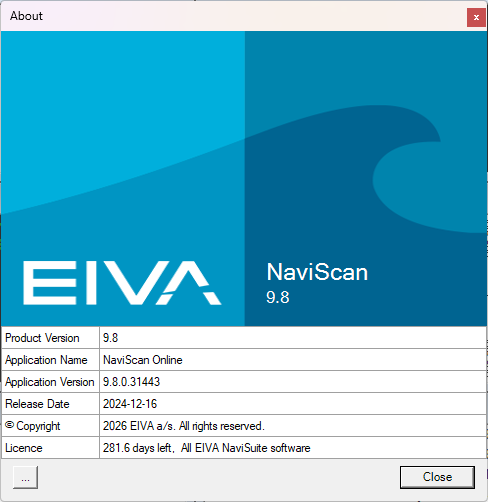
Fig.32 About
2. Toolbar
The NaviScan toolbar provides quick access to the user to access different commands.

Fig. 33 NaviScan toolbar
2.1 Save
The function of this icon is to save the current project configuration (windows open and their position).

Fig. 34 NaviScan toolbar
2.2 Record
This button starts recording (logging a SBD file) to the location defined by user or the default location (C:\EIVA\NaviScan\Log).

Fig. 35 NaviScan toolbar
2.3 New Line
This button will stop the current recording and starts a new recording (active only when already recording).

Fig. 36 NaviScan toolbar
2.4 Stop
This button stops the current recording (active only when already recording).

Fig. 37 NaviScan toolbar
2.5 Cascade and tile and windows
These buttons automatically arrange the windows in different positions (cascade, tile horizontal or vertical).

Fig. 38 NaviScan toolbar
2.6 Toggle legend
This button toggles the legend in different windows (where available).

Fig. 39 NaviScan toolbar
2.7 Measure
This button performs a measure (where available).

Fig. 40 NaviScan toolbar
2.8 Print
This button prints a specific selected window (where available).

Fig. 41 NaviScan toolbar
2.9 Pause
This button pauses the current file playback (available only when already playing back a file).

Fig. 42 NaviScan toolbar
2.10 Play
This button resumes playing back a file if it is paused.

Fig. 43 NaviScan toolbar
11. Increase playback speed
This button increases the playback speed (used, for example, when the file is very long).

Fig. 44 NaviScan toolbar
3. The palette bar
The colors in all windows that uses color coded depths is controlled from the Palette Bar.
 Fig. 45 The Palette Bar
Interval Start is where the color coding should start. Step is the size of each interval. Press Apply to recalculate the intervals without changing intervals that has been modified. Press Reset to recalculate all intervals.
High contrast uses predefined palette, containing high contrast colors.
Rainbow uses predefined palette, containing rainbow colors.
Faded uses faded palette, which start end end colors can be set using the two combo boxes in each end of the palette.
Custom Uses custom palette, which has been loaded.
Color combo boxes (White & blue) they are enabled when Fixed colors is not checked, they determine the start and stop color for a shaded palette.
Color list shows the colors and intervals as they are used. By right clicking on an interval, the menu shown on the figure appears. Edit color… opens a standard choose color dialog where another color for the interval can be selected. Edit interval size… opens a small dialog where a new size for the interval can be entered.
Wrap around when checked, the palette is repeated before and after the one shown. NaviScan Online always uses wrap around.
Use n colors here you can choose to use less than 16 colors.
Load loads a palette, containing 16 colors.
4. Workspace area
This is where the selected windows from the View menu are opened and arranged. The user can arrange these windows as tiles, cascades, or manual. The information provided by these windows is essential for a successful survey. If Helmsman display is to be used, a part of these informations are available there as well after establishing the connection with the NaviScan Server.
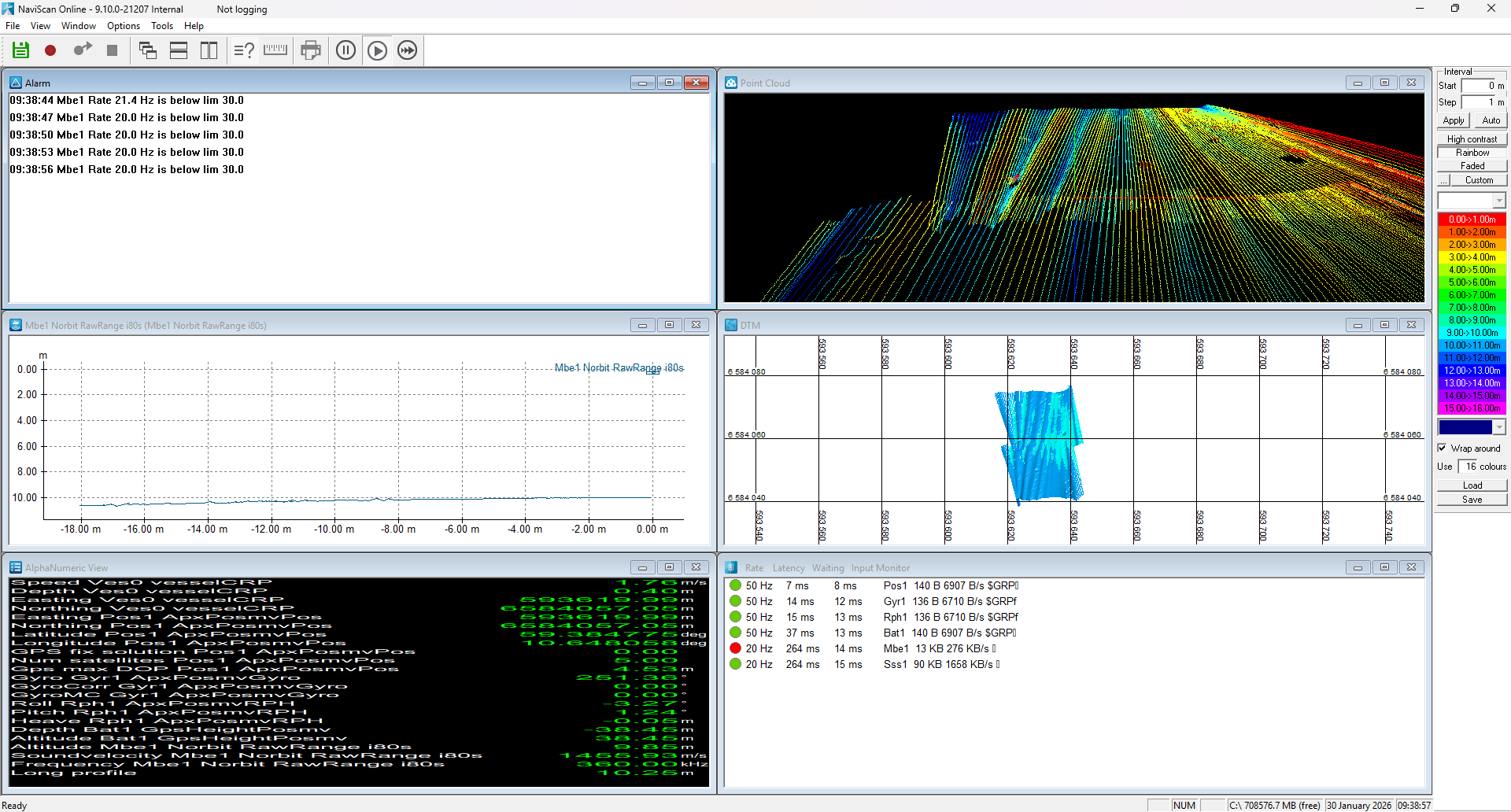
Fig. 46 - Workspace area
These windows (only if available) are selected from the View menu. the most common open windows will be presented next
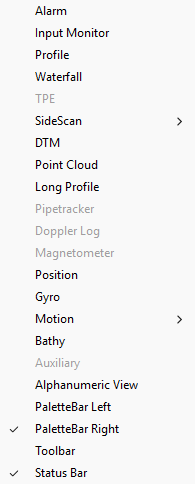
Fig. 47 Available windows
4.1 Alarm
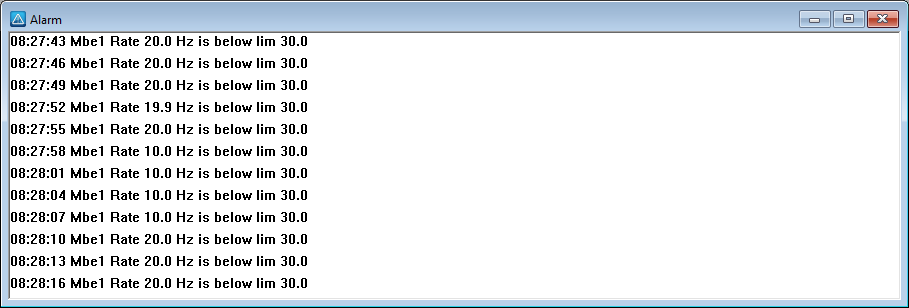
Fig. 48 Alarm window
The alarm limits can be set by right-clicking in this window and selecting Alarm settings
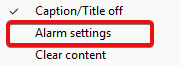
Fig. 49 Alarm settings
In the Alarm settings window, there is the possibility to set different data views (packet size, data rate or data string), alarm waiting limits, or sensor rate limits. If the limit set by user is exceeded (below the selected value), alarm will trigger and a red light will be displayed near the instrument
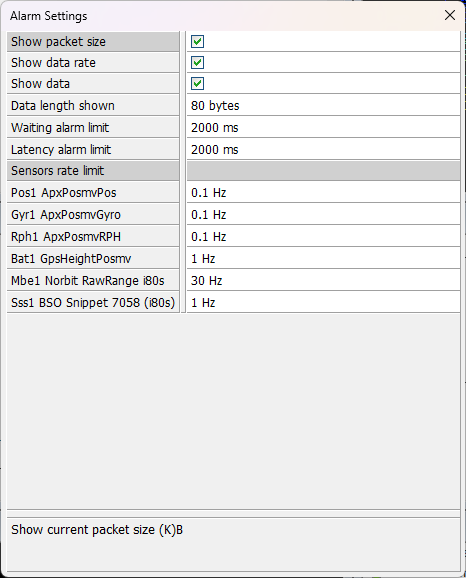
Fig. 50 Other settings
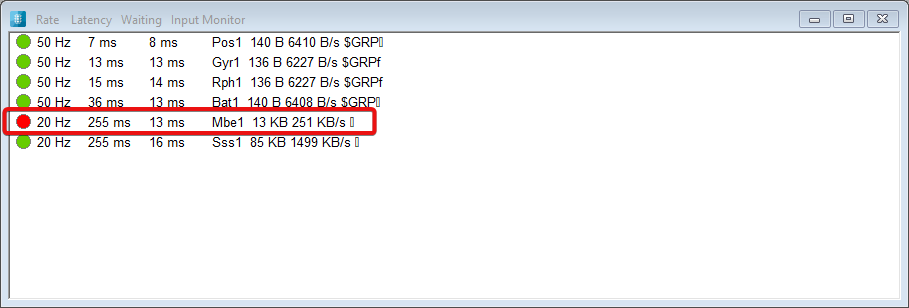
Fig. 51 Example of an alarm
4.2 Input Monitor
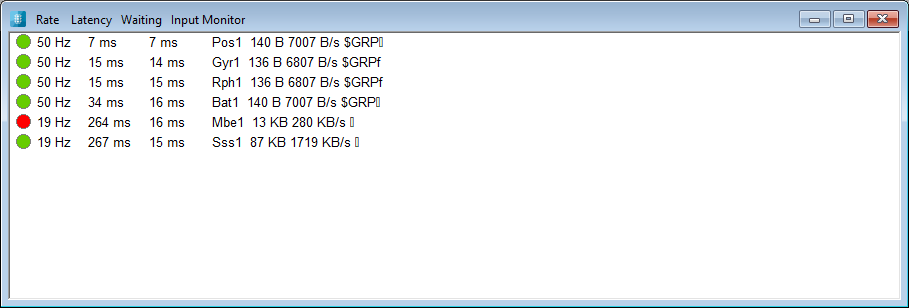
Fig. 52 Input monitor with MBE not meeting the alarm settings
The main purpose of this window is to monitor the active instruments from NaviScan Config setup. Information like rate, latency and waiting time are displayed here. The LED lights will be green if no alarm is triggered, red, if the displayed values (rate or latency) are beyond the minimum selected values in Alarm Monitor, or grey, if no alarm has been set to that particular instrument (alarm is set to 0).
4.3 Profile
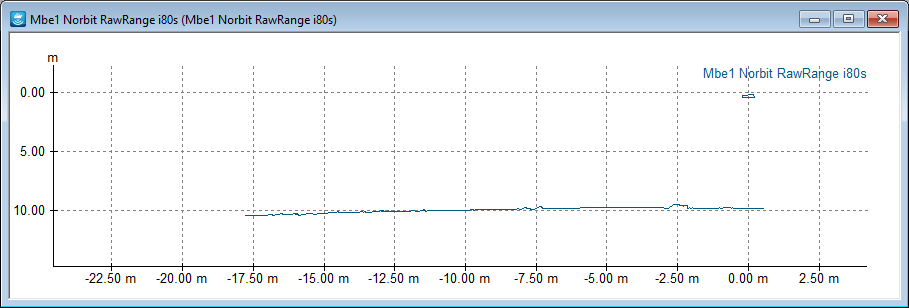
Fig. 53 Profile window
This window shows in real-time the Multibeam profile and its head position relative to the seabed. X axis will show the length of the swath and Y axis will show the water depth.
Right-clicking on this window will show different options, like zooming , filters or settings
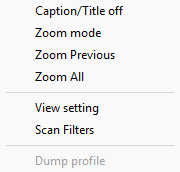
Fig. 54 Options inside a window
4.4 Waterfall
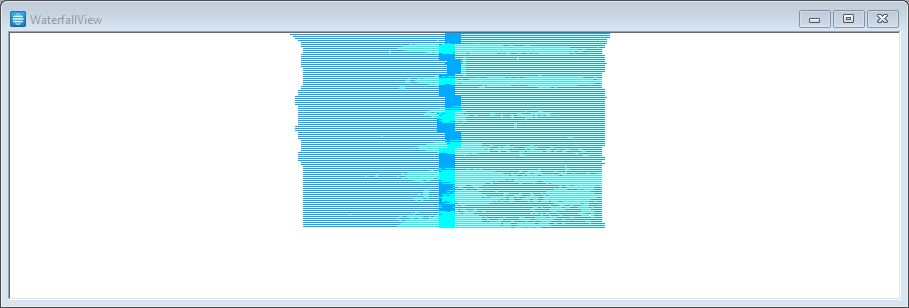
Fig. 55 Waterfall view
The waterfall window is showing live waterfall data from the Multibeam.
Right-clicking on this window will show different options, like settings, print, or redraw window
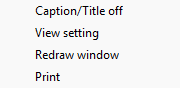
Fig. 56 Waterfall view settings
4.5 Sidescan
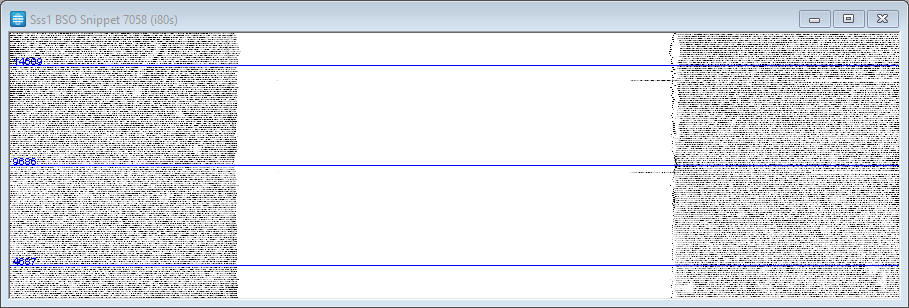
Fig. 57 Sidescan view
Sidescan window is showing in real-time the snippets from the Multibeam.
Right-clicking on this window will show different options, like settings, print, or color palette
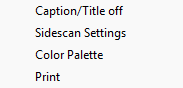
Fig. 58 Sidescan settings
4.6 DTM
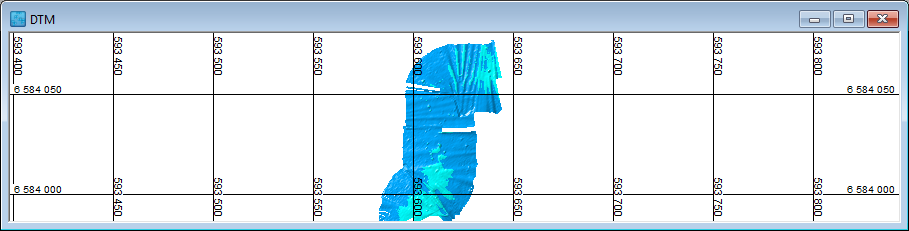
Fig. 59 DTM window
Live DTM data is displayed in this window. Right-clicking on this window will display settings, different histograms, or the color of the DTM based on average depth, density, or other.
Right-clicking on this window will show different options, like settings, different histograms or 3D window
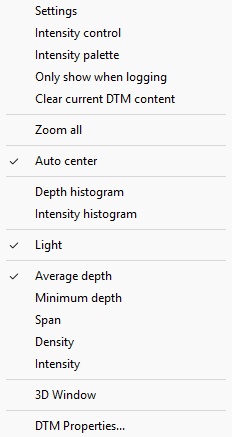
Fig. 60 DTM options
4.7 Point Cloud
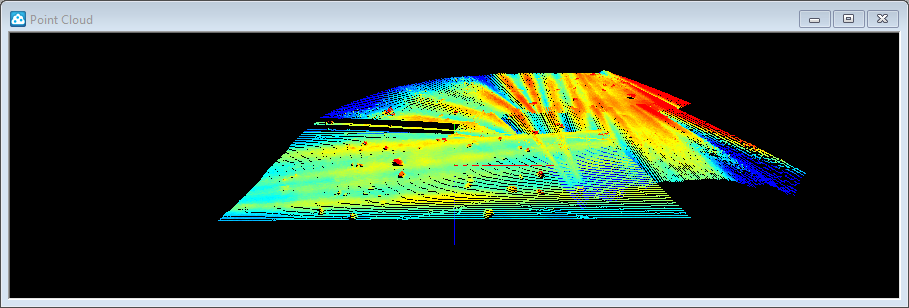
Fig. 61 Point Cloud window
A live point cloud can be set-up in this window. Right clicking on the window will give the user the possibility to change some settings, like the color depth , the source of the Z source and others.
4.8 Long profile
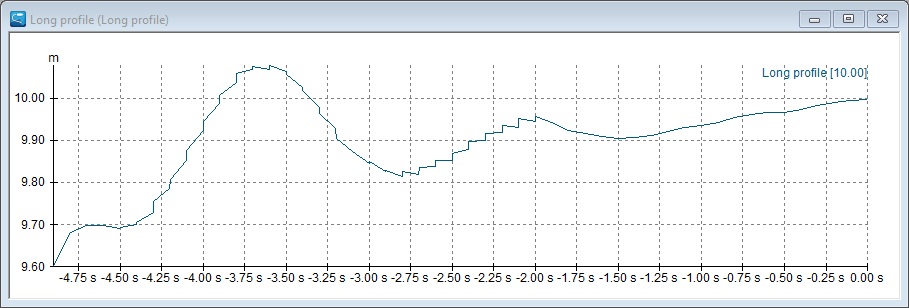
Fig. 62 Long profile window
A longitudinal profile can be set-up here. X axis will show the time, Y axis will show the depth. Right-click for settings, where you can define what data should be visible in the profile, colors etc.
4.9 Pipetracker
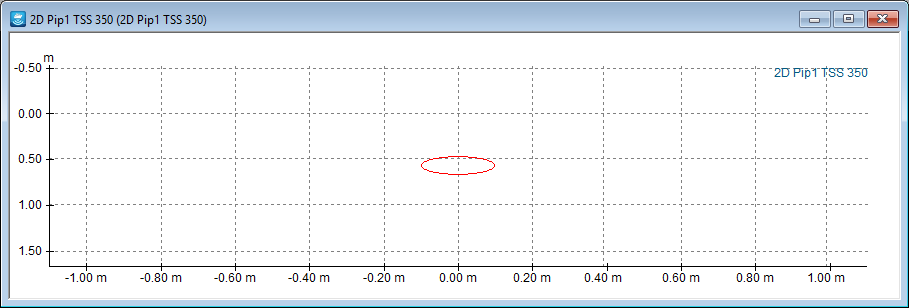
Fig. 63 Pipetracker window
In this window, the pipetracker data is shown (a pipe was simulated in this example, but because of the window dimensions, it looks oval. X axis will give a horizontal distance and Y axis will give the water depth.
4.10 Doppler Velocity Log (DVL)
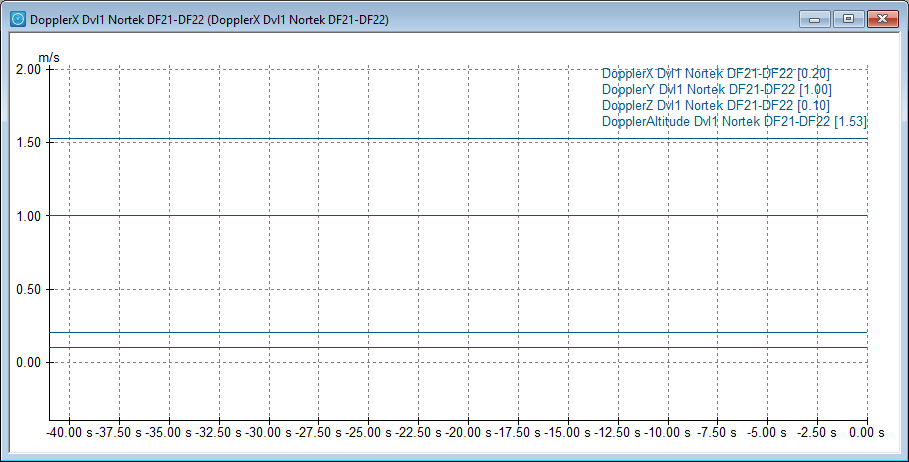
Fig. 64 DVL window
Graphical data of the DVL is shown in this window. X,Y,Z data with the sound velocity is shown in the Y axis and a timeline in the X axis.
4.11 Magnetometer
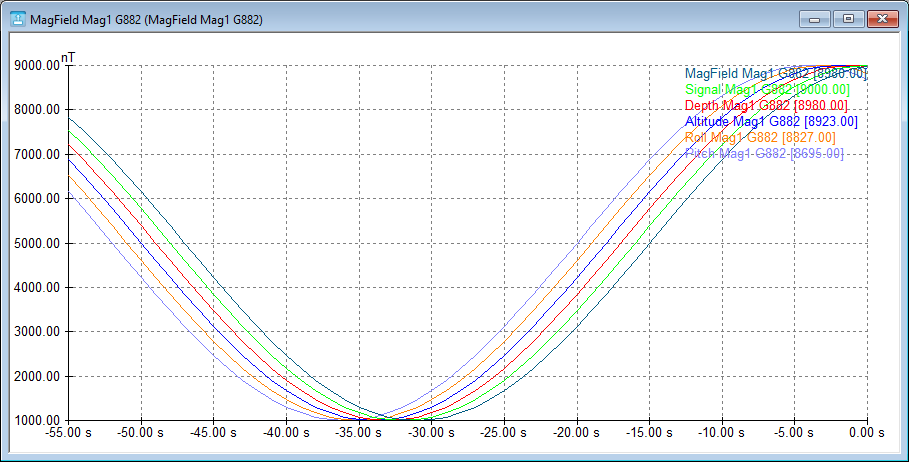
Fig. 65 Magnetometer window
A magnetometer can display multiple data views, like field, signal, altitude. On the X axis, there is a timeline, on Y axis. it is a magnemoter measure (nT).
4.12 Position
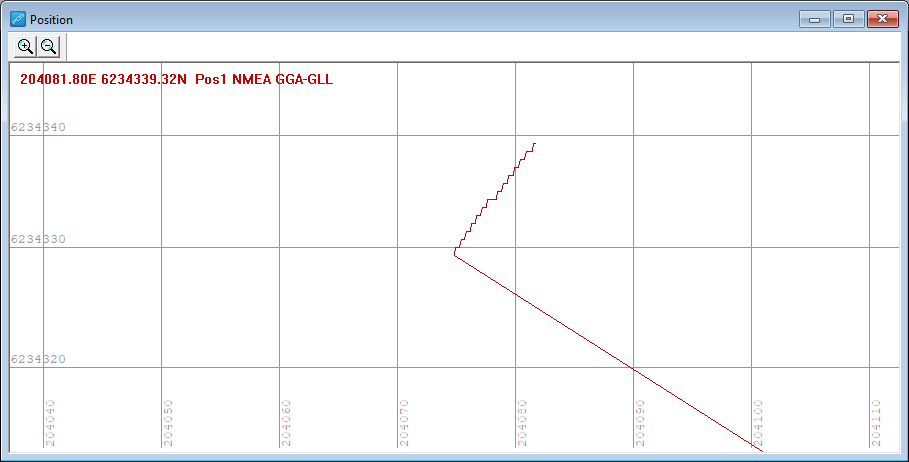
Fig. 66 Position window
A plot of the vessel position is represented in this window, along with the real-time coordinates (E,N)
4.13 Gyro
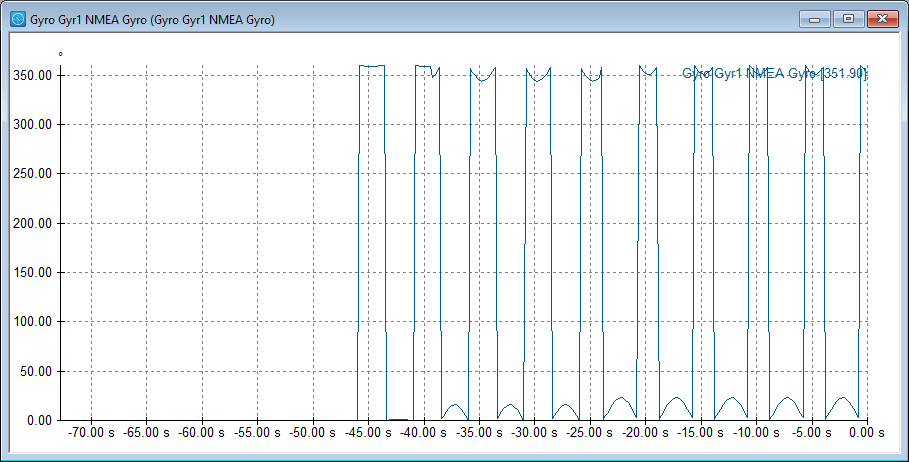
Fig. 67 Gyro window
The Gyro window gives the information over time about the vessel's heading
4.14 Motion (Roll, Pitch, Heave)
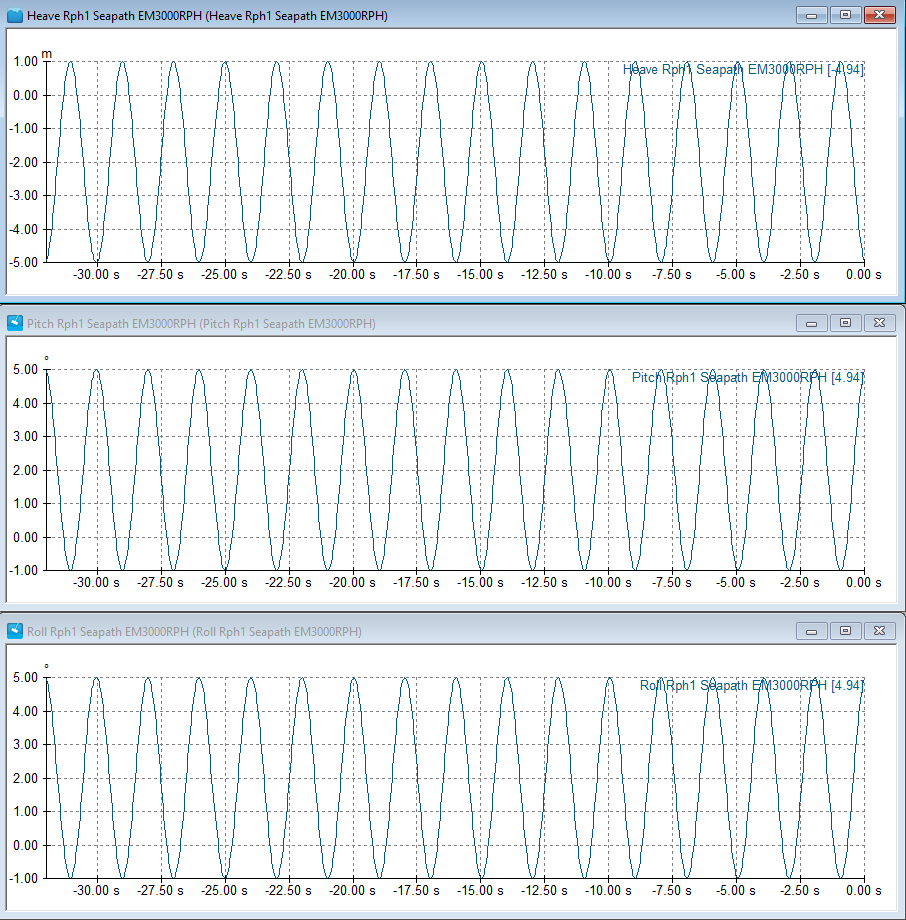
Fig. 68 Motion windows (RPH)
The Motion window gives the user the possibility to choose from Roll, Pitch and Heave, or all of them. Information regarding the motion is presented in time, degrees or meters.
4.15 Bathy
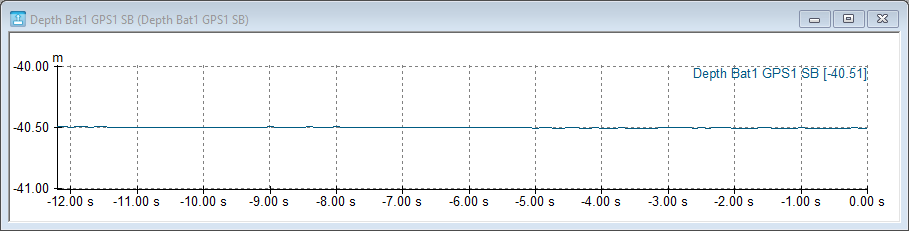
Fig. 69 Bathy window
The sea depth is displayed in this window, based on the surface pressure, or a pressure sensor
4.16 Alphanumeric View
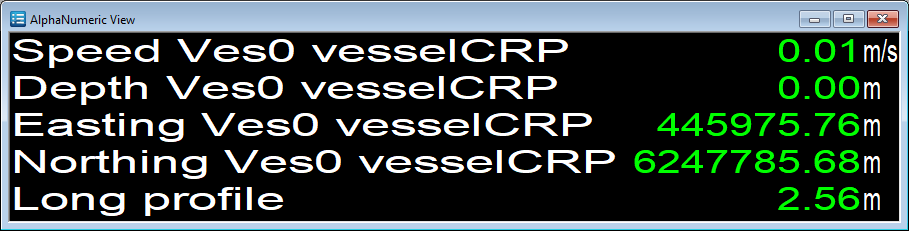
Fig. 70 Alphanumeric view
An interface based on the selected instruments and the values provided by them is displayed in this window. The list is fully customizable.
4.17 Palette position, toolbar and status bar can be custom arranged or viewed, based on the user options
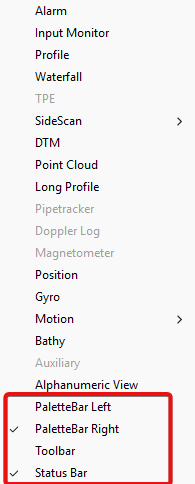
Fig. 71 Options for palette bar, toolbar and status bar.