
NaviModel Producer has the ability to clean DTMs and Point Clouds with various methods available in the Point Cleaning Toolbox shown below. The methods are classified in 3 categories: Automatic, Semi-automatic and Manual cleaning. Together with these, other two options, Accept everything and Save to External, compliment the work of a data processor for correcting a mistake during cleaning or for saving the work to the NaviEdit database.
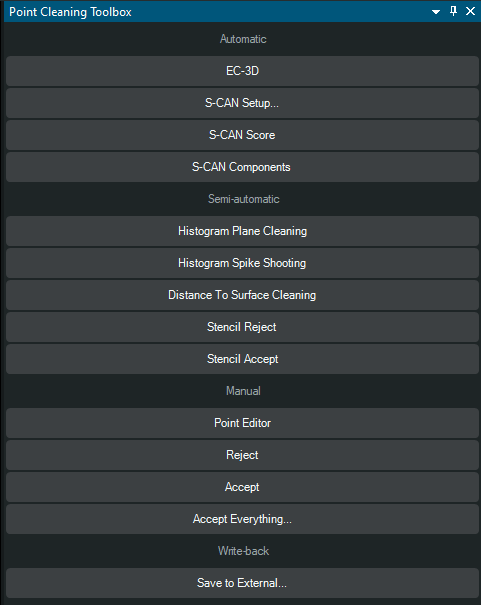
Figure 1. Point Cleaning Toolbox
Cleaning Point Clouds
The Point Cloud toolbar is turned on by selecting Point Cloud Toolbar from the Main Toolbar.

Figure 2. Point Cloud toolbar
Select Tool can be turned on/off by enabling the arrow button in the Map View window, point to a point cloud and click to select. Once a selection is made on the Point CLoud the user can choose to delete it by pressing delete key on the keyboard.
Selection tool can be used to select points within a point cloud. After you can drag a window around any points that should be cleaned, with the help of the keyboard.
Toggle clipping planes - tool lets you slice through a point cloud to view and work on a limited section of the data. You can move and rotate the plane to create cross sections from any directions.
Reject selection - marks the selected points as rejected without deleting them from the dataset. Rejected points remain stored but are excluded from surfaces, calculations and exports that use accepted data only
Cut out selection - removes selected portions of the point cloud from the working dataset. Unlike clipping, which only hides data, this action permanently deletes the chosen points, allowing you to eliminate noise, outliers.
Copy selection - duplicates the selected points and places them in a new location or dataset, depending on workflow. This allows you to reuse specific features without altering the original data.
Invert selection - Reverses the current selection in the point cloud. All previously selected points become unselected, and all unselected points become selected.
Select by attribute - allows you to select points based on their data attributes rather than their location.
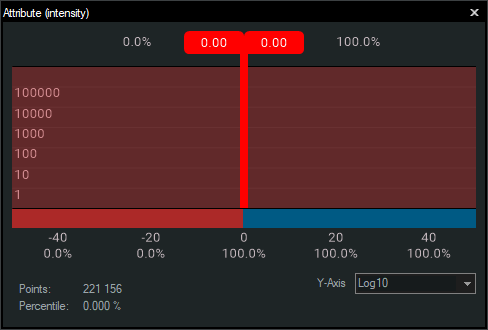
Figure 3. Attribute selection
Cleaning DTMs
Automatic methods
EC-3D and S-Can, can clean automatically, based on the user settings, the entire DTM or portions of it selected by the user.
More information about the EC-3D can be found here: https://eiva.freshdesk.com/support/solutions/articles/43000760771-ec-3d-cleaning-tool-in-navimodel-producer
More details about the S-CAN cleaning tool in the Help section of the NaviModel.
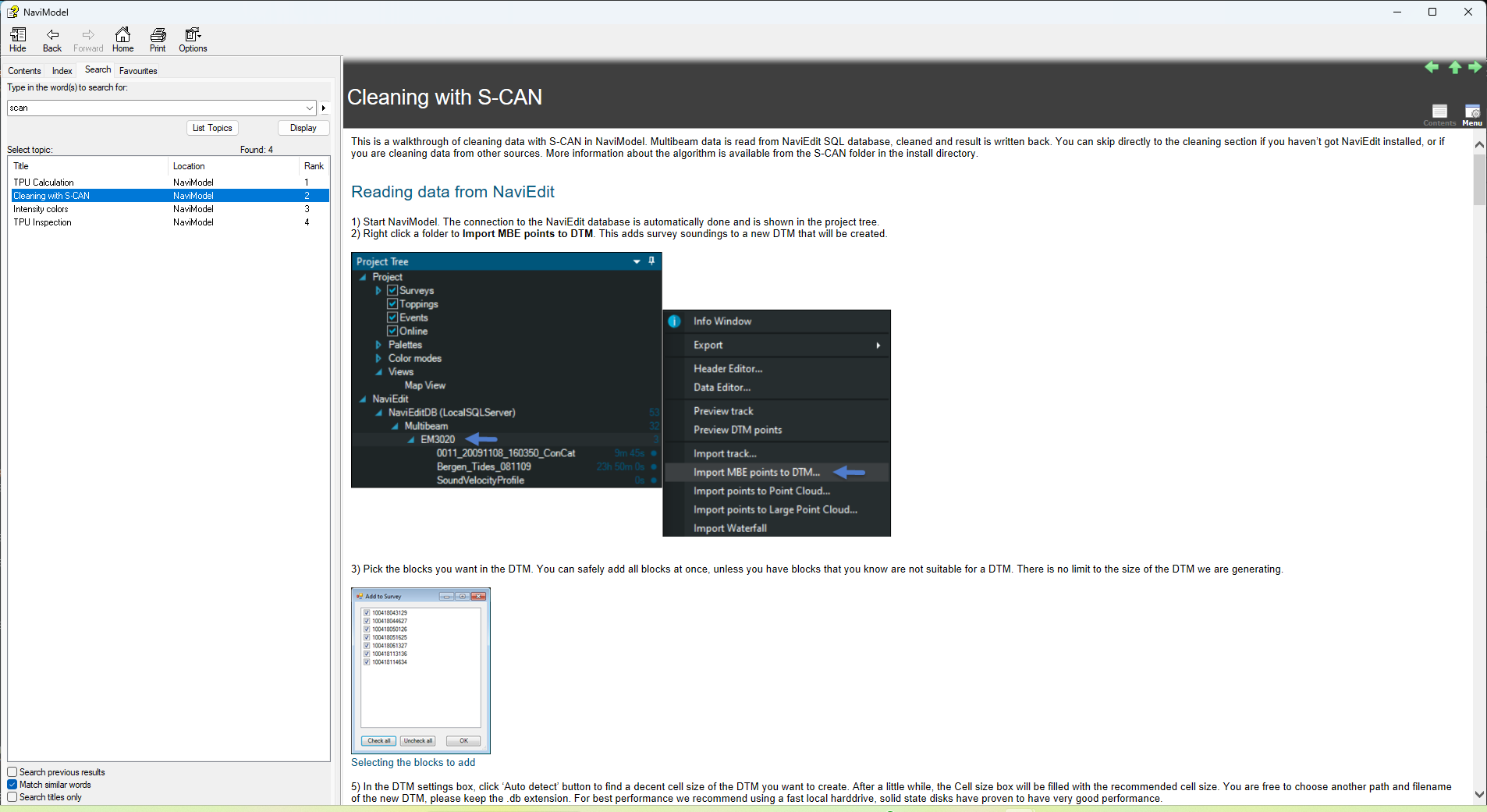
Figure 4. S-Can information in the Help section
S-CAN Setup... defines the processing used by S-CAN cleaning tools
It controls where temporary data is stored and how much system memory the module can use during execution.
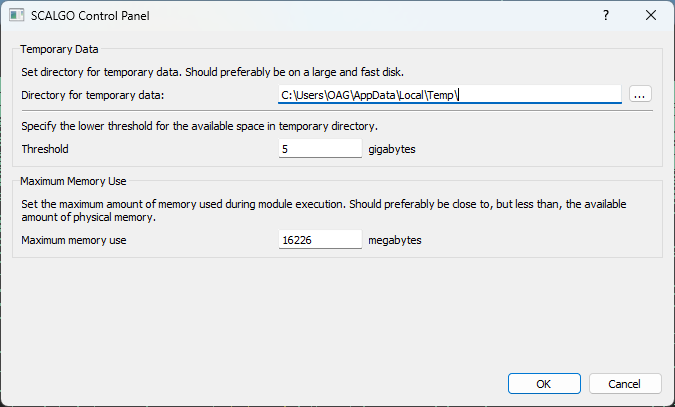
Figure 5. SCALGO window
S-CAN Score evaluates the quality of points in the point cloud based on statistical analysis performed by S-CAN.
Semi-automatic methods
S-CAN components controls how the algorithm evaluates point quality by defining the local surface model used in the analysis.
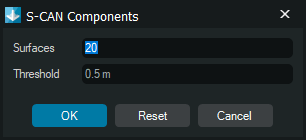
Figure 6. S-Can components inputs
Histogram plane cleaning method is a graphical display of the distribution of the numerical data in range. On the graph the x axis represents the distance away from the plane, plane represented as zero, the y axis represents the number of points. The user can select the range of the accepted points and press Apply to reject the desired data.
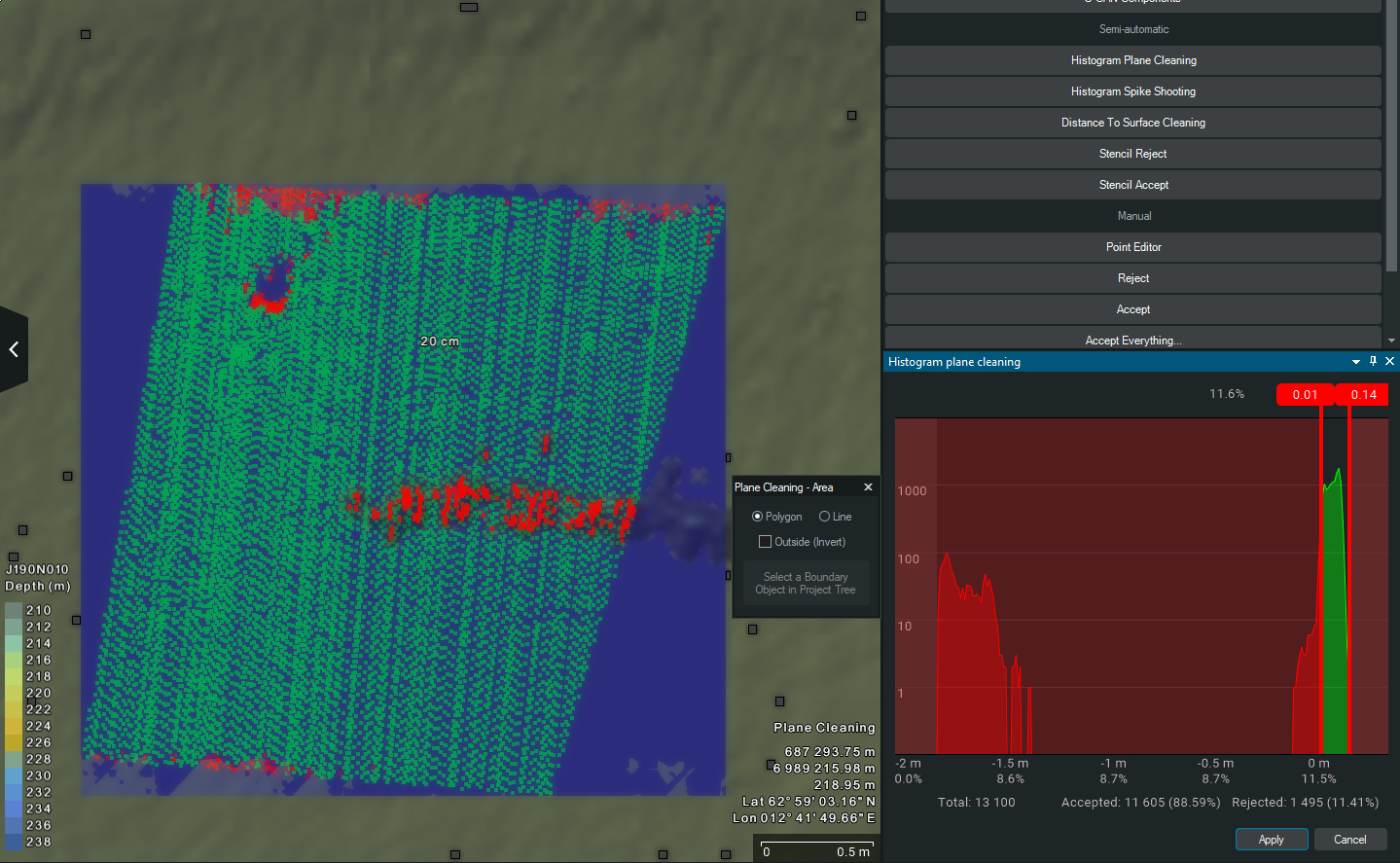
Figure 7. Histogram plane cleaning
Histogram spike shooting method is similar to the plane method described above, with the difference in the selection mode. Selection mode is a circle that can be adjusted by pressing the Shift key and moving the mouse wheel up or down.
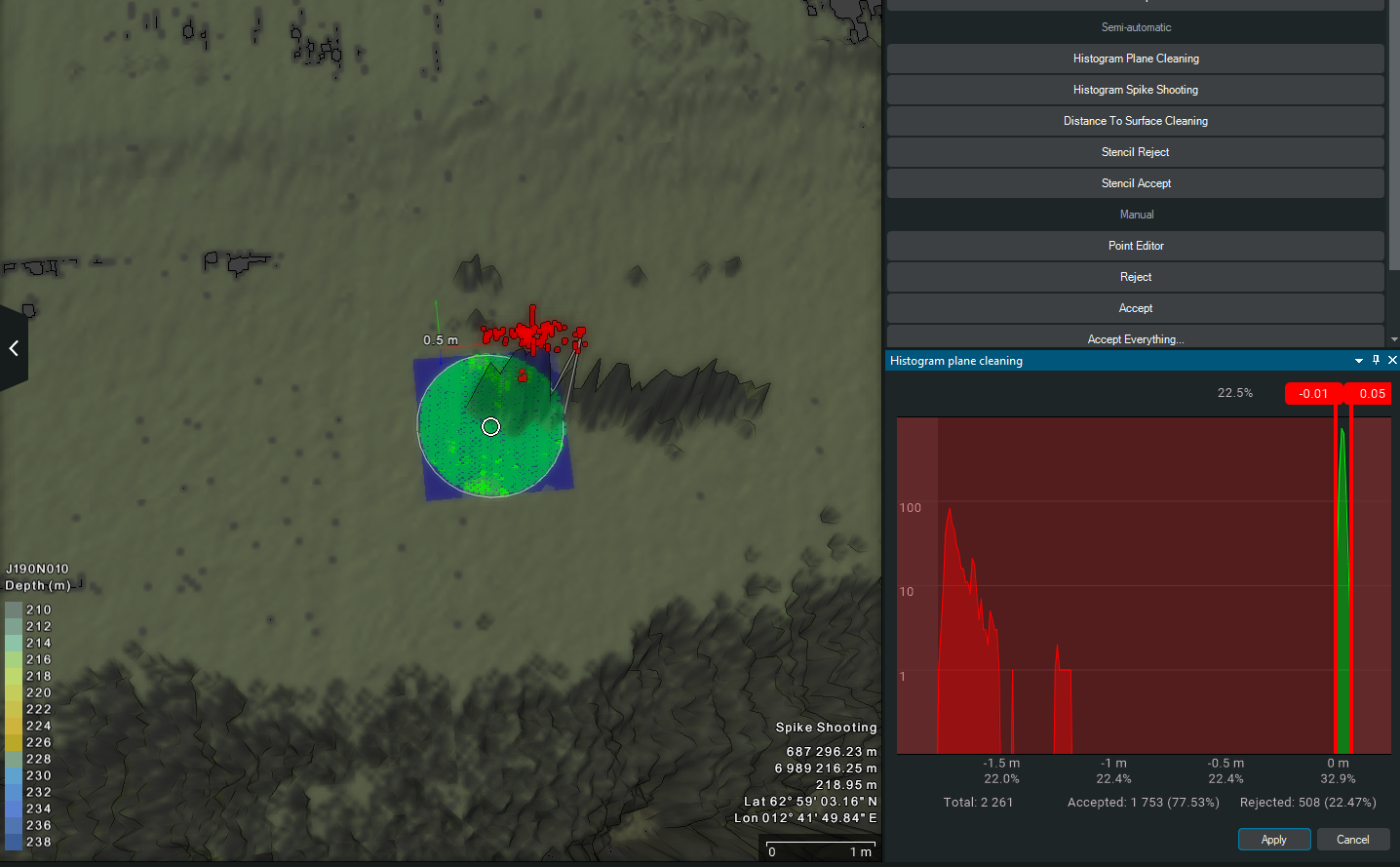
Figure 8. Histogram spike shooting
Distance to surface cleaning is a semi-automatic method used to remove points located beyond a defined distance from a reference surface. It is useful for eliminating noise above or below the seabed, such as water column artifacts, vegetation, suspended objects.
You can select the number of ranges (depth ranges) surface type (reference surface), Clean above survey (removes points above the reference surface), clean below survey (removes points below the reference surface),
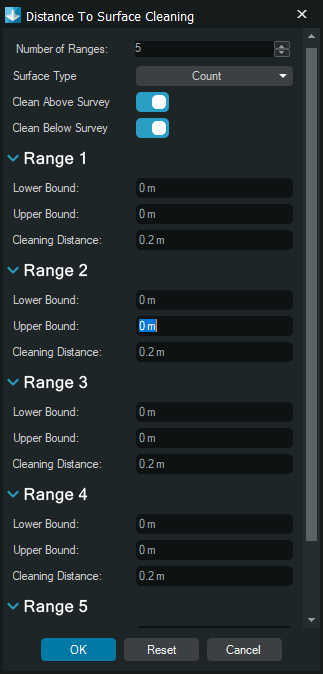
Figure 9. Distance to surface cleaning properties
Stencil Reject. After confirming Stencil Reject, NaviModel prompts you to select which files will be affected.
Is used to remove outlying points within a defined corridor around a selected line. It is applied during pipeline, cable or route surveys to eliminate the main feature. The ctool creates a corridor based stencil around a selected line. Points that fall outside the expected surface profile within the stencil diameter and noise threshold are flagged for rejection
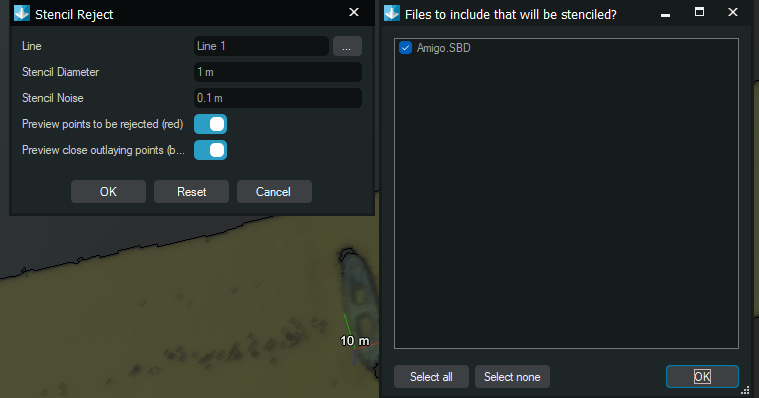
Figure 10. Stencil Reject properties
Stencil Accept. Keeps valid points within a defined corridor around a selected line and rejects outside the tolerance. It is used to preserve data along pipelines, cables, or routes while removing surrounding noise. Only points within the stencil corridor are retained
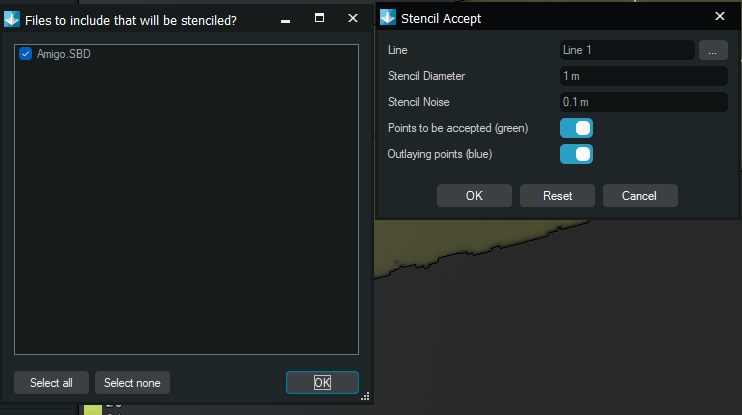
Figure 11. Stencil Accept properties
Manual - Point Editor
Provides direct control for inspecting and editing individual point within a DTM or Point Cloud. It is used when automatic or semi-automatic methods cannot resolve specific outliers. Use this tool for precise cleanup in complex areas or around critical features.
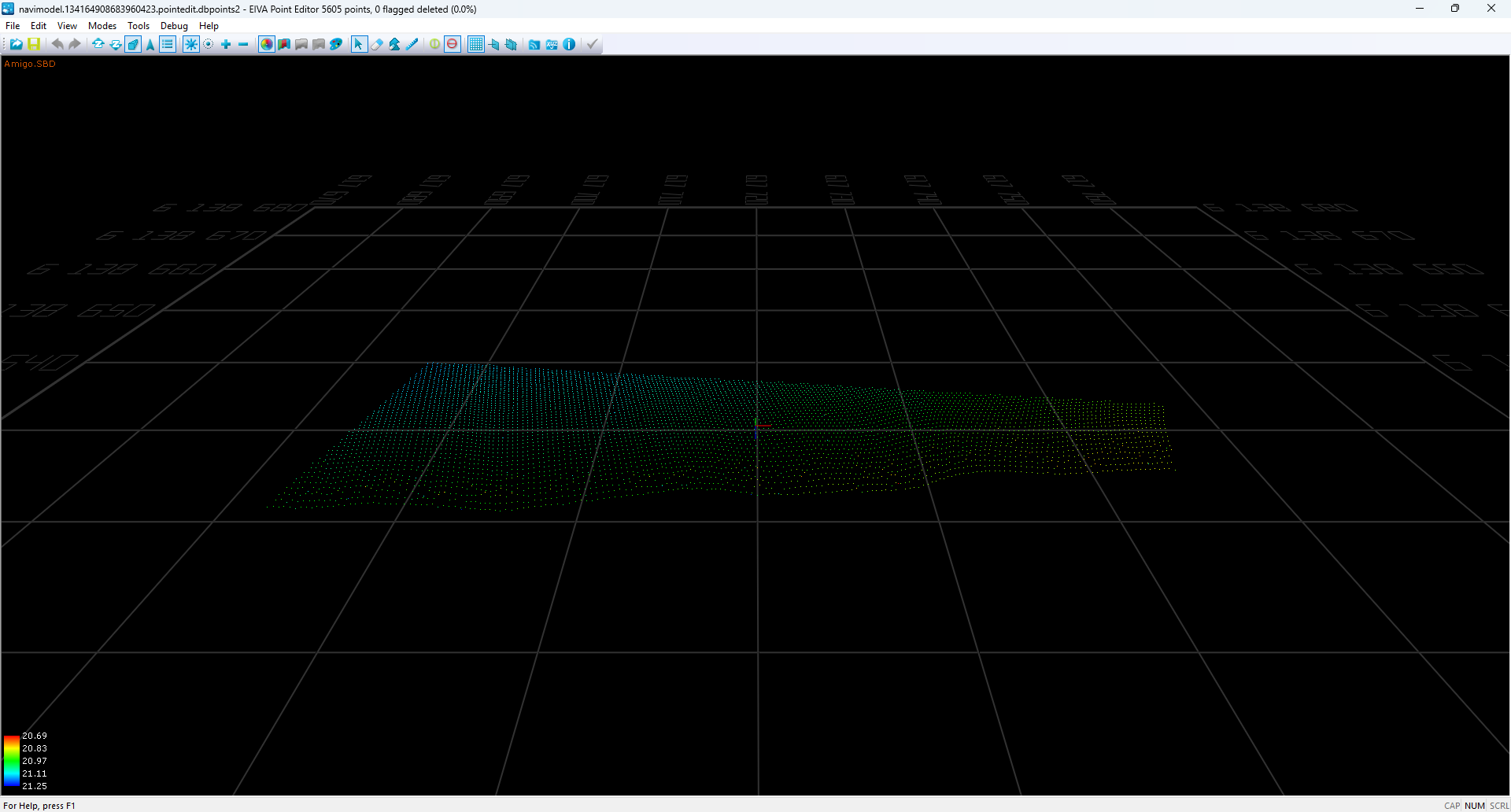
Figure 12. Point Editor
Reject - removes the selected points from the dataset. It is used within the Manual point editor to eliminate confirmed outliers. It applies to selected points and updates the view immediately after removal. Can be reversed using Accepted if needed.
Accept - restores previously rejected points. It is used within the manual point editor to recover valid data removed during cleaning.
Applies to selected rejected points. Reinstates points into the dataset. Useful for correcting unintended removals
Accept everything - restores all rejected points in the current dataset. It is used to revert cleaning actions and return the data to its original state. Applies to all rejected points. reverses previous cleaning operations. Useful when a cleaning step needs to be undone completely
Write back - Save to external. Stores the current editing results to an external file instead of modifying the original dataset. It is used to preserve the source data while exporting the cleaned version. Updates the project with the current edits. Save to external exports the edited data to a new file. Keeps the original data unchanged when saving externally