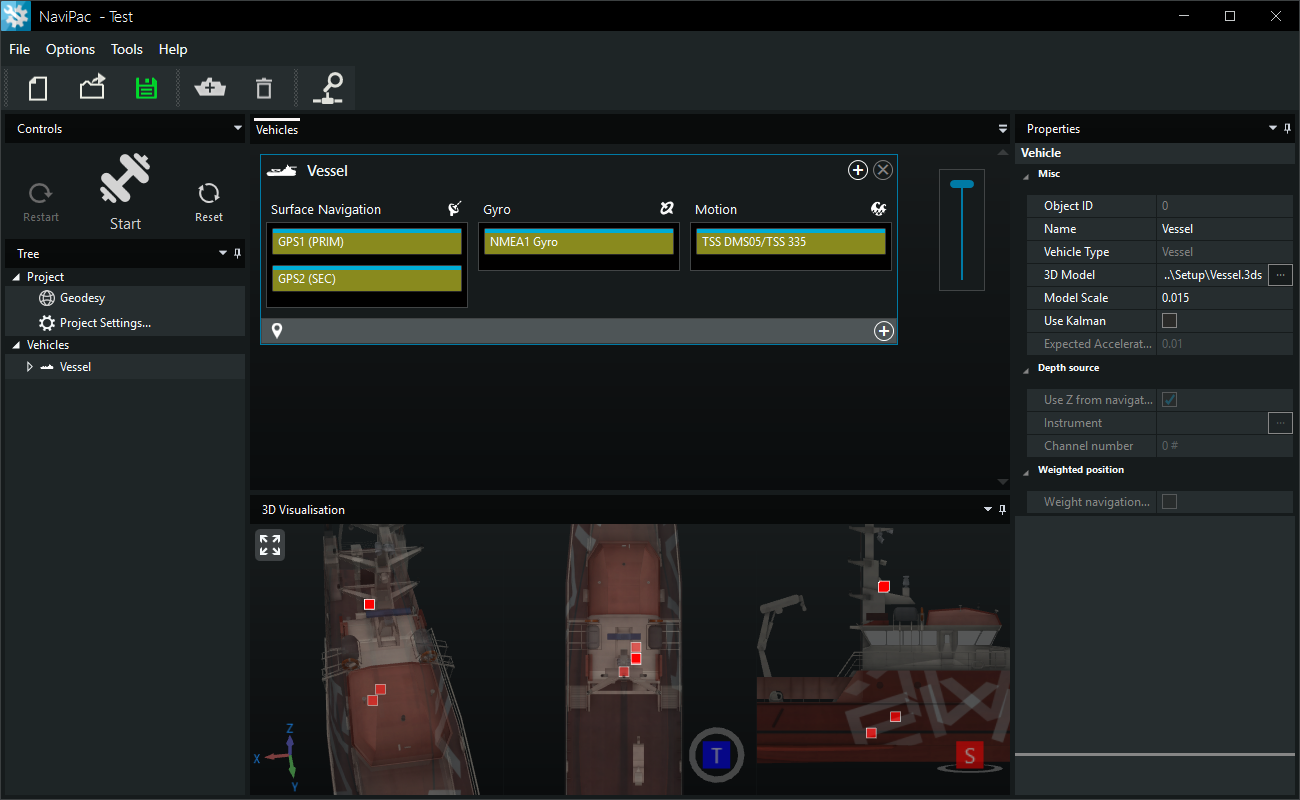
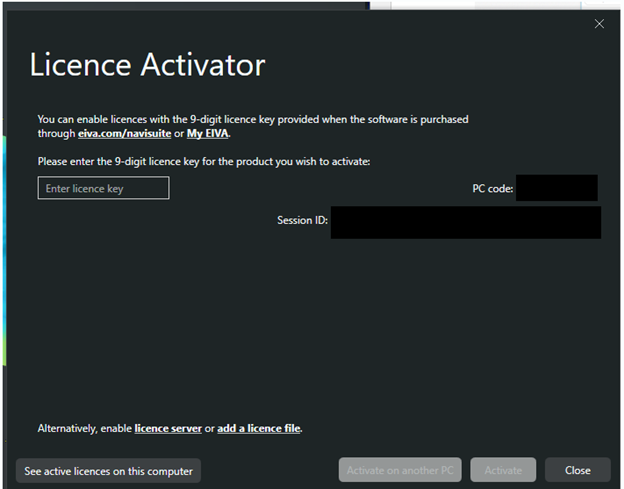
The NaviPac configuration window will be described below. NaviPac version 4 consists of two major components, configuration and online windows. When the NaviPac icon from the desktop is launched, the below window will appear on the screen. If it is a first time and no licences are activated yet, first you will see the Licence activator window (https://eiva.freshdesk.com/a/solutions/articles/43000615912)
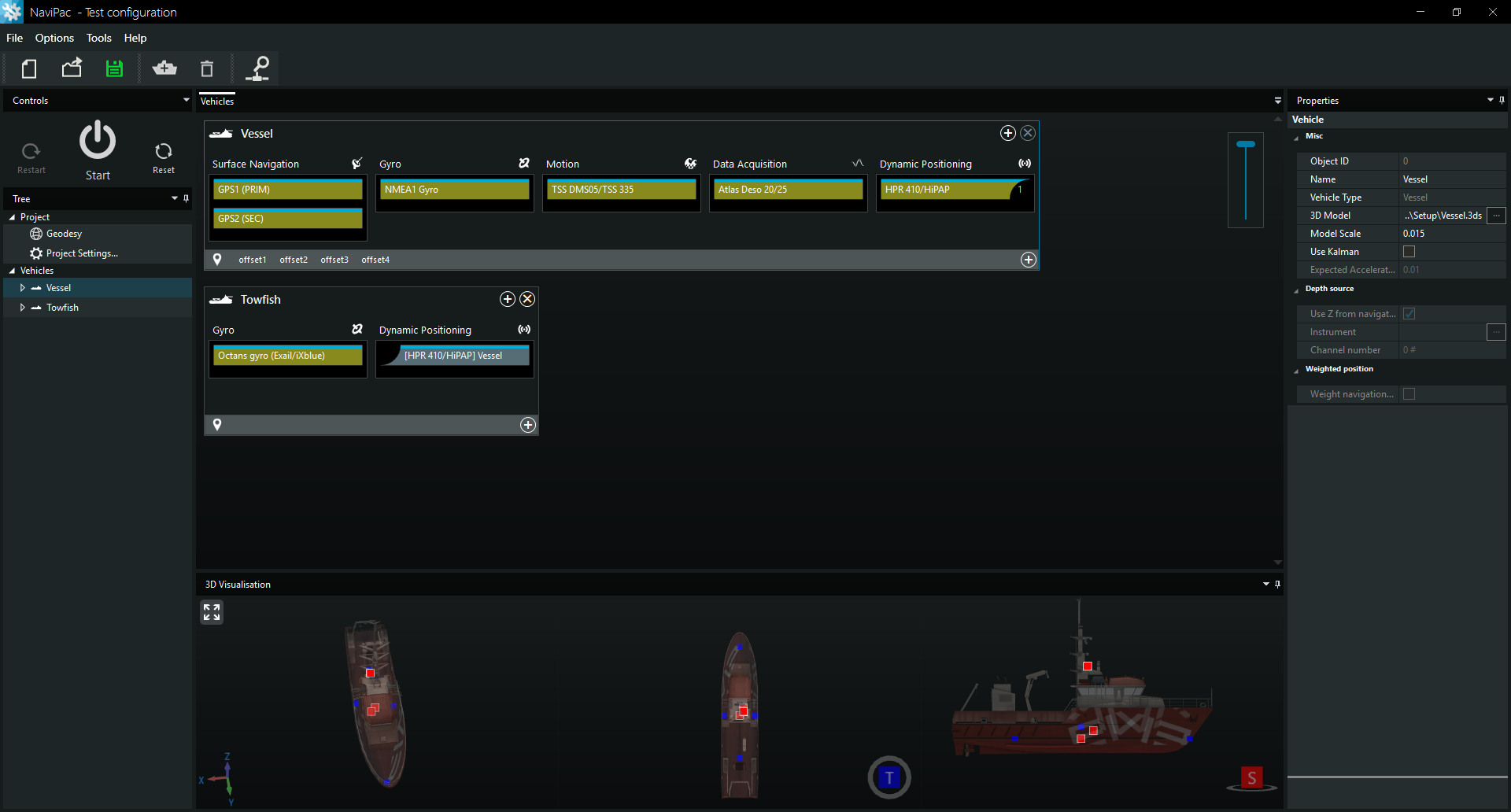
Fig. 1 - NaviPac main config window
The NaviPac configuration window contains the following:
1. Main bar (File, Options, Tools, Help)
2. Controls (Restart, Start and Reset)
3. Vehicles (contains the main vessel and the additional vehicles- surface or subsurface)
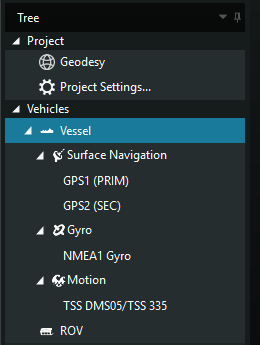
4. Tree (Project with Geodesy, Project settings; Vehicles with vehicles from the vehicle view)
5. 3D visualisation (3 different views of the 3d model defined)
6. Properties (Vehicle, Geodesy, Instruments )
Main bar
Main bar is located on the top most part of the Config window.

Fig. 2 - NaviPac main bar
It contains the following buttons: File, Option, Tools and Help. They will be detailed below.
1.1. File
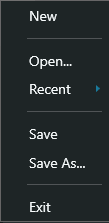
New - Creates a new, empty NaviPac project. Use this option to start a fresh configuration from scratch, without any predefined instruments or settings.
Open - opens an existing NaviPac project file, loading all previously saved instruments, vessels and configuration settings
Recent - shows a list of recently opened NaviPac project files, allowing quick access without browsing to their file location.
Save - saves the current NaviPac project, updating the existing project file with all recent configuration changes
Save As - saves the current NaviPac project under a new name or in a different location, keeping the original project unchanged.
Fig. 3 - File menu
1.2. Options
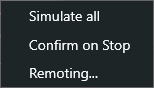
Fig. 4 - Options menu
Simulate all - Enables simulation mode for all configured systems, allowing the project to be tested without live sensor input.
When active, the Start icon changes to indicate that NaviPac is running in simulation mode instead of using live sensor data.
Confirm on Stop - prompts for confirmation when stopping the project, helping prevent accidental stops during operation
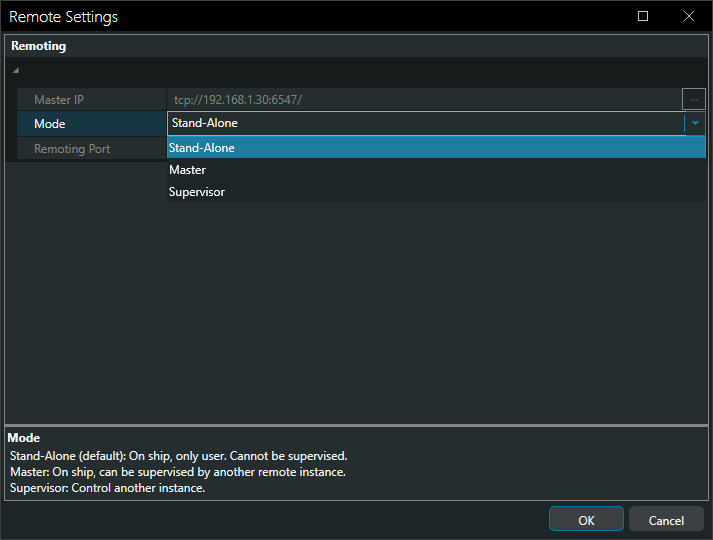
Remoting - defines how NaviPac instance operates in a remote setup:
Stand-alone: default mode. Runs independently. No remote supervision
Master: Main controlling instance. Can supervise one or more remote instances
Supervisor: Remote instance that connects to and supervises a Master instance
1.3. Tools
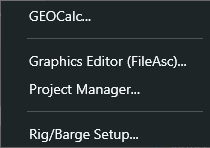
Fig. 4 - Tools menu
GEOCalc... - opens GEOCalc utility for coordinate system handling, datum transformations, and geodetic calculations used within the NaviPac Project
Allows definition and conversion between source and destination coordinate systems. Used to set ellipsoids, projections and datum shifts, and to convert points or files between grid and geographic coordinates.
https://eiva.freshdesk.com/support/solutions/articles/43000541599-navipac-geocalc-a-geodetic-toolbox
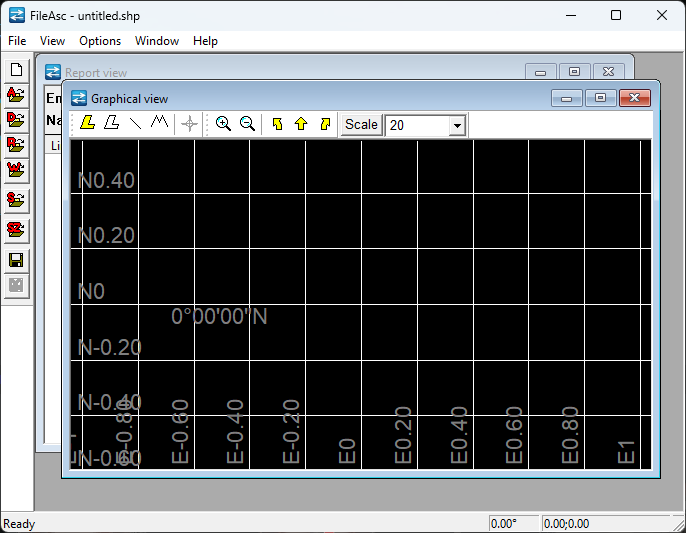
Graphics Editor (FileAcs)... - Used to create, open, view, and edit geographical reference files such as AutoCAD shapefiles, runlines, waypoints and display lines. these files are typically used as background or planning layers within NaviPac.
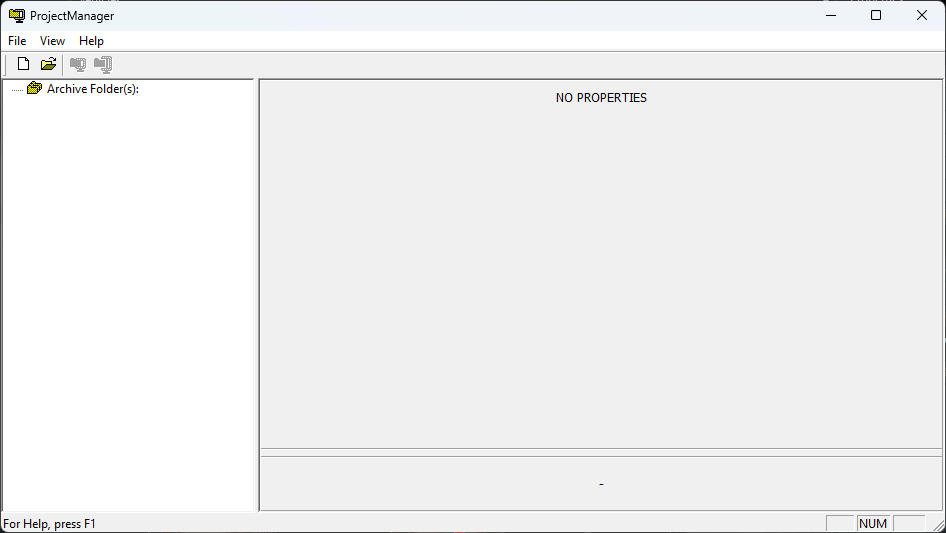
Project manager - Provides an overview of the project folder structure and files. Used to create, organize, and archive project data, ensuring all NaviPac project components are stored and managed consistently (https://eiva.freshdesk.com/a/solutions/articles/43000761070)
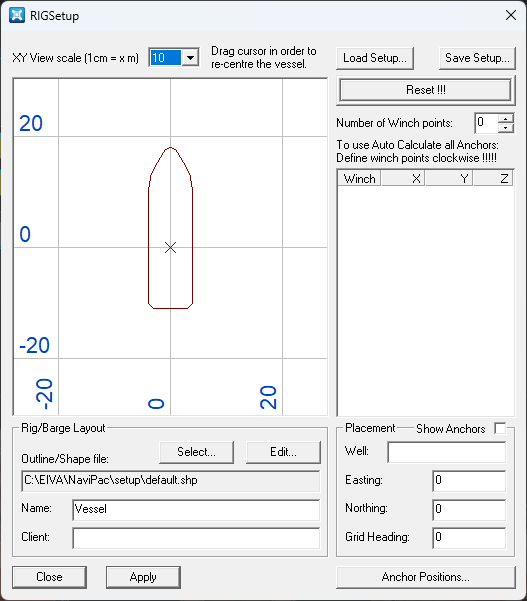
Rig Barge Setup - Used to define the rig or barge layout. Allows loading or editing the vessel outline, setting scale and orientation, and defining winch points for anchor calculations and positioning.
1.4. Help menu:
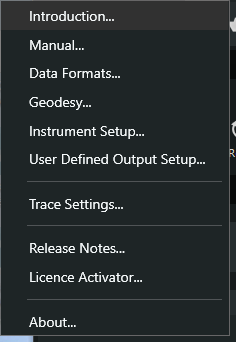
Introduction: Opens NaviPac Introduction and Workflow page. Provides a high-level overview of NaviPac concepts, typical workflows and system structure, intended as a starting point for new users.
Manual - opens the configuration manual. Contains detailed documentation on system setup, configuration options and recommended configuration workflows.
Data formats - Opens NaviPac sensor interfacing manual. describes supported input and output data formats, sensor message types and interfacing details used when configuring and troubleshooting instrument communication.
Geodesy... -Opens NaviPac Geodetic control manual. Describes coordinate systems, projections, datums and geodetic settings used for positioning and transformations within NaviPac
Instrument setup - Opens NaviPac Instrument parameters manual. Describes instrument configuration, driver parameters, communication settings and sensor specific options used when setting up and turning survey instruments
User defined output setup - Opens NaviPac User defined outputs manual. explains how to configure custom output messages and formats for exporting navigation and sensor data to external systems or files.
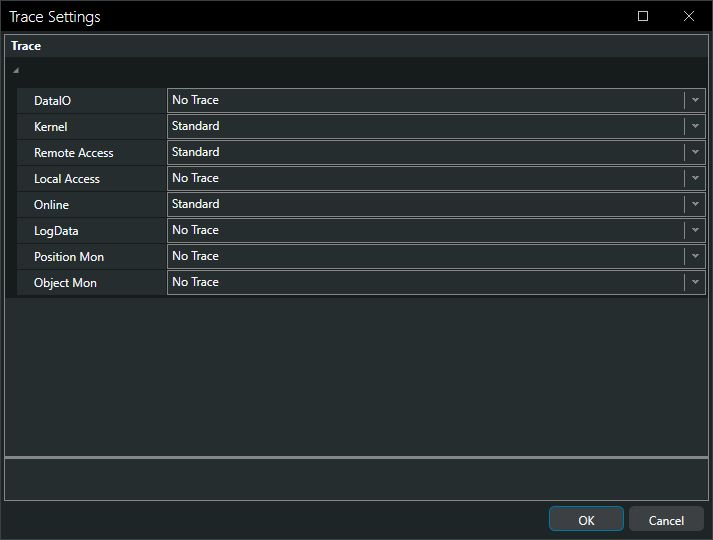
Trace settings... - Opens the trace settings configuration. Used to control the level of internal logging and tracing for different NaviPac components, primarily for troubleshooting and diagnostic purposes
Release Notes - Opens NaviPac release notes. Provides an overview of the new features, improvements, bug fixes and known issues for each software version.
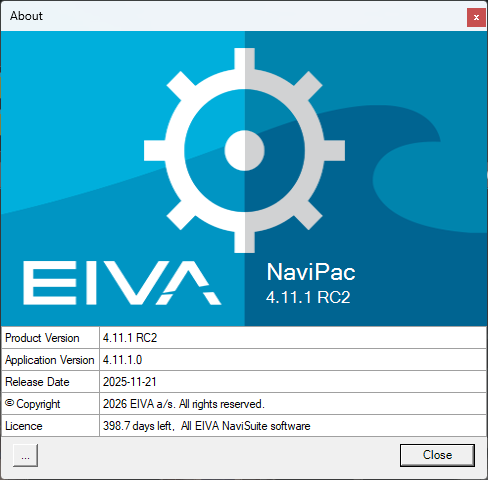
Licence Activator opens the information about the installed NaviPac version. It displays version number, build details and basic system information, useful for support and troubleshooting
About section displays information about the application and its licence. It shows the application version, release date, and current licence status. This is mainly used to verify the installed version and to provide accurate information when contacting technical support or reporting issues.
2. Controls - provides the main operational commands for running the NaviPac project. It allows the operator to start, restart or reset the system.
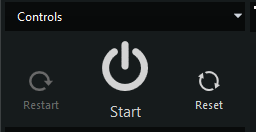
Restart Perform a fast warm start of the navigation process. Unsaved changes in configuration (if any) will not be included.
Start This is the general start (and stop) process. Perform a warm start if possible, or a manual start if a warm start is not possible. The colour of the icon tells if navigation is running or not.
Reset Reset navigation status to ensure that a manual start is performed next time.
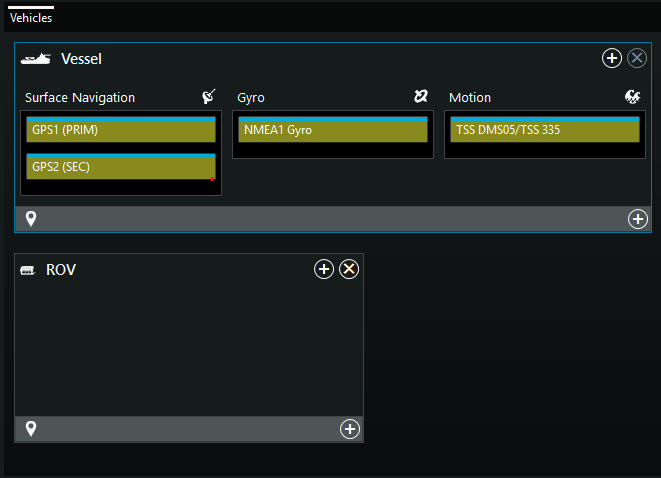
3. Vehicles - Shows all configured vehicles in the project. Each vehicle represents a positioning entity, such as surface or subsurface vessel.For each vehicle, the associated navigation sensors and systems, such as GPS,Gyro, motion sensors, etc. , are displayed and managed together providing a clear overview of how positioning data is combined per vehicle.
4. Tree - provides a structured view of the entire project. It organizes projet elements hierarchically, including geodetic settings, vehicles and all associated sensors. the Tree is the primary navigation tool for accessing and editing configuration parameters throughout the project
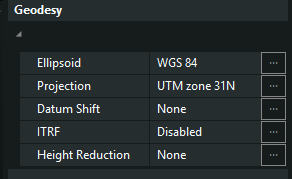
4.1 Geodesy - Defines the coordinate reference framework for the project.Used to set the ellipsoid, map projection, datum shifts, ITRF options and height reduction, ensuring all positioning data is calculated and displayed in a consistent reference system
4.2 Project Settings - Defines global project parameters used by NaviPac during operation. Includes NaviPac, Warm Start, GPS,Filters, UW and Remote Navigation, Advanced, Survey Parameters, Rig/Barge Move or TMS, Telemetry Multiplexer 1,2,3, Event settings and NaviScan
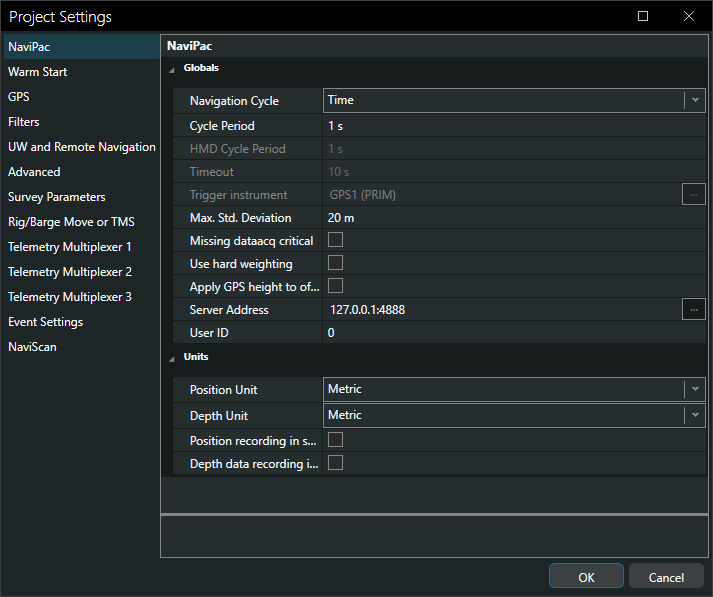
4.2.1. NaviPac - Has the Globals and Units settings.
4.2.1.1 Globals
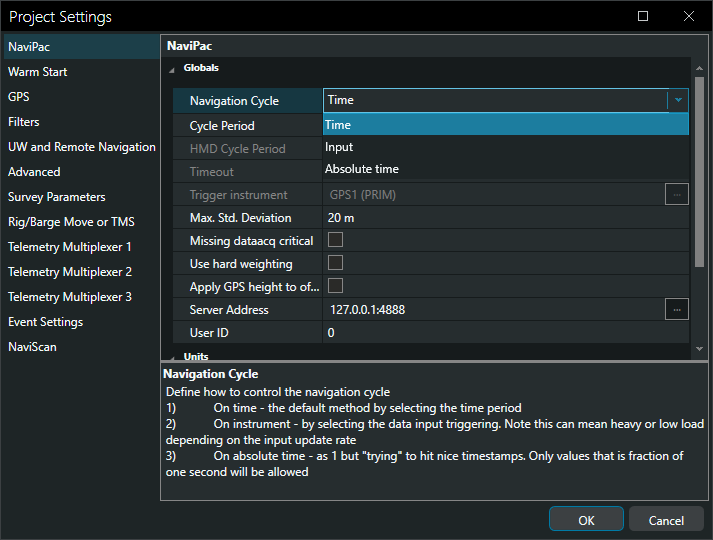
Navigation cycle -defines how to control the navigation cycle
- on time - the default method by selecting the time period
- on instrument - by selecting the data input triggering. Note this can mean heavy or low load depending on the input update rate.
- on absolute time -as 1 but ''trying'' to hit nice timestamps. Only values that is fraction of one second will be allowed.
Cycle Period - how often must NaviPac perform a navigation cycle. Default is 1 second. Do not set it a lower than GPS, gyro and motion input as it otherwise may cause position failure.
HMD Cycle Period - is recomputed once per second. This is a common when Helmsman is derived from GNSS and motion sensors, that already output stable,filtered data
Timeout - for trigger input. If time has elapsed a time based navigation cycle will be performed and an alarm generated (see AlarmMon).
Trigger instrument - select the input instrument that must trigger the navigation cycle. Note this can mean heavy or low load depending on the input update rate.
Max. Std. Deviation - maximum standard deviation (DOP) before changing by yellow state. DOP will be calculated differently based on the setup. Single GPS:Use HDOP
Multi source: Use result from least square fit between the sources. reasonable limits could be: Fixed RTK <0.5m, DGPS <2m, GPS<15m
Missing dataacq critical - NaviPac turns red if one or more data acquisition inputs are missing
Use hard weighting - NaviPac config performs a soft or hard( reject sample totally if more than 2 sigma away) weighting of navigation data when operated with single GPS. The hard way will provide better blunder-rejection but also increase risk for red state.
Apply GPS height to offsets - NaviPac applies the GPS based height (Z of vessel reference point) to all inherited offsets (fixed offsets and relative offsets such as USBL based computations.
Server address - NaviPac server ip address (reset to localhost 127.0.0.1 if running locally)
User ID - Special user identification to target special behavior in various drivers
4.2.1.2 Units
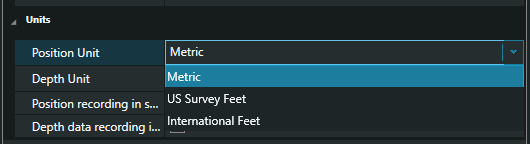
Position Unit - What unit to display position in. everything will still be logged in metric units, but you can choose what unit you describe offsets in, and what is shown in the user interface
Depth unit - What unit to display depth in. Everything will still be logged in metric units, but you can choose what unit you describe offsets in, and what is shown in the user interface
Position recording in selected unit - Must NaviPac record position (easting, northing) in selected data unit or in metric. For use in NaviEdit please use metric.
Depth data recording in selected unit - NaviPac record depths( z values and echosounder) in selected data unit or in metric. For use in NaviEdit please use metric
4.2.2. Warm start
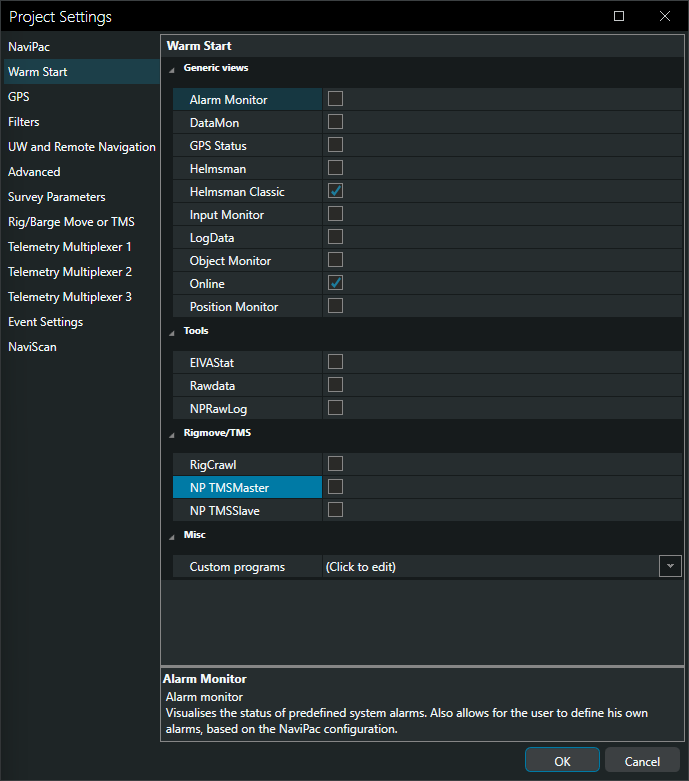
4.2.2.1. Generic views
Alarm Monitor - visualises the status of predefined system alarms. Also allows for the user to define his own alarms, based on the NaviPac configuration
DataMon - Used to visualise the various sensors data in user configured views. Can also be used to read data from various I/O ports and to manipulate the incoming/outgoing data
GPS Status - allows the operator to view various status data (No. of satellites, DOP values, age of data, etc) on the GPS system as well as to configure what information to display.
Helmsman display - used to visualise graphically as well as alphanumerically, the various Navipac objects. The Helsmman's display can also be used to control the logging of data, in Navipac as well as in NaviScan.
Helmsman classic - used to visualise, graphically in 2D as well as alphanumerically, the various NaviPac objects. The Helmsmans's display can also be used to control the logging of data,in NaviPac as well as in NaviScan.
Input Monitor - Visualises the status of the interfaces currently defined in NaviPac, including port numbers, data frequency, age of data as well as priority status for the attitude and navigation sensors.
Log Data - is used to configure the logging in NaviPac as well as to visualise the current logging status. no logging can take place in NaviPac, unless this window is opened.
Object Monitor - shows the status of the various NaviPac objects, including position status (relative and absolute horizontal and vertical position).
Online - Visualises status information related to the navigation (CRP position, attitudes, alarms and traffic light) and is used to open the various generic views in navigation mode.
Position Monitor - visualses the status of the currently defined surface navigation system, including the navigation method (prioritized versus combined) the quality of the position as well as the priorities of the systems
4.2.2.2. Tools
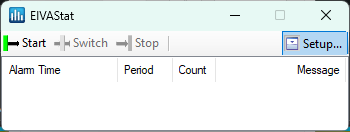
EIVA Stat - is used for system status monitoring and automatic logging. Will generate log files with alarms and status messages useful for diagnostics and post processing
Raw Data - is used to log incoming sensor data exactly as received, without processing. To be used when you need full sensor records for diagnostics, replay.
NP Raw logging records NaviPac internal raw data streams in a native format
4.2.2.3.Rigmove/TMS
Rig Crawl - is used to manage and log TMS based rig move operations
NP TMS Master controls and distributes TMS data to other NaviPac Systems. Enable only in rig move or TMS setups. Not used for standard surveys
NP TMS Slave receives TMS data from an NP TMS Master. Enable only in rig move or TMS setups. Not used for standard surveys
4.2.2.4. Misc
Custom programs: each program listed here will be started upon start navigation. If a line starts with #. it will not be run
4.2.3 GPS
4.2.3.1 Globals
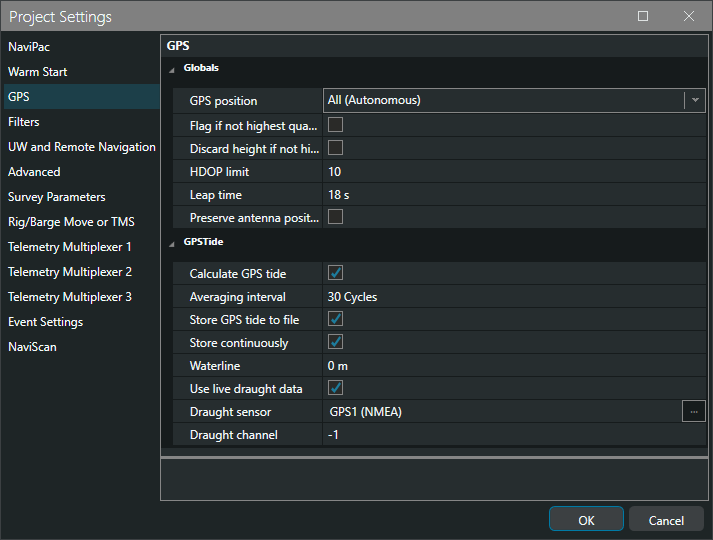
GPS Position - Defines which level of GPS quality must NaviPac accept: all, differential only or highest only (fixed RTK)
Flag if not the highest quality - NaviPac flags the position as yellow state if the GPS status isn't at highest level (fixed RTK)
Discard height if not the highest quality - NaviPac uses or ignores the height from GPS if the status isn't at the highest level (fixed RTK)
HDOP limit - Discards the GPS measurement if HDOP exceeds this limit
Leap time - is the difference between GPS clock and UTC clock
Preserve antenna position - assign raw antenna (converted to user datum) to an object and make this available on Helmsman's display for recordings, etc.
Can also be used in data output, but that requires making the object active by importing it.
4.2.3.2. GPSTide
Calculate GPS Tide - Use GPS tide to calculate GPS tide: the primary GPS height will be compensated for antenna offset, roll, pitch and heave thus representing normal height of the vessel CRP
Averaging interval - to get rid of noise the calculation uses an averaging interval (eg. 30 cycles), NaviPac calculates a GPS tide value at each cycle and put it into a list. The corresponding values will hereafter be the average of this list.The timestamp will be the average time f the data in the list.
Store GPS tide to file - NaviPac creates a tide file on the same folder as the ordinary recording. The files will be named ddmmyy.npt and it maintains one file per day. The data format will be: $NPTide, <Date<,Time<,<Tide<,GPS H <<cr<<lf<<
tide is positive above datum
Store continuously - NaviPac stores a measurement per cycle - or reduce to the selected averaging interval.A typically scenario would use 30sec interval, so it's a question if you want to have one per second or one per 30 sec.
Waterline - offset between vessel CRP an waterline
Use live draught data - identify the draught sensor and channel if the GPS tide are to be used with dynamic draught. Please note that draught has to be read as displacement in db.
Draught sensor - identify the draught sensor and channel if the GPS tide are to be used with dynamic draught. Please note that draught has to be read as displacement in dbar.
Draught channel- identify the draught sensor and channel if the GPS tide are to be used with dynamic draught. Please note that draught has to be read as displacement in dbar.
4.2.4. Filters
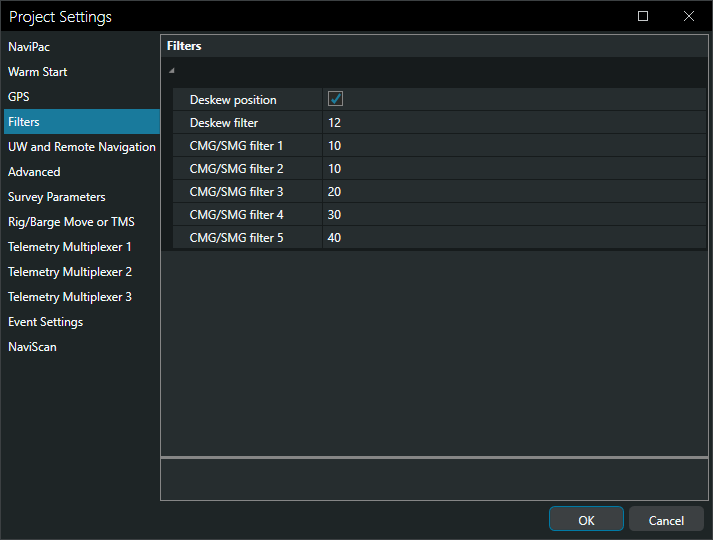
Deskew position. NaviPac uses Kalman filter to predict surface navigation data (GPS position) to real-time estimation (deskew). First of all we calculate a smooth ''rate of change'' or speed of the sensor by a exponential filter, then we calculate the predicted value.
https://eiva.freshdesk.com/support/solutions/articles/43000568159-deskew-position-data
Deskew filter : Hardness of the deskewing filter. First of all we calculate a smooth ''rate of change'' or speed of the sensor by a exponential filter, then we calculate the predicted value.
CMG/SMG filter 1-5: Hardness of the CMG/SMG filter for selected priority group. For each of the up to five priority groups, NaviPac calculates the speed and course on basis of the selected navigation LOP's.To do that, an exponential filter is used, as for de-skewing. Same filter values is used to calculate filtered position. The filter calculates raw heading (comparing two last positions) and filtered heading. Same principle is used for SMG
4.2.5. UW and Remote Navigation
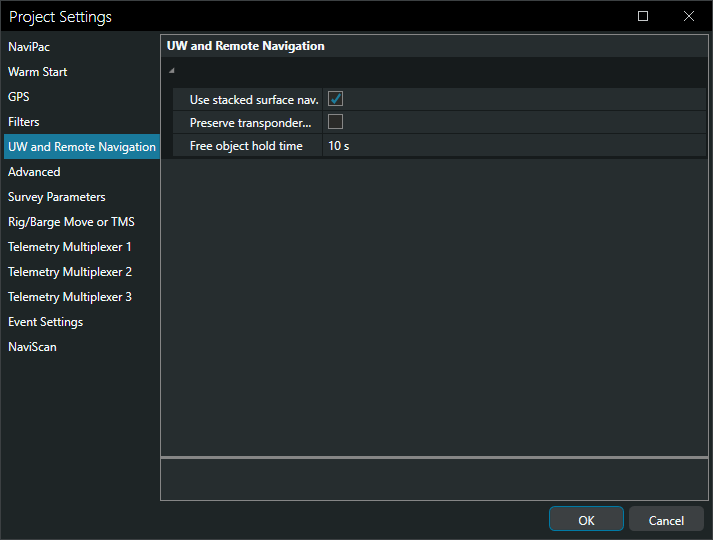
Use stacked surface nav - NaviPac uses interpolated surface position(stacked is set) or just latest update for the UW positioning
Preserve transponder positions - NaviPac creates a second object for the raw transponder position. This is purely relevan for transponders where offsets are defined at the transponder definition - it will be ignored for those that are set to zero. Similar to the keep GPS antenna position
Free object hold time - it indicated how long time shall NaviPac keeps free UW objects (unassigned) in list
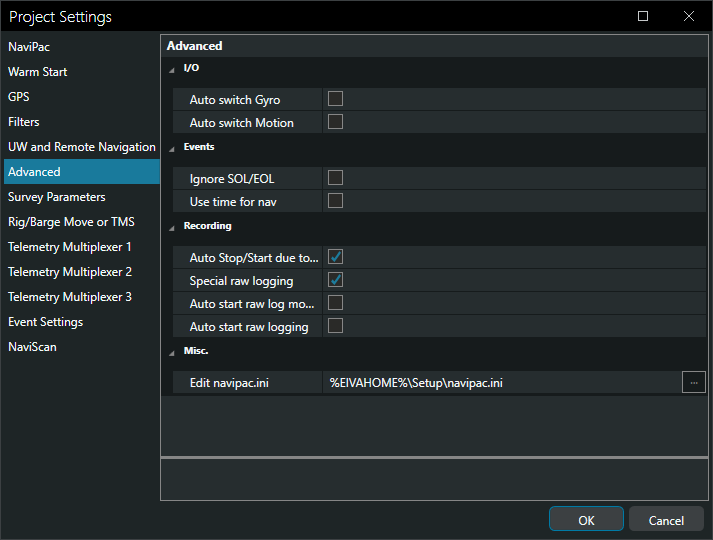
4.2.6 Advanced
4.2.6.1 I/O
Auto Switch gyro - NaviPac automatically switches over to the secondary gyro/motion sensor (vessel mounted only) in case of lost primary sensor. NOTE; the system will not switch back to the primary unit until a restart has been performed. Order can also be changed in NaviPac Online
Auto Switch Motion - NaviPac automatically switches over to the secondary gyro/motion sensor (vessel mounted only) in case of lost primary sensor. NOTE; the system will not switch back to the primary unit until a restart has been performed. Order can also be changed in NaviPac Online
4.2.6.2 Events
Ignore SOL/EOL - NaviPac generates manual events (special case) at start/stop of recording( or from start/sop line at Helmsman display)
Use time for nav - NaviPac will perform navigation cycle at a fixed interval (cycle period) in certain operations it's preferable to force a navigation update at the time of an event(eg. distance shooting). Check here to force this option
4.2.6.3 Recording
Auto stop/start due to online changes - NaviPac automatically switches to a new logfile if changes have been made in online setup (shift priority, weighting, C-O, ect). Recommended, enabled.
Special raw logging - NaviPac stores data in special raw format for possible playback. It must be started from Online, Options Menu. NOTE: requires substantial disc space
Auto start raw log module: NaviPac starts the raw log module as part of navigation start
Auto start raw logging - NaviPac starts the raw logging immediate and performs 24/7 black-box recording
4.2.6.4 Misc
Edit NaviPac.ini - edit additional settings in navipac.ini (advanced editing, only for supervisors!)
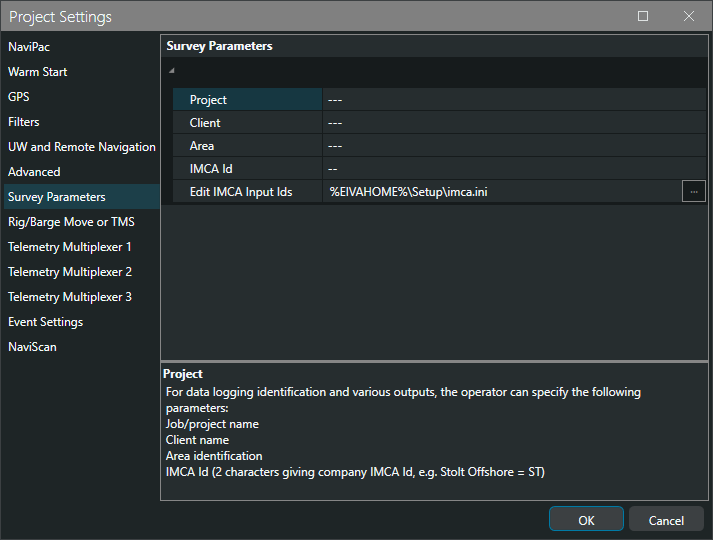
4.2.7. Survey Parameters
For data logging identification and various outputs, the operator can specify the following parameters: job/project name, client name, area identification, IMCA id(2 characters giving company IMCA id, eg. Stolt Offshore=ST)
4.2.8 Rig/Barge Move or TMS
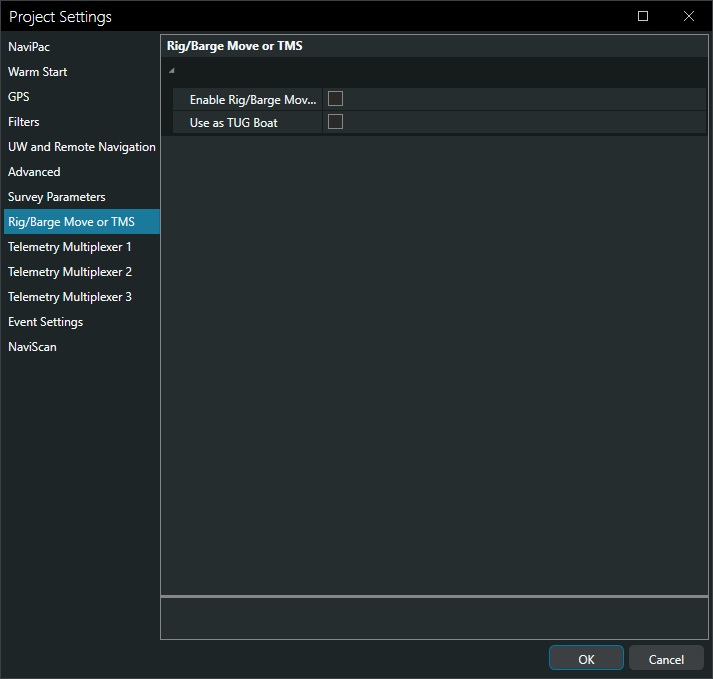
Enable Rig/Barge Move or TMS - puts NaviPac into Rig/arge mode or TMS( Tug Management) mode
Use as TUG Boat - Puts NaviPac into a special Tug Boat mode. This limits NaviPac options but enables a set of options in the Helmsman display
4.2.9 Telemetry Multiplexer 1-3
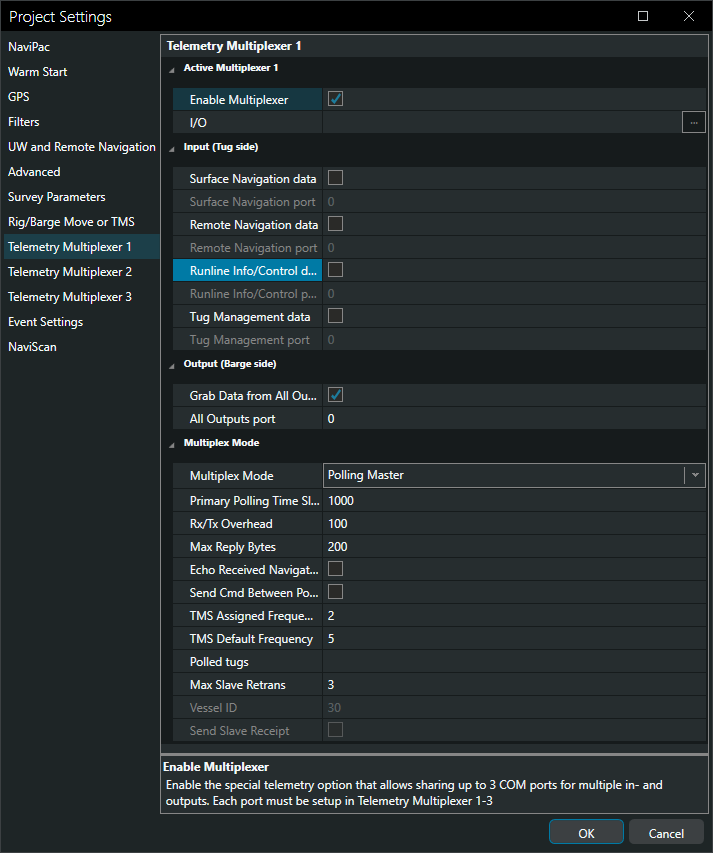
4.2.9.1 Active Multiplexer
Enable Multiplexer - enable special telemetry option that allows sharing up to 3 COM ports for multiple in and outputs. Each port must be setup in Telemetry Multiplexer 1-3
I/O - selects COM/serial port
4.2.9.2.Input (Tug side)
Surface navigation data - enables the surface navigation data
Surface navigation port - you can type surface navigation UDP/IP port number
Remote navigation data - enables full remote nav/positioning data
Remote navigation port - you can type remote navigation UDP/IP port number
Runline Info/Control data - enable the runline info/control (and waypoint) data
Runline Info/Control port - you can type runline info/control UDP/IP port number
Tug management data - enables the tug management data (anchor patterns)
Tug management port - you can type tug management UDP/IP port number
4.2.9.3. Output (Barge side)
Grab data from all outputs - enables grab of all output data
All outputs port - you can type surface navigation UDP/IP port number
4.2.9.4 Multiplex Mode
Multiplex Mode - 3 multiplexer modes:Asynchronous (risk of collisions if modems do not use buffering), Polling Master(using time slots per slave) and Polling Slave (replying when asked)
Primary polling Time Slot -the main polling frequency in milliseconds(ms). Each polling sequence is started with this interval. In TMS scenario tracking vessels are polled with this interval. In normal scenario all vessels are polled with this frequency
Rx/Tx Overhead - how much time must the system give the modems to switch mode. Must be specific very carefully. Given in ms.
Max reply bytes - how many characters do we maximum expected to receive from a slave. The total slave time slot is defined approximately as Rx/Tx Overhead + time to transmit maximum characters. This value must be set carefully. the optimal solution would be obtained by setting it too high and let the slave send acknowledgement
Echo Received Navigation - must the module duplicate all incoming positions telegram (NaviPac format) to the slaves.
Send Cmd Between polls - must any output from the barge be sent in the middle of a polling sequence - or await total completion
TMS Assigned frequency - how often is assigned vessels polled. Given as multiply of primary time slot.
TMS Default frequency - how often is all the other vessel polled. Given as multiply of primary time slot. For non-TMS operation this will be the same for all vessels
Polled tugs - IDs of polled tugs - list of comma/space separated IDs: 31,32,33
Max Slave Retrans - max times retransmission attempts if a slave does not acknowledge Vessel ID - ID number of this slave vessel. Must be identical to the ID used onboard the master - default is the object id from the master
Send slave receipt - the slave sends a special end message when all buffered messages has been sent out. This allows the master to close the timeslot prior to timeout and thus utilise the bandwidth
4.2.10. Event settings
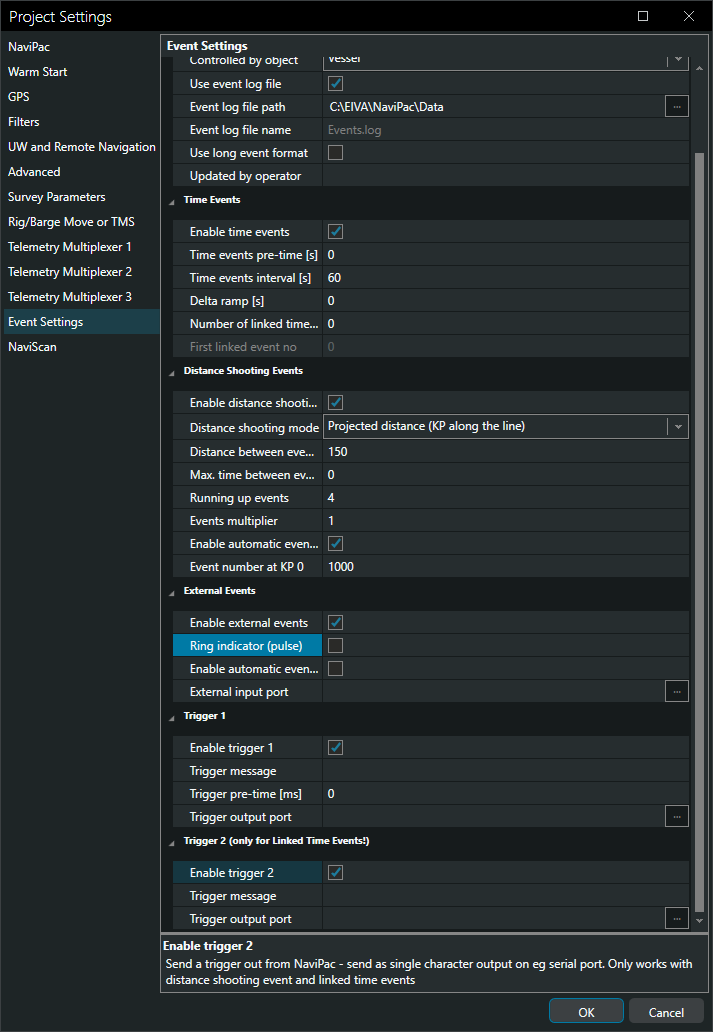
4.2.10.1 General settings
First event number - first/start event number
Increment event number - increment event number by value
Controlled by object - select object of which the event is associated with
Use event log file - enable use of event log file
Event log file path - file path where the event log file is stored. default is C:\Eiva\NaviPac\Data
Event log file name - name for event log file, saved in event log file path/folder
Use log event format - enable use of long event format
Updated by operator - name or initials of updating operator
4.2.10.2. Time Events
Enable time events - enable(linked) time events. NaviPac will generate events with the defined interval (and as a special linked time events if distance events is enabled)
Time events pre-time (s) - time delay before (linked) time events
Time events interval (s) - time interval between (linked) time events
Delta ramp (s) - if a positive number then the time interval will switch between interval plus ramp. If a negative number then the used ramp will be defined as a random number between +/- the value
Number of linked time events - number of linked events after the distance shoot has been performed
First linked event no - the linked event series uses own numbering series (simple increment). Specify the next number to use here.
4.2.10.3. Distance shooting events
Enable distance shooting - this option requires an active runline
Distance shooting mode - you can select distance shooting mode : projected distance (KP along the line) or accumulated distance (track)
Distance between events - you can type the distance between events (m).
Max time between events (s) - max time interval between events (s).
Running up events - running up events
Events multiplier - events multiplier (events at multiplier*distance)
Enable automatic event numbering - enable automatically calculated event numbering
Event number at KP 0 - automatically calculated event number running from KP 0
4.2.10.4. External Events
Enable external events - external event is input from an external system (for example a pulse or serial trigger) that forces NaviPac to generate an event.
Ring indicator (pulse) - use ring indicator pulse
Enable automatic event numbering - enables automatically calculated event numbering using same rules as for distance events
External input port - external events input comport
4.2.10.5 Trigger 1
Enable trigger 1 - send a trigger out from naviPac - send a single character output on eg. serial port. Can be combined with the NaviSuite trigger box
Trigger message - trigger message to output
Trigger pre-time (ms) - trigger message will be output xxx ms before the event
Trigger output port- trigger output comport
4.2.10.6 Trigger 2( only for Linked Time Events)
Enable trigger 2 - sends a trigger out from NaviPac - sends a single character output on eg serial port. only works with distance shooting event and linked time events
Trigger message - trigger message to output
Trigger output port - trigger output comport
4.2.11 NaviScan
Enable port sharing - NaviPac exports data from data inputs to NaviScan and thus enabled port sharing between the two programs without loosing time tagging accuracy. It's applicable for serial COM of GPS, Gyro, Motion Sensor, DVL, Bathy, Pipe tracker. Sharing can be used on the same PC or on the remote PC(s)
Destination - type destination address of the receiver computer, using the ATTU protocol. Eg.
10.10.1.33 for specific PC
10.10.1.255 for broadcast to multiple receivers
127.0.0.1 for local PC
The data will be send out as special UDP message using the ATTU protocol. Each serial port will be send on its own UDP port defined by the original com port number plus ths add-on (default 16000)
Object limited to - select the data source for the delivery.
None: all data input of the relevant type is determined
Object: Only relevant data for the selected object is transmitted
Local loop-back - copy the sharing to the local loop-back address (127.0.01). Only relevant when sending the data to external source like 10.10.1.108
5. 3D visualisation
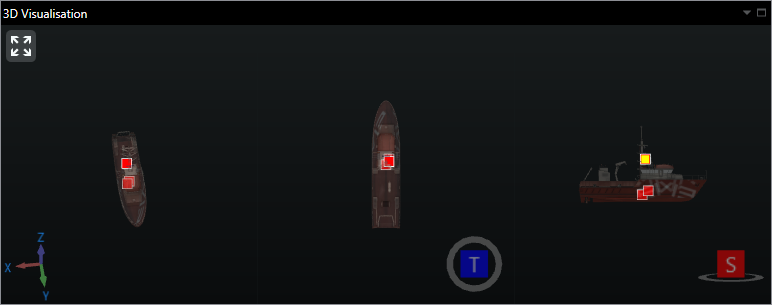
The 3D Visualisation view shows the selected vehicle in a 3D environment in three views – they can be zoomed into and out from individually by using the mouse wheel. The views are as follows, from left to right in the above figure:
•Free 3D Rotate by clicking and holding down right mouse button
•Top view
•Side view
6. Properties
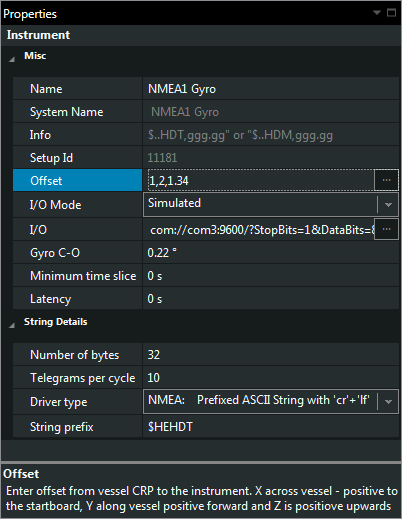
If an item is selected in the Tree view, properties for the selected item will open in the Properties view on the right side of the main window, allowing you to edit the item’s properties (as shown for a gyro in the image below):