
This guide shows you how to import and visualise your data acquired with a Solstice system. The file formats used in this example are sbd and .swf8. Both swf8 raw data and sbd (If solstice is interfaced and data is recorded in NaviScan) can be used in NaviSuite.
The files must be imported in NaviEdit first (Import - Solstice SWF Files or NaviScan files - sbd).
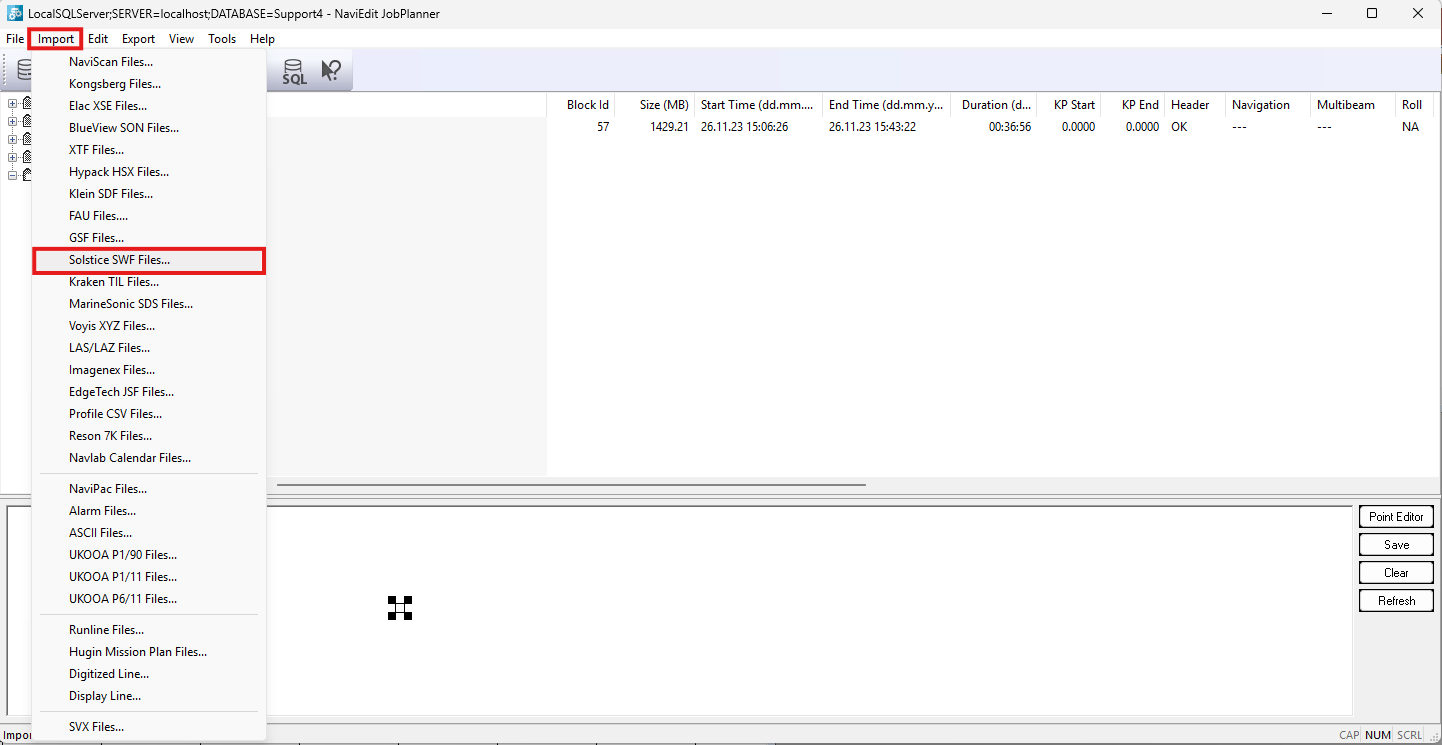
Figure 1. Solstice import in NaviEdit
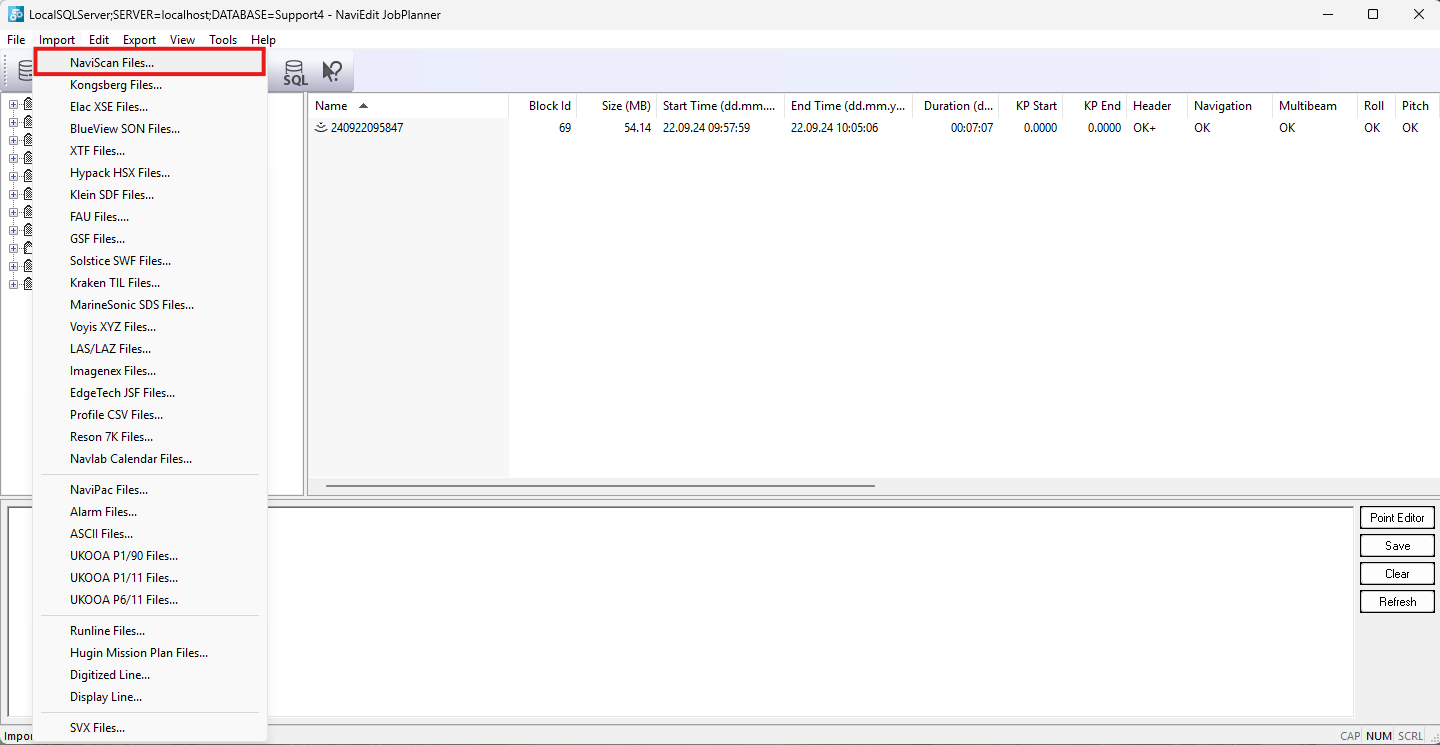
Figure 2. Sbd that holds solstice data - import in NaviEdit
By doing so, you firstly check the Report from the Header editor to see if after the Timestamp sanity check any issues are present in the files. Header Editor allows you to modify different settings if necessary (sensors, sound velocity profile, geodesy, solstice mbes etc.) in your files. Data Editor allows you to edit the data for the available instruments, in this case navigation, mbes and gyro.
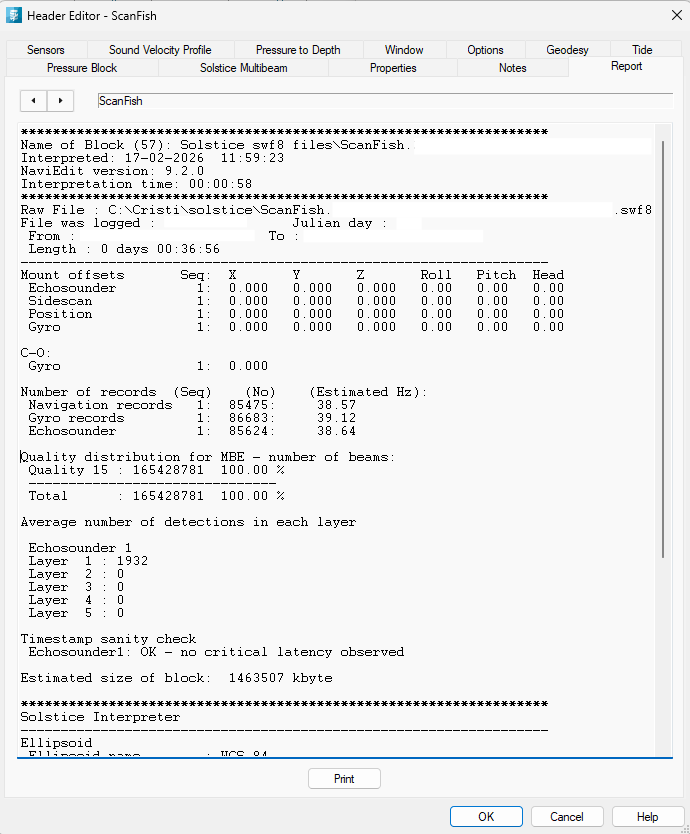
Figure 3. Header Editor Report
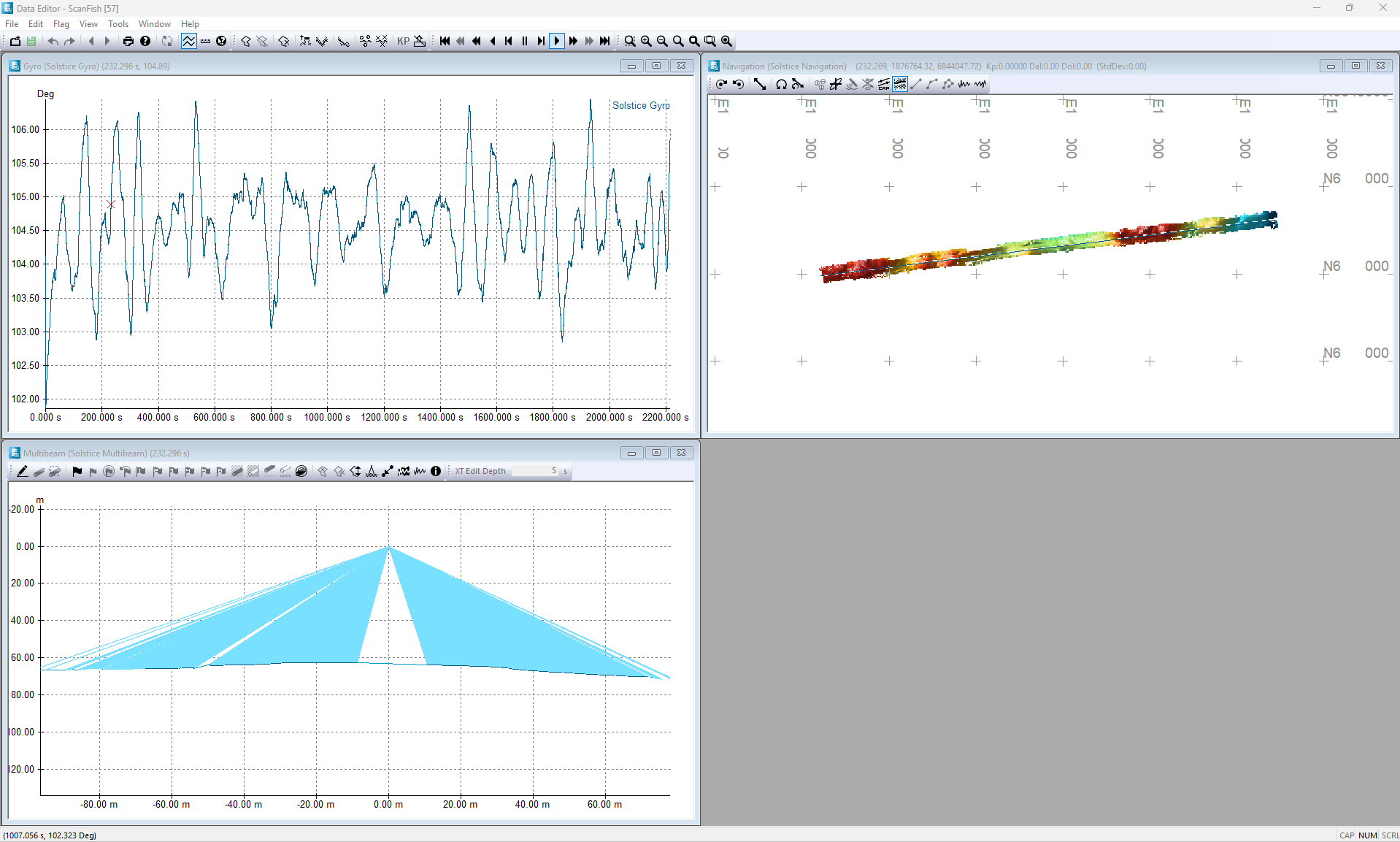
Figure 3. Data Editor
In the sbd format, based on your setup, you will have more instruments present in the Header Editor. See the example from below.
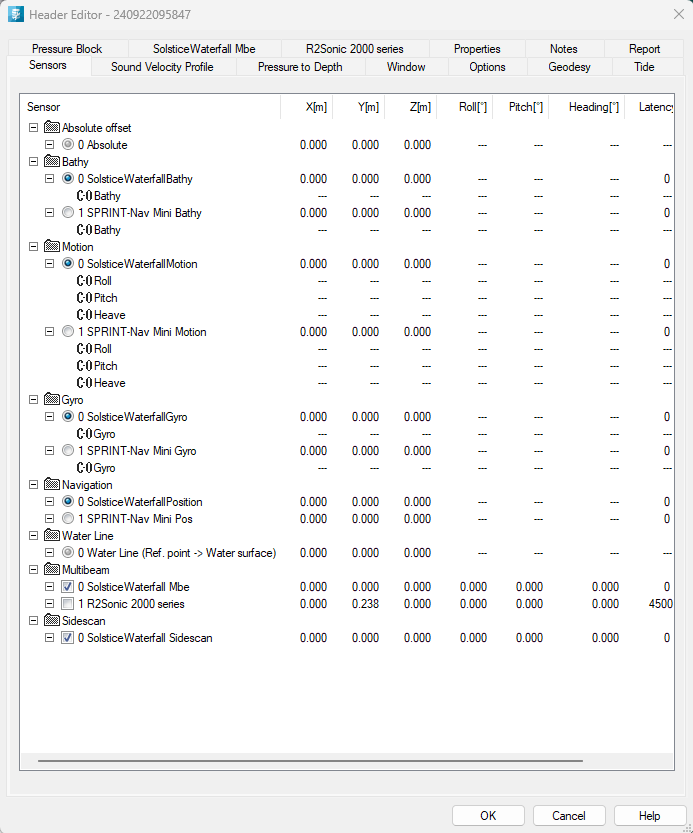
Figure 4. SBD format - Header Editor- sensors tab
Once the data passed all the data processor checks, we can move to the visualisation part.
Please note, as for the other files type, side scan sonar data cannot be visualised in NaviEdit. Here you only see the instrument that acquired the data. NaviModel will read the side scan sonar data directly from the file.
Visualisation is done in NaviModel Producer. Create a new project in NaviModel Producer and set the corresponding geodesy. There are two ways to display the side scan data, one is in Map view based on the mbes data (after the creation of a DTM) and second is in Waterfall view.
First method to display the data is: go to the NaviEdit node select your folder where the solstice data was previously imported and right click to select Import Mbes points to DTM. On the new window set the name and tick the option Read intensity under Options. To display the side scan data you must have the Subtype set to Flat and Type to Intensity as shown below.
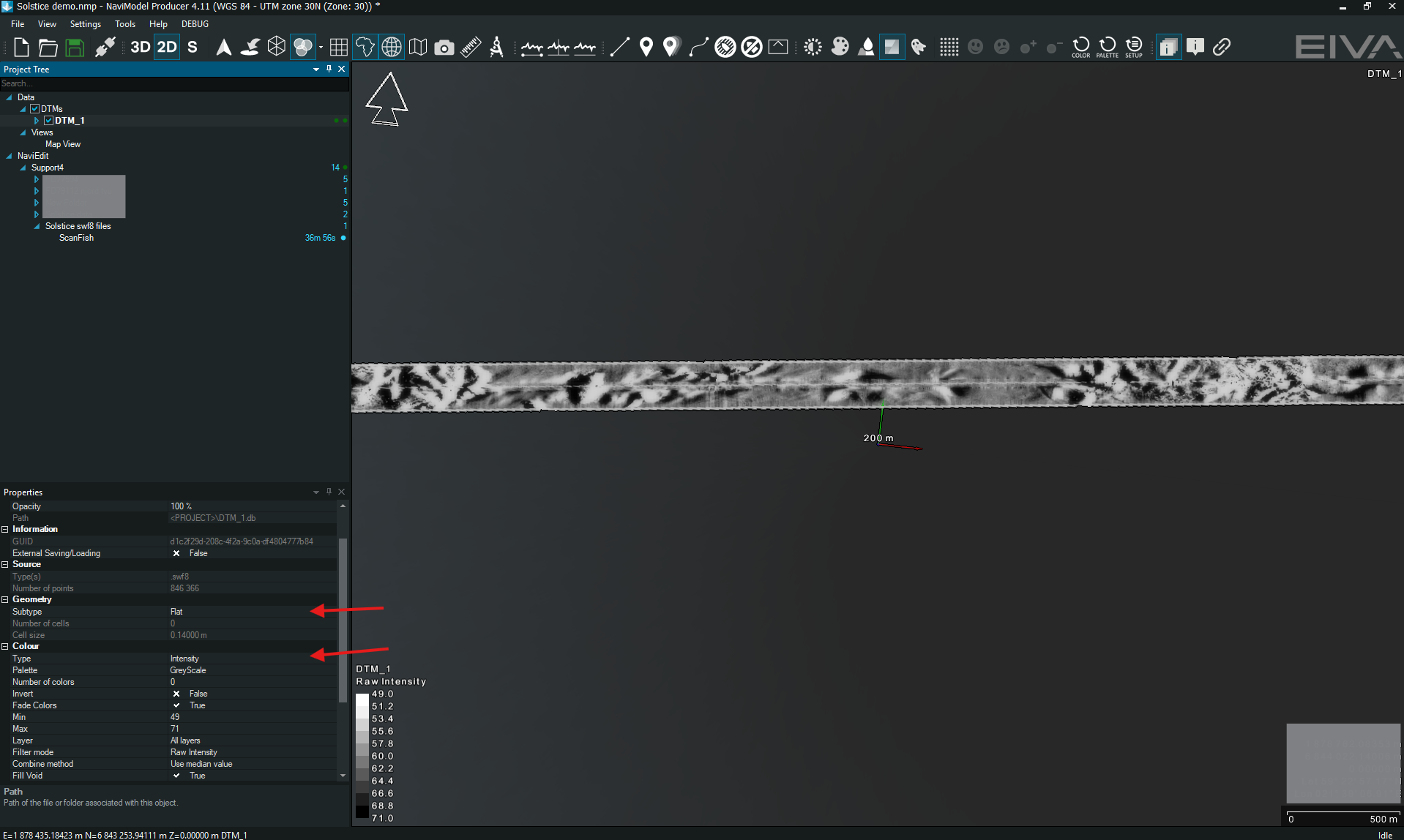
Figure 5. NaviModel Producer Side scan on DTM
The depth layer (average/min/max etc surface) can also be displayed but currently only for the sbd format. Select subtype average and tupe depth.
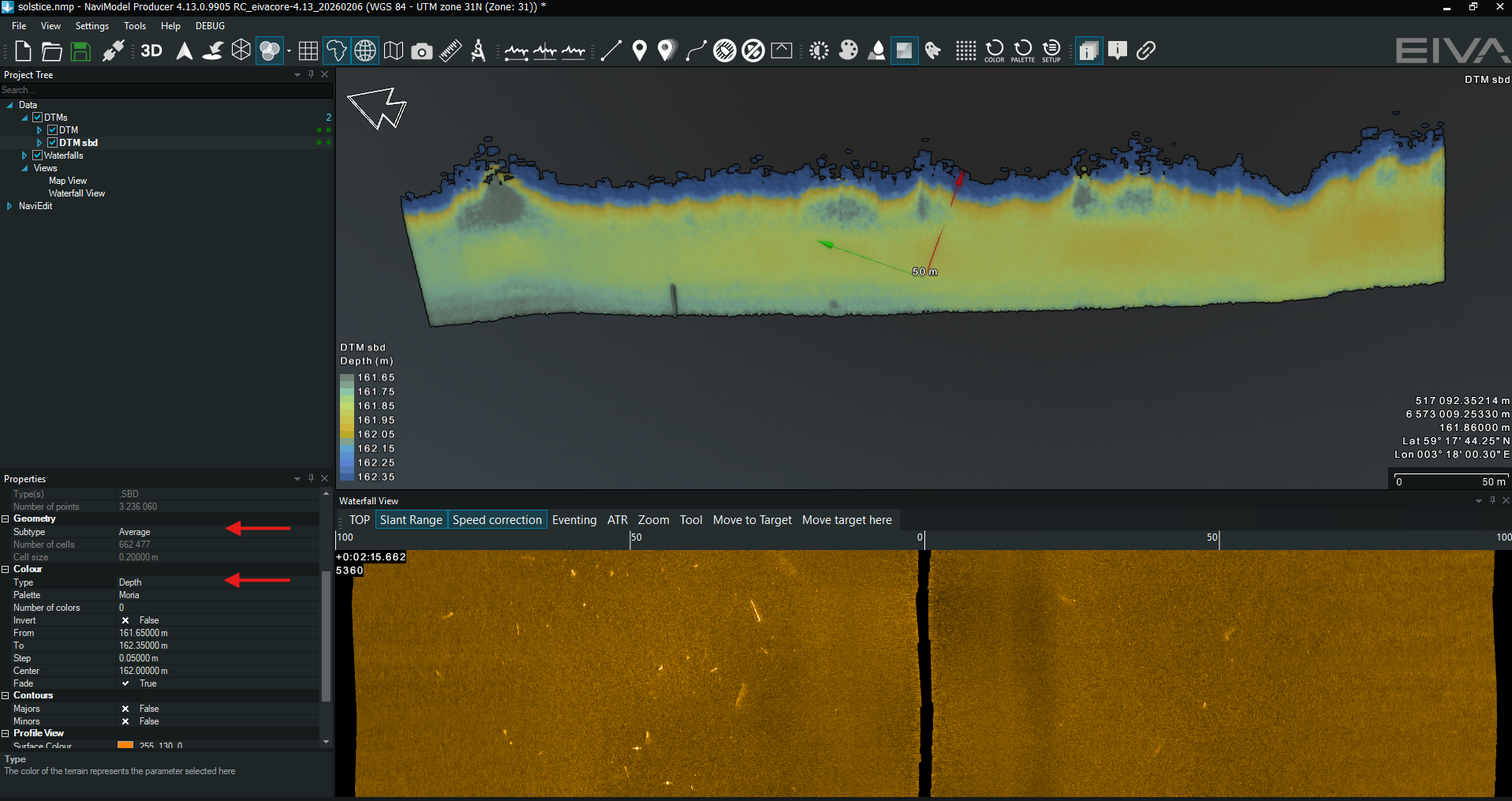
Figure 6. Depth layer on the DTM
Second method to display the data is: go to the NaviEdit node select your folder where the solstice data was previously imported and right click to select Import waterfall.
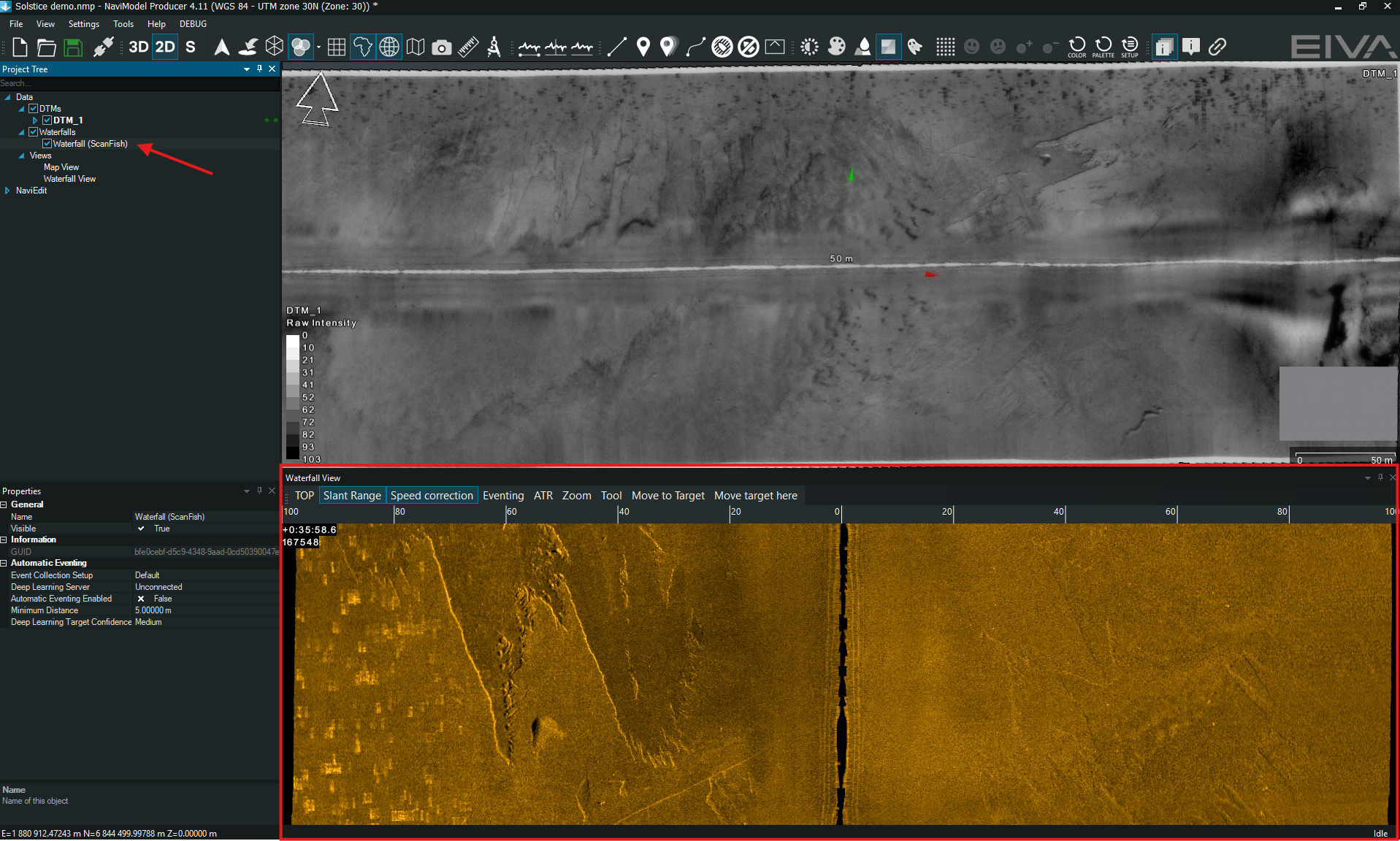 Figure 7. NaviModel Waterfall view