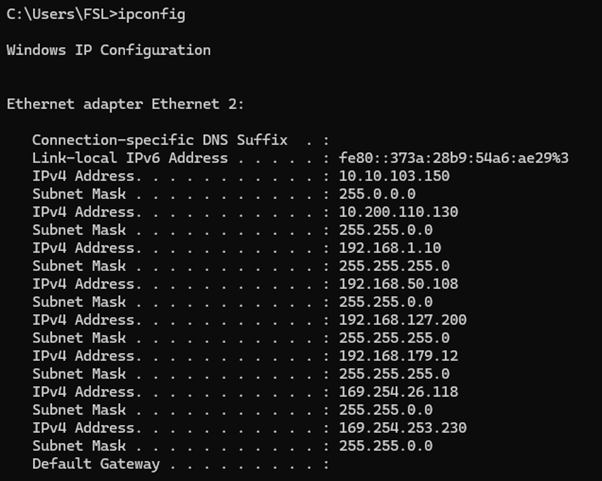
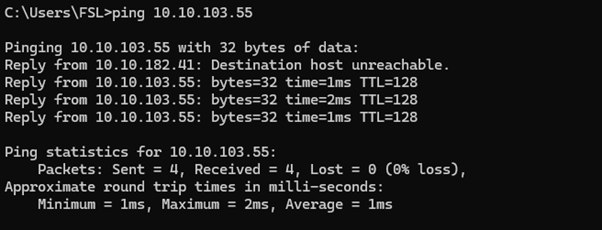
This procedure explains how to configure a network interface card (NIC) to enable communication between a PC and the connected hardware and sensors.
Before you start setting your network card please ensure that you have Admin rights for the PC used, that the Hardware is powered ON and that the Ethernet cables are connected.
To establish the connection:
- Connect an Ethernet cable from the PC to the Hardware. This can be done also through a network Ethernet switch.
- To configure the network interface card on the PC that the Ethernet cable is connected to, click Start > Control Panel.
- Click Network and Sharing Center.
- On the left pane, click Change adapter settings, right click the relevant network adapter and the select Properties.
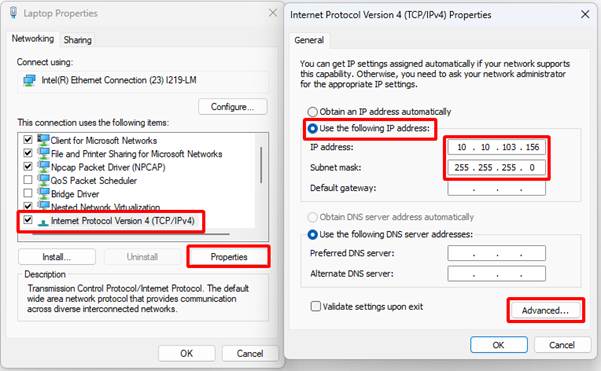
- On the Networking tab, click Internet Protocol Version 4 (TCP/IPv4) and then click Properties.
- Select Use the following IP address and then enter an IP address with the following values: 10.10.103.xxx (where xxx is a value between 1-255). Ensure the last octet (xxx) is unique within the same subnet to avoid IP conflicts. This scope example is from the ScanFish and ViperFish products manufactured by EIVA.
- Enter the Subnet mask 255.255.255.0.
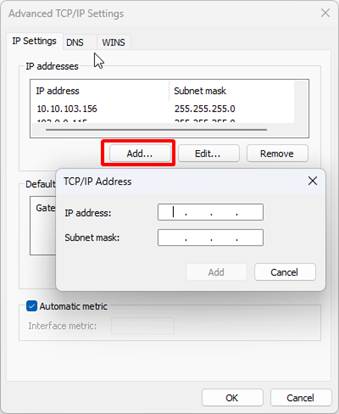
- Do the same for all other scopes under Advanced. When entering Advanced press on Add... button and now you can assign additional IP scopes to the same NIC. Scope example for some other hardware products: 192,168.0.xxx (Fibre DSL modems, Ocean Enviro winch), 192.168,1.xxx (Solstice).
- Leave Default Gateway and DNS fields empty unless otherwise specified
- Click OK and then click Close
Like this you can have one network card with multiple IP scopes. Ensure that no duplicate IP addresses exist across network adapters or connected devices, as this will cause communication issues.
Multiple IP addresses can only be added for a network adapter whose first IP address is set manually (not assigned by a DHCP server). If DHCP is enabled on the interface, you won’t be able to add a second IP .
To verify computer IP configurations
- Open a command prompt and type “ipconfig” - press Enter. This will show the current NIC IP addresses.
- To verify that you can communicate with the desired hardware on the network write "ping xxx.xxx.xxx.xxx", where xxx.xxx.xxx.xxx is the hardware IP address. If communicating with the hardware you will receive replies from the IP typed in. If there is no replies start troubleshooting the hardware and cables. One coming thing to forget is to turn OFF the Firewall: Firewall settings must be disabled (Browse to Windows Control Panel\System and Security\Windows Defender Firewall and here you can use the option eg turn Windows Defender Firewall on or off.