
PC clock sync for both NaviPac and NaviScan can now be done without the need of the user to be an admin or the software to be run as an admin based on the EIVA Time Service . Details about the versions that support this feature are below; previously this could only be achieved by running the software as an admin.
NaviScan 9.7.8+ can use EIVA Time Service and with NaviScan 9.10 the EIVA Time Service is also installed and used by default. This service is syncing the PC clock with the GPS time via NaviScan software. In the previous NaviScan versions, only admins could sync the PC clock. With the version starting from 9.7.8 installed, now NaviScan does not need the user to be an admin to sync the PC clock. Note that if the user is not an admin, NaviScan should be just installed by an admin.
In Options/Project parameters/Advanced - users must tick on "GpsTime use time service" option if the EIVA Time Service must be used. NaviScan Config should be restarted after.
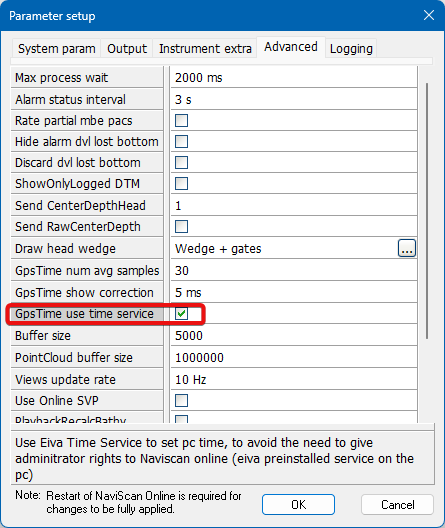
Fig.1 GPS time service ticked
NaviPac 4.6+ installs EIVA time service by default, the user must be admin only at installation time. NaviPac will sync the PC clock with the help of ZDA+PPS driver (Online window - Edit/Date & Time/Controlled by - please see this article https://eiva.freshdesk.com/a/solutions/articles/43000525721?portalId=43000107822
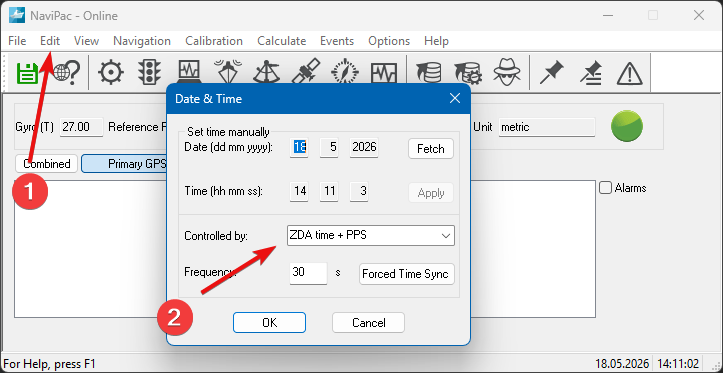
Fig.2 Controlling time sync in NaviPac