
Q: I can’t create or attach a NaviEdit database, locally or on a remote SQL Server. What can I do?
A: When creating a new NaviEdit database locally, two different set of user rights are involved:
- the current user logged in and
- the service running the SQL Server
Both should have adequate rights in the directory where the NaviEdit database are created (default is c:\EIVA\NaviEdit\Database)
The name of the SQL Server service account depends on the instance:
- Default instance (SQL Server): NT Service\MSSQLSERVER
- Named instance, e.g. SQL Server Express: NT Service\MSSQL$<InstanceName>, normally NT Service\MSSQL$SQLEXPRESS
You can check the exact name in SQL Server Configuration Manager → SQL Server Services, in the "Log On As" column.
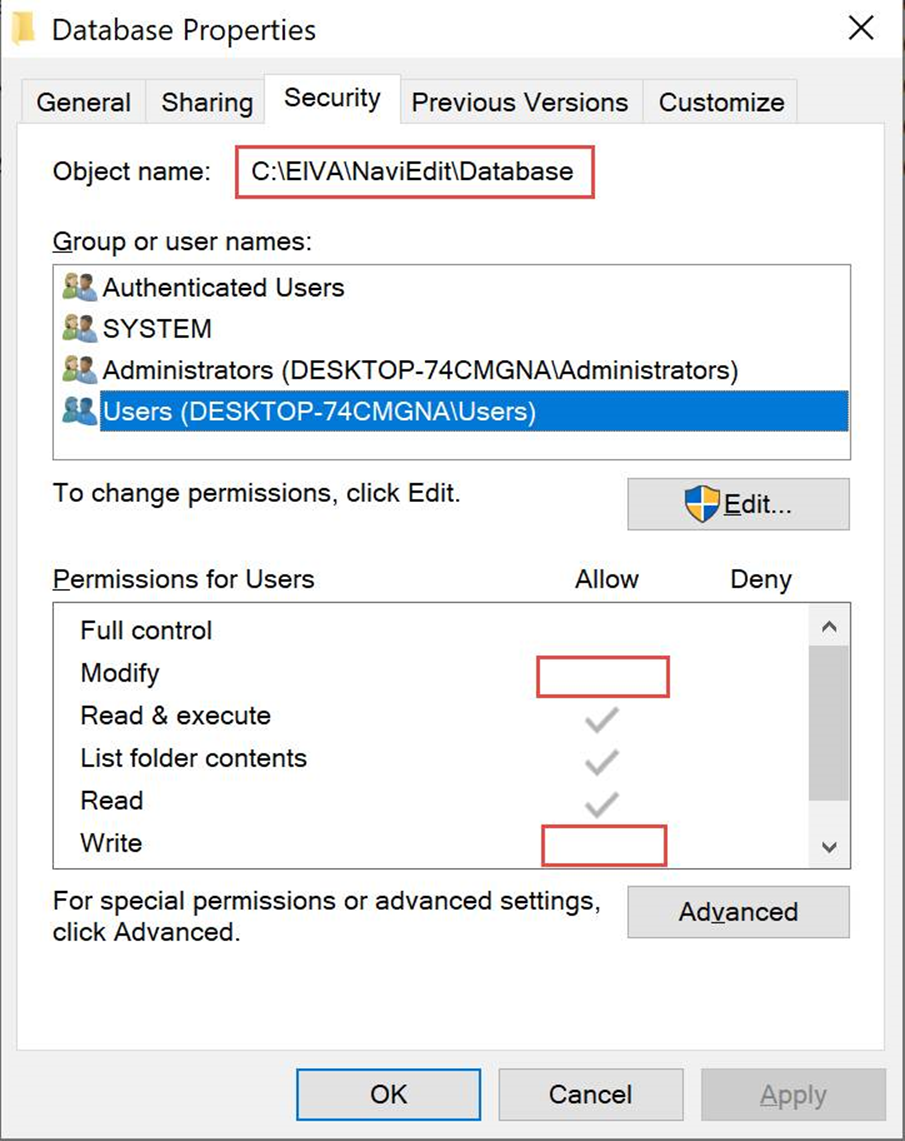
The following screenshot shows a current user not having the needed write access to c:\EIVA\NaviEdit\Database:
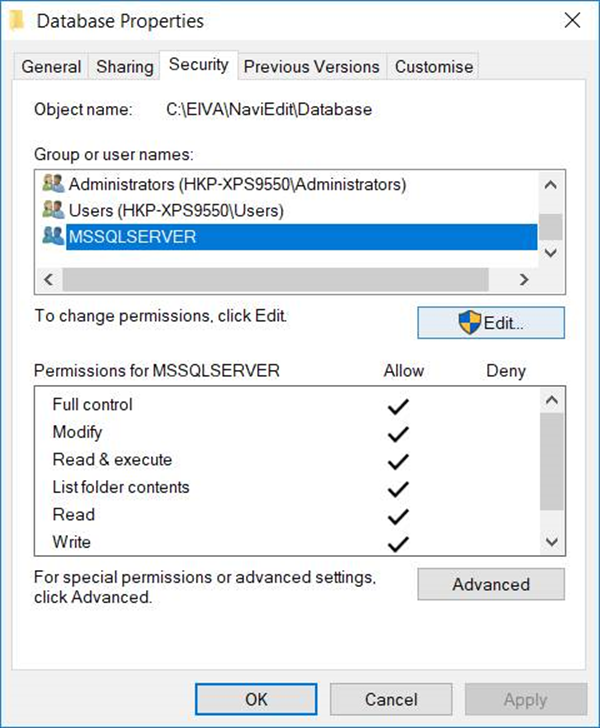
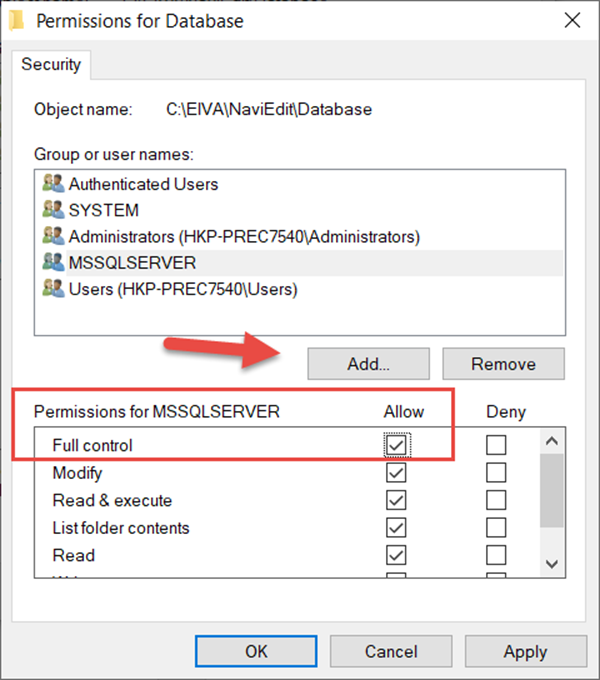
The next screenshot shows an NT Service\MSSQLSERVER that has full access:
To add the SQL Server service account as a user, do the following (the screenshots show NT Service\MSSQLSERVER; use NT Service\MSSQL$SQLEXPRESS if you run SQL Server Express):
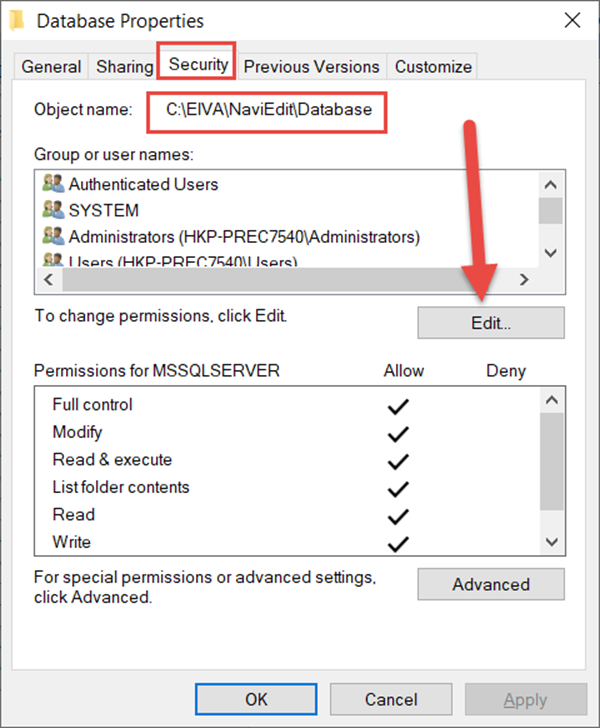
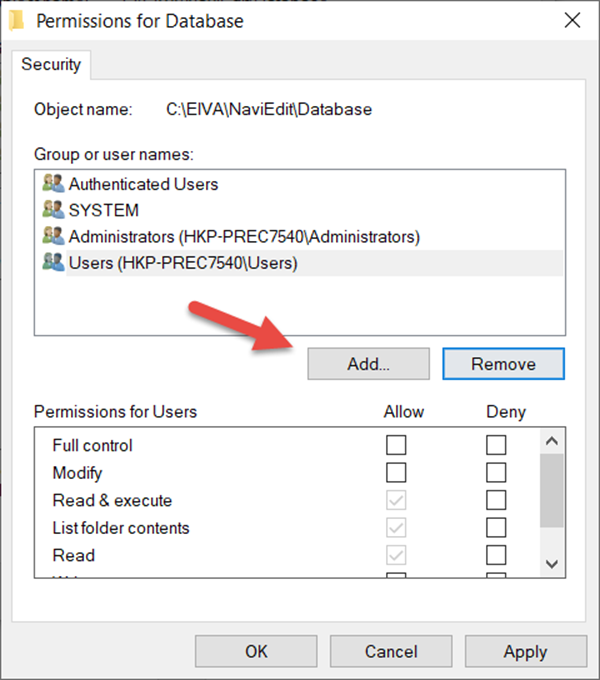
Ensure that your own computer (and not the Windows domain) is selected as location (#2). Type the account name exactly as shown above and click Check Names. The service account will not appear if you browse or search for it.
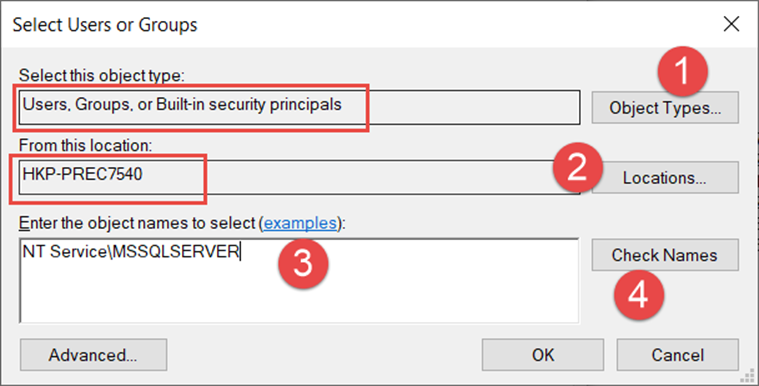
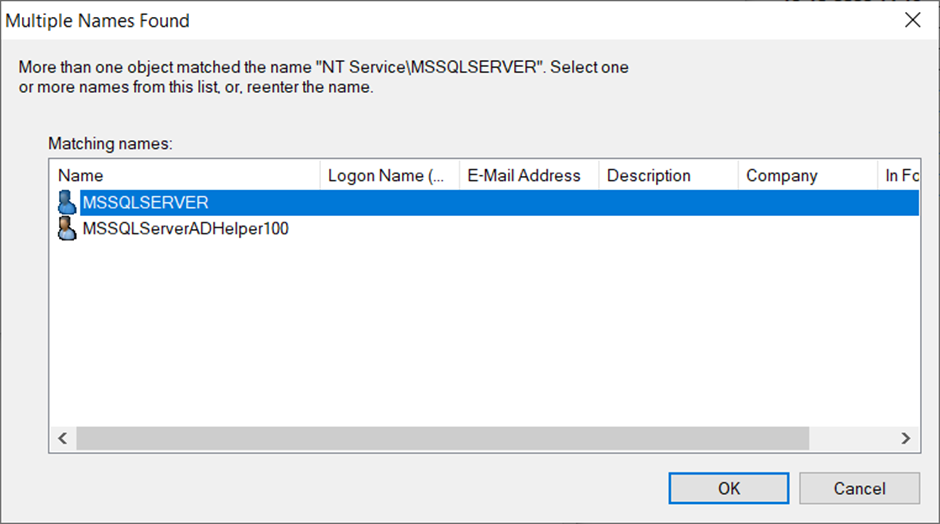
Finally add the full control:
SQL Server on another PC, or database files on a network drive
When NaviEdit connects to a SQL Server on another PC, the database files are opened by the SQL Server, not by your PC. This means:
- The database path must be valid as seen from the SQL Server PC. A drive letter mapped on your PC (e.g. G:) may not exist for the SQL Server. Use a folder on the SQL Server's local disk (recommended) or a UNC path (\\server\share\...).
- The NT Service\… accounts above can only be given rights on local folders. If the database files are on a network share, grant Modify rights on both the share and the folder to the SQL Server PC's computer account (DOMAIN\SERVERNAME$), or run the SQL Server service as a domain account.
- If NaviEdit connects with Windows authentication, the SQL Server cannot pass your Windows credentials on to the file share (the "double-hop" limitation). Either keep the files on the SQL Server's local disk, use SQL Server authentication (see Remote SQL Server and NaviEdit with SQL Server Authentication enabled), or ask your IT department to set up Kerberos constrained delegation.
Typical symptoms: NaviEdit shows "Cannot attach the database files" with a hint about UAC, and the SQL Server log shows "FCB::Open failed … OS error: 5 (Access is denied)" and error 17204. Running NaviEdit as administrator or disabling UAC will not help in this case.