
The NaviPac installer is capable of the following:
- Full NaviPac installation which includes:
NaviPac core services, Helmsman, admin and setup tools, typically used on main vessel computers.
2. Helmsman - only installation:
Can be done from NaviPac full installer, by selecting NaviPac Add-ons: Scene Server and Helmsman (Fig. 1)
Helmsman Classic is automatically installed within the full NaviPac installation, there is no possibility to install the Classic version only!
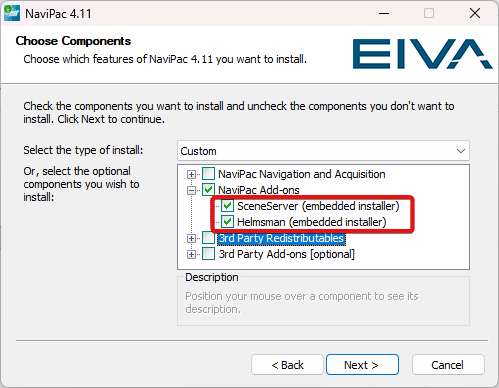
Fig. 1 - Selecting Helmsman and Scene Server components
Best practice for a full NaviPac installation
Clean PC is always the best way going forward but in some cases where this is not possible, you can perform an installation on a PC where NaviPac/Helmsman is already installed. For the latter, it is advisable to not had NaviPac/Helmsman running prior to commit to installation, if you have them running just reboot the PC and proceed after is back On. After the installation (with the default option ticketed on), on both cases please reboot the PC.
Please note: whether you have or not important files or data in C:\EIVA\NaviPac folder please do a backup of it first in case you need to revert (applies for upgrades or downgrades for the second scenario)
Best practice for a Helmsman installation only
Clean PC is always the best way going forward but in some cases where this is not possible, you can perform an installation on a PC where Helmsman was already installed. For the latter, it is advisable to not have Helmsman running prior to commit to installation, if you had it running you can either reboot the PC or go to Task Manager - Services - EIVA Master and Remote services and turn them off/stop. Run the NaviPac installer and select only the NaviPac add-ons as showed in the Fig 1. After the installation, on both cases, please reboot the PC.
Please note: whether you have or not important files or data in C:\EIVA\NaviPac folder please do a backup of it first in case you need to revert (applies for upgrades or downgrades for the second scenario)
Activating a licence for NaviPac
The licence activation is needed when NaviPac is intended to be used with sensors set to state ON - e.g. one or more instruments are set ON - receiving live data (Non demo mode). The software activation is done either by running EIVA Licence Activator (https://download.eiva.com/download/GetLicenceActivator) or selecting Help/Licence Activator from NaviPac configuration (Fig. 2)
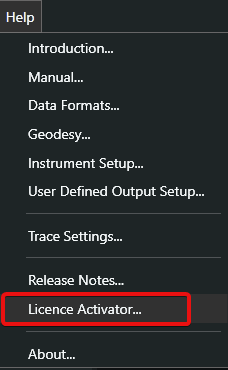
Fig. 2 - Licence Activator
Enter the 9-digit key (soft licence) received in the email in the designated box, select the software and/or add-ons and press "Activate". More information about activating a software package with a 9-digit key here: https://eiva.freshdesk.com/support/solutions/articles/43000615912-introduction-to-the-navisuite-licence-activator
The soft licence is computer specific linked and can only be used on the computer it was created for. If the computer name is changed or the computer is reformatted the soft licence will no longer be valid.
If you have an USB dongle from EIVA, you only need to insert the dongle into a free USB port.
Physical dongles will be ''everlasting'' for the current software version. A dongle is linked to an SMS agreement which is renewed every year. If not renewed, the dongle will act as un-supported. This means that it will work with older software versions, but not versions newer than when the SMS agreement was terminated.
NaviPac running in demo mode
It is basically the same procedure, but no licence is installed (used for testing or demo). You can simulate every instrument (except data output), but you can't set the I/O mode to ON.
NaviPac installation workflow for Helmsman Classic use
When installing NaviPac version 4.X, an environmental variable, $EIVAHOME, is generated.
This environmental variable is used in connection with the execution of NaviPac. By default, the environmental variable is C:\EIVA\NaviPac.
Please Note: Do not use the folder $EIVAHOME\Log for any data or important files. NaviPac removes all files from this folder at each startup (subfolders are not affected).
1. Make sure a previous release of the NaviPac is not started (use “Stop” button in setup program if started and close NaviPac config window). For best results, reboot computer, so no Windows services would be used by NaviPac
2. If you are upgrading NaviPac, the installation will automatically upgrade your settings in NaviPac.INI by adding new items if any.
Helmsman Classic:
Helmsman Classic is included and automatically installed within a full NaviPac installation. There is no need for a licence is it is used as a remote Helmsman (slave). Helmsman Classic works in a different way than Helmsman 4, so, if a work setup with Classic is needed, some procedures must be followed:
Helmsman Classic Master:
1. NaviPac folder must be shared with full read/write permissions
2. Connection must be established to a local NaviPac server (127.0.0.1)
Once connected, the screen should like like this (Fig.3)
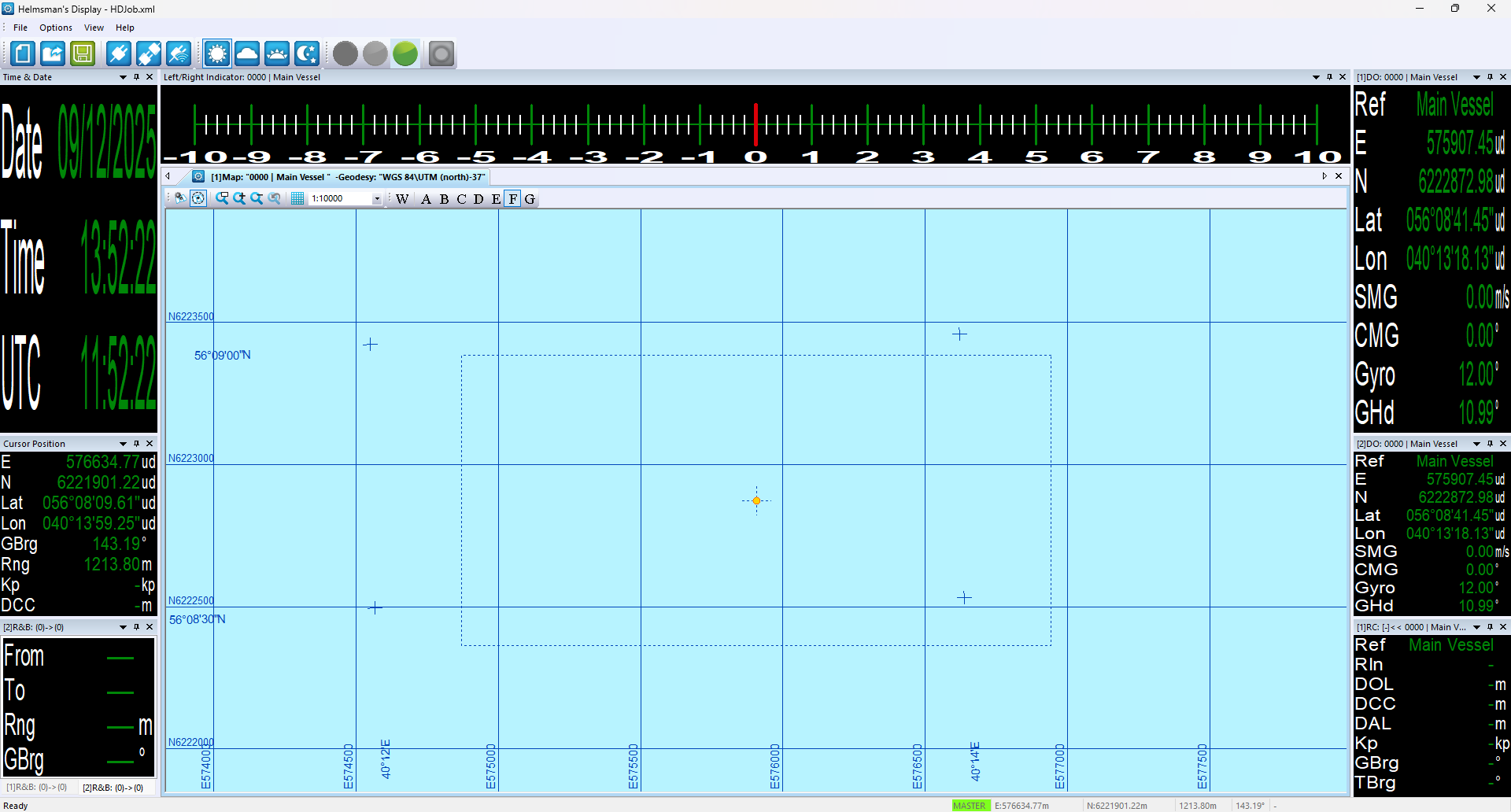 Fig. 3 - Helmsman Classic - Master
To prepare for a remote connection, Helmsman Directories must be checked, so environment variables and working directories are properly set-up ($EIVAHOME must always point to C:\EIVA\NaviPac (Fig. 4)
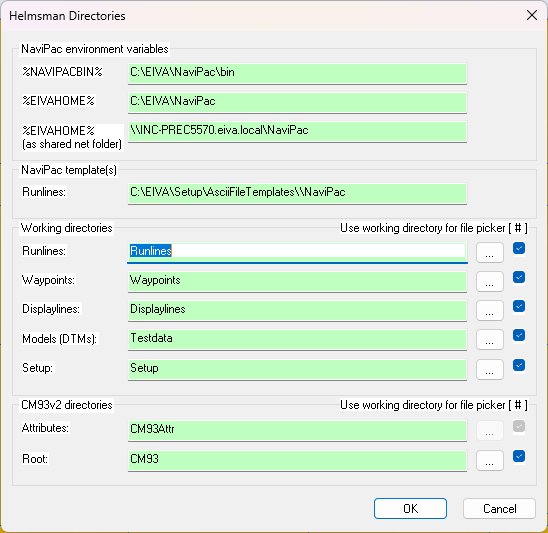
Fig. 4 - Environment variables and working directories are "green"
Helmsman Classic Remote (Slave):
A full NaviPac installation is required, but no licence needed. Helmsman Classic can be run from C:\EIVA\NaviPac\Bin. Connect to a network NaviPac server.
Once connected, you should see this screen (Fig. 5):
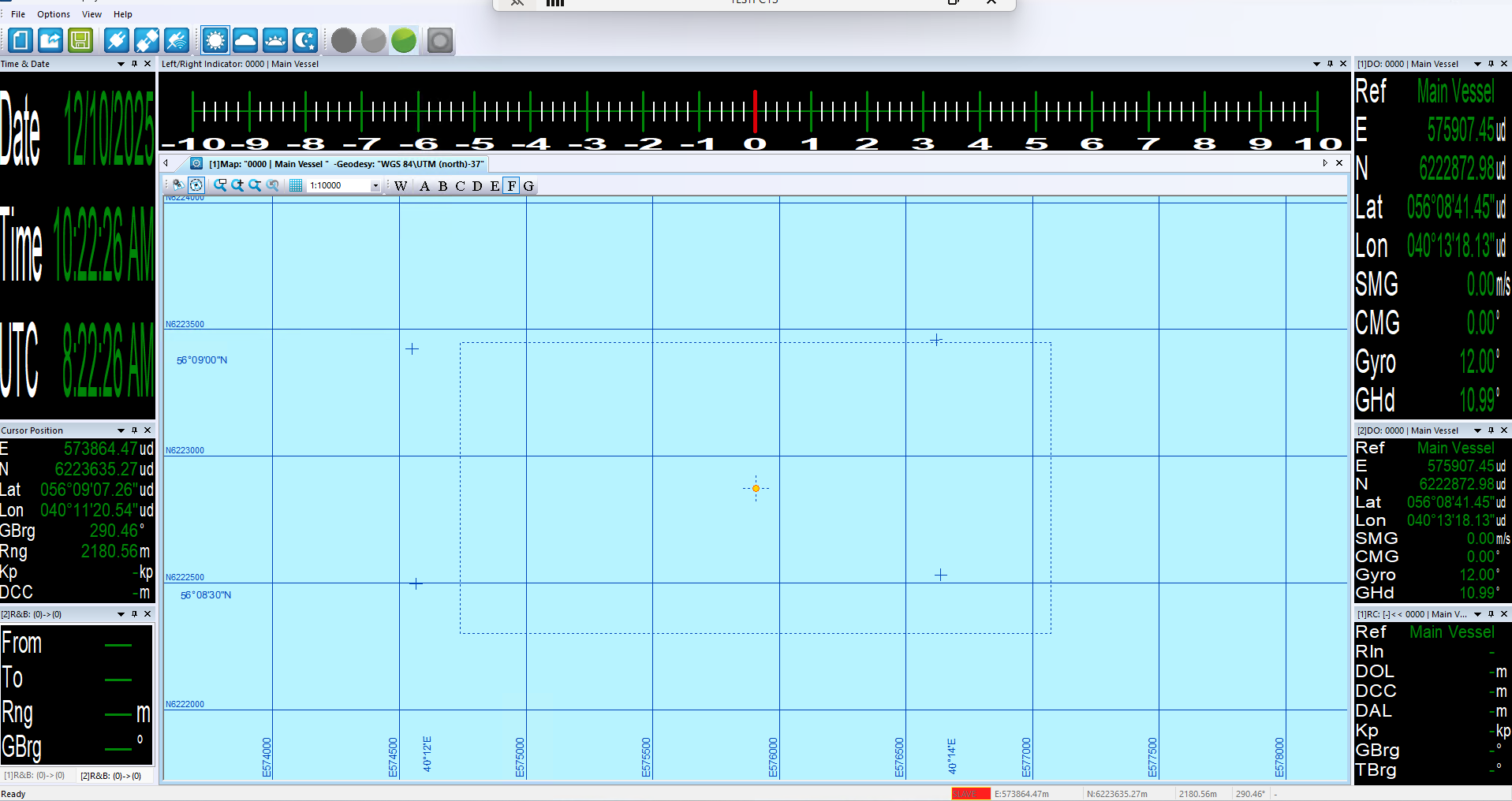 Fig. 5 - Helmsman Classic - Remote (slave)
: