
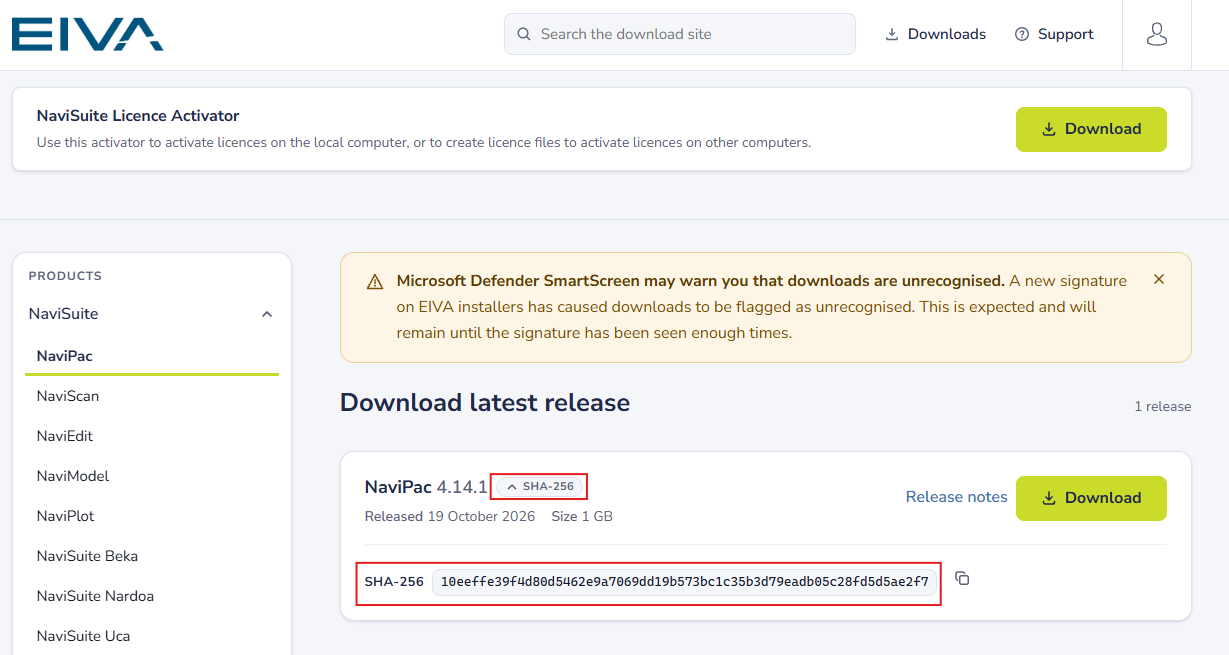
Some downloads on the EIVA download site (download.eiva.com) now come with a SHA-256 checksum. You can use it to confirm that the file you downloaded is complete and identical to the file published on the download site.
What a checksum is
A checksum is a long code calculated from the contents of a file. If even one byte of the file changes, the checksum changes completely. By calculating the checksum of your downloaded file and comparing it with the one on the download site, you can confirm that:
- the download wasn't interrupted or corrupted, which can happen with large installers of around 1 GB;
- the file is exactly the same as the one on the download site.
Checksum and signature check different things. Because the checksum is published on the same site as the file, it proves that your file matches the download site. It does not on its own prove that the file comes from EIVA. For that, also check the digital signature, as described below. A matching checksum, together with a valid EIVA signature, confirms that the file is the genuine EIVA download.
Finding the checksum
- On the download site, open the product page, for example NaviPac.
- Releases that have a checksum show SHA-256 next to the release name. Click it to expand the release.
- The checksum appears under SHA-256. Use the copy button next to it to copy it.
Checksums are only available for some downloads so far. Older releases in the archive may not have one.
Calculating the checksum on Windows
The file name differs depending on the product and version, for example NaviPac_4.14.1.exe. The easiest way to get the full path right is to let Windows fill it in:
- Open PowerShell.
- Type Get-FileHash -Algorithm SHA256 followed by a space. Don't press Enter yet.
- Drag the downloaded file from File Explorer into the PowerShell window. The full path is filled in automatically.
- Press Enter.
The result looks like this:
Get-FileHash -Algorithm SHA256 "C:\Downloads\NaviPac_4.14.1.exe"
Compare the Hash value in the output with the checksum on the download site. PowerShell shows the checksum in capital letters and the download site uses lower case; that difference doesn't matter.
Let PowerShell compare for you
Instead of comparing by eye, you can let PowerShell do the comparison. Type the command below, drag the file in where the path goes, and paste the checksum from the download site between the quotes at the end. You don’t need to add quotes around the path; Windows adds them when you drag the file in, if they are needed.
(Get-FileHash <drag the file here>).Hash -eq "<paste checksum here>".Trim()
True means the file matches. False means it doesn't.
Watch out for extra spaces. If the pasted checksum has a space before or after it, the comparison gives False even when the file is fine. The .Trim() at the end removes such spaces, so keep it in the command.
Using the Command Prompt instead
In the Command Prompt you can use certutil. You can drag the file into the window here too:
certutil -hashfile <drag the file here> SHA256
certutil only shows the checksum, in lower case. It doesn't compare it for you, so compare it manually with the checksum on the download site.
Checking the digital signature
EIVA installers are digitally signed. To check the signature:
- Right-click the downloaded file and select Properties.
- Open the Digital Signatures tab.
- Check that the name of the signer is EIVA A/S.
- Select the signature and click Details to see that Windows reports the signature as valid.
If there is no Digital Signatures tab, the signer is not EIVA A/S, or Windows reports the signature as not valid, don't install the file. Contact EIVA support.
This is also the check to make if Microsoft Defender SmartScreen warns that an EIVA installer is unrecognised. A new signature on EIVA installers causes this warning until the signature has been seen enough times. A valid EIVA A/S signature and a matching checksum show that the file is genuine.
If the checksums don't match
- Check that you're comparing against the checksum for the same release you downloaded.
- Check that the pasted checksum has no extra spaces, or use the .Trim() command above.
- Delete the file and download it again.
- If it still doesn't match, don't install it. Contact EIVA support at support@eiva.com or +45 7215 0505.