This guide shows you all the options included in the Menu Bar from the Helmsman display, so you can have a good overview when you need a option for the job at hand. The Helmsman is built on the same platform as NaviModel Producer but with limited options. It comes in the NaviPac installer and if you wish to install it separately please visit this article:
https://eiva.freshdesk.com/a/solutions/articles/43000761079
Below you will find information for the following menus:
1.1 File
1.1.1 New project
1.1.2 Open Project
1.1.3 Add file(s) to project
1.1.4 Import
1.1.5 Connect to Azure storage
1.1.6 Connect to Makai
1.1.7 Save
1.1.8 Save Project As
1.1.9 Auto Save Project
1.1.10 Recent Project
1.1.11 Recent Folders
1.1.12 Recent Files
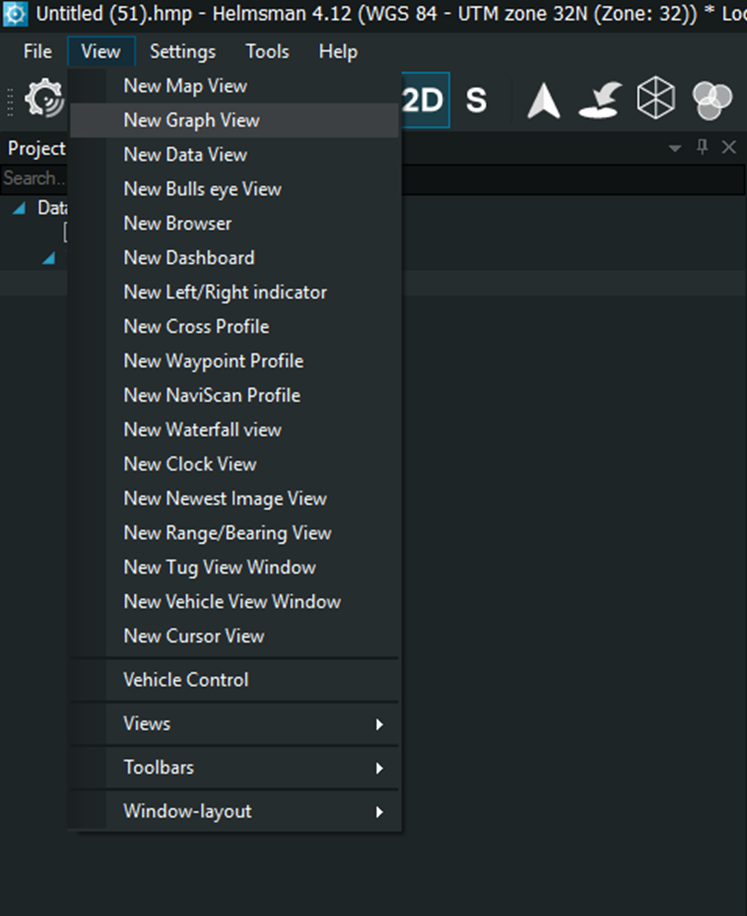
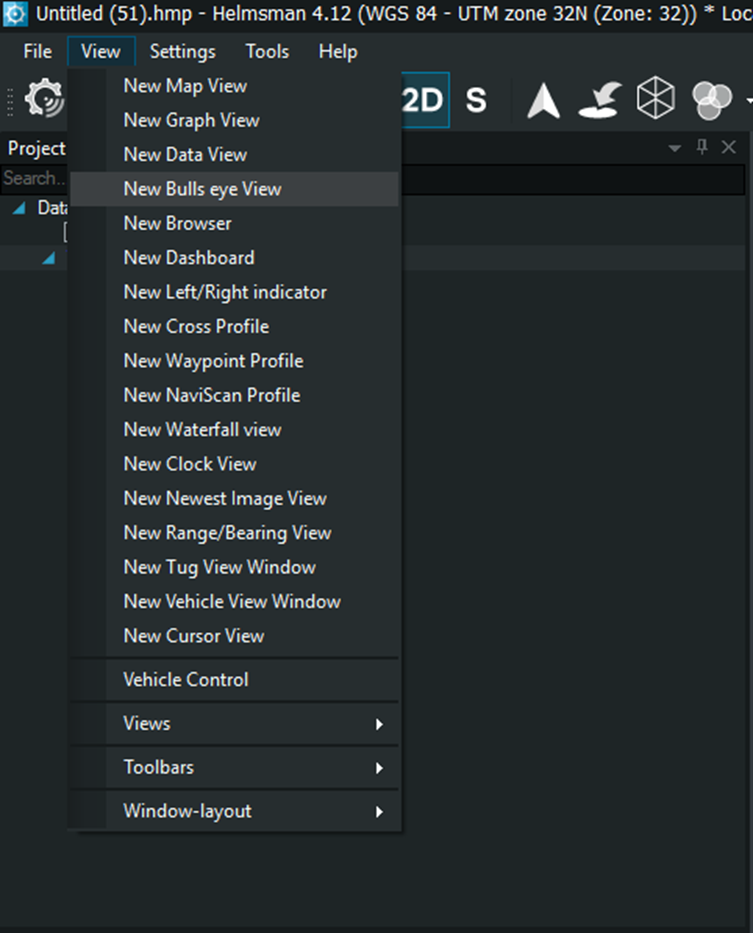
1.2 View
1.2.1 New Map View
1.2.2 New Graph View
1.2.3 New Data View
1.2.4 New Bulls eye View
1.2.5 New Browser
1.2.6 New Dashboard
1.2.7 New Left/Right Indicator
1.2.8 New Cross Profile
1.2.9 New Waypoint Profile
1.2.10 New NaviScan Profile
1.2.11 New Waterfall View
1.2.12 New Clock View
1.2.13 New Newest Image View
1.2.14 New Range/Bearing View
1.2.15 New Tug View Window
1.2.16 New Vehicle View Window
1.2.17 New Cursor View
1.2.18 Vehicle Control
1.2.19 Views
1.2.20 Toolbars
1.2.21 Window-layout
1.3 Settings
1.3.1 Geodesy
1.3.2 Datum Shift
1.3.3 Project Settings
1.3.4 Program Resolutions
1.3.5 Options
1.3.6 Workspaces
1.4.Tools
1.4.1 Absolute Ocean
1.4.2 Catenary
1.4.3 Cleaning
1. 4.4 Design
1.4.5 DTM
1. 4.6 Eventing
1. 4.7 Follow
1. 4.8 Lines
1. 4.9 Live Data
1. 4.10 Live Point clouds
1.4.11 Maps
1.4.12 Measurements
1.4.13 Misc
1.4.14 Patch test
1.4.15 Point clouds
1. 4.16 Video Recording
1.5 Help
1.5.1 Graphics
1.5.2 Show us a Problem
1.5.3 Support
1.5.4 Download Site
1. 5.5 Training
1.5.6 eLearning
1.5.7 Search for Help
1.5.8 Licence Activator
1.5.9 About
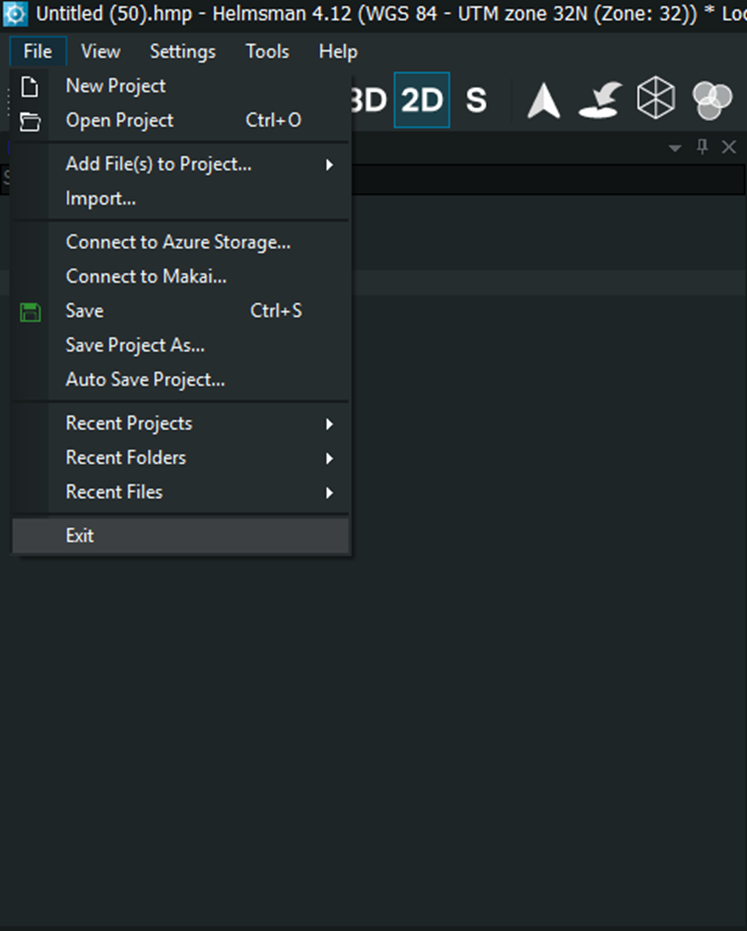
1.1 The File menu contains commands for creating, opening, saving, and managing Helmsman projects, as well as for importing data and connecting to external storage devices.
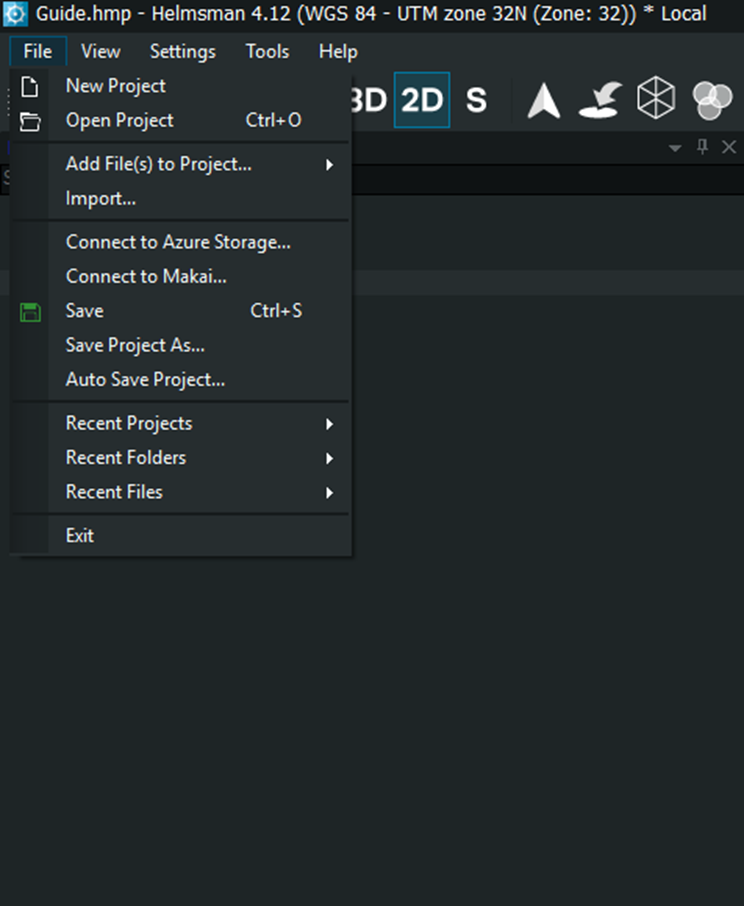
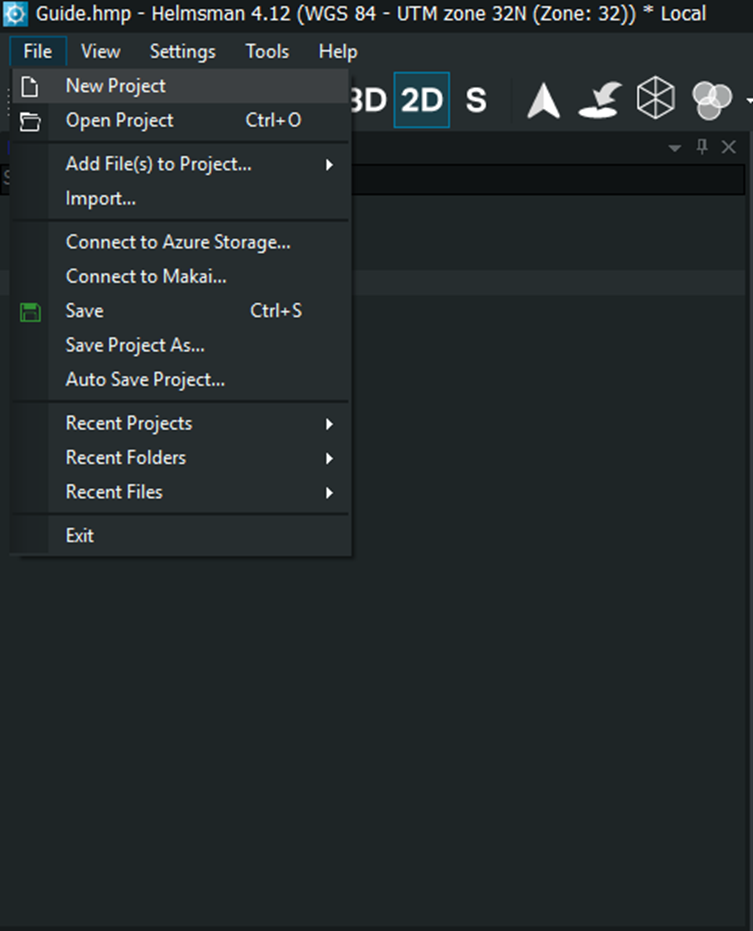
1.1.1 New Project – Creates a new, empty Helmsman project.
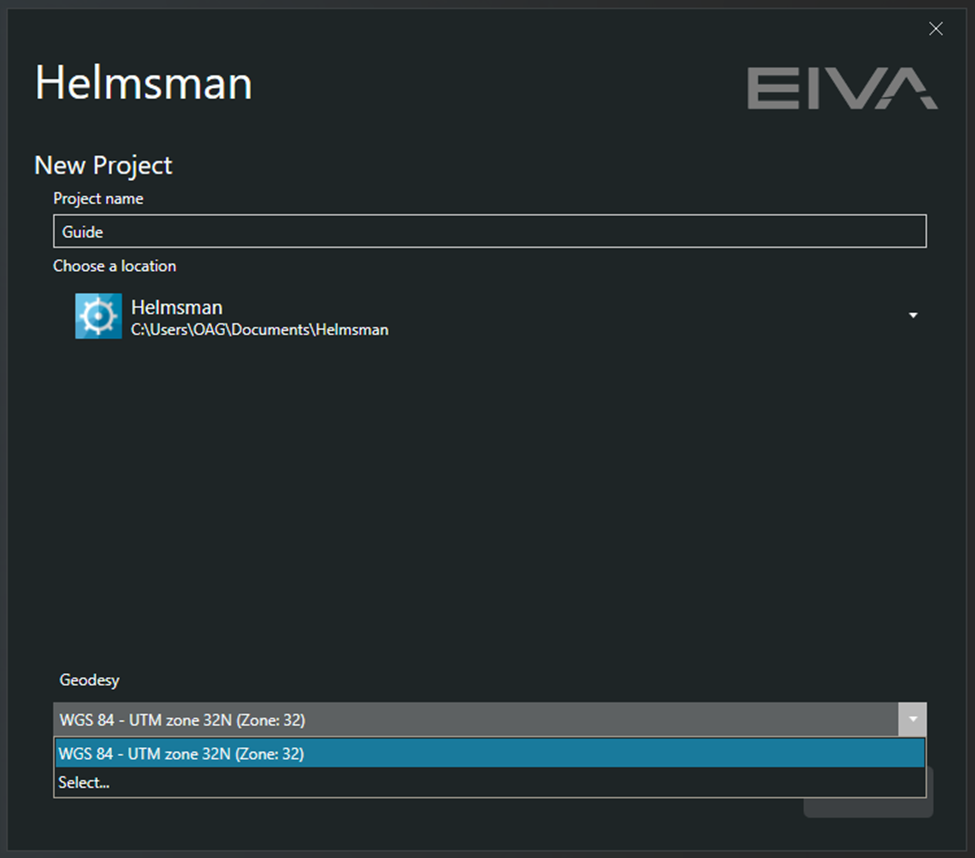
The user is prompted to define the:
Project name – enter the desired name for the project
Choose a location – specify the folder where the project files will be stored. By default, Helmsman suggest the user’s Documents/Helmsman directory
Geodesy – shows the coordinate system used for the project (e.g. WGS 84 – UTM zone 32N). This can be changed later used settings – Geodesy.
After completing the details, press Create to initialize the new project. The project folder structure and default workspace will be automatically generated.
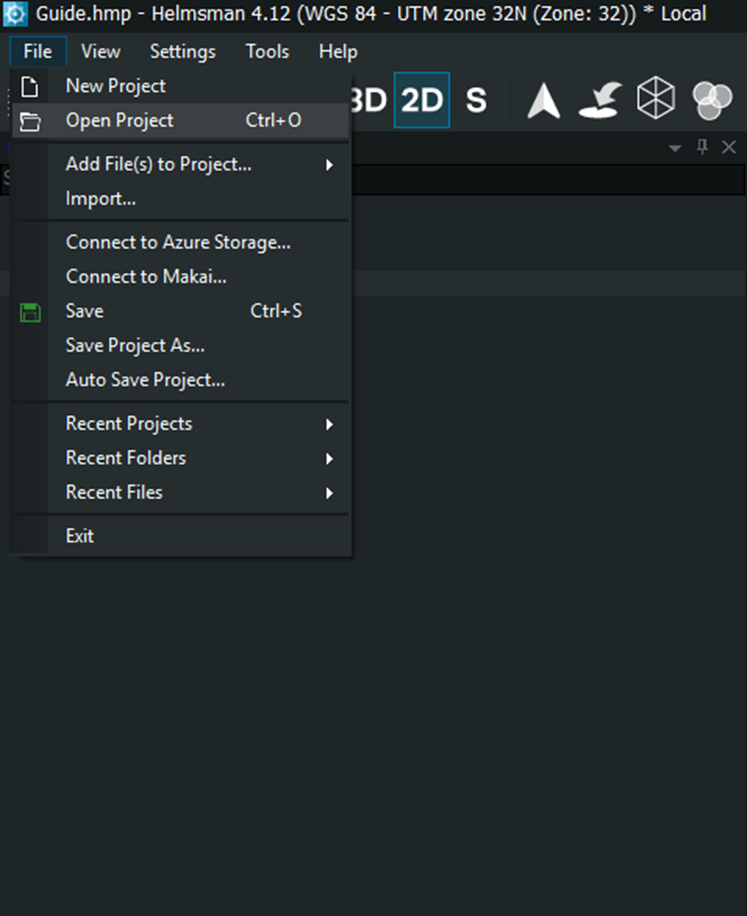
1.1.2 Open Project – opens an existing project file (.hmp). When selected, a file browser appears, allowing the user to locate and load a previously saved project. Once the project is opened, Helmsman loads all related configuration files, layout settings, and linked data. The coordinate system and project name are displayed in the application title bar.
1.1.3 Add File(s) to Project allows you to attach survey data, background models, navigation tracks and auxiliary layers into the active Helmsman project.
-DTM and TIN Model
-Land XML
-AutoCAD
-Displayline
-NaviModel and ASCII Contours
-DIgitized Line
-Runline
-Track data
-UKOOA and Norcom Track
-UKOOA P5/94 Pipeline
-Kalman Line
-ESRI Shape
-Waypoints
-3D Studio Object
-Wavefront
-Fbx
-STEP
-PLY
-ASCII XYZ data
-NaviEdit xyz
-NaviScan data
-Kongsberg Data
-Seabed Elevation Model
-Farvandsvaesenet
-Generic Sensor Format
-NaviEdit Extended
Tip: When adding multiple layers, Helmsman assigns each file to its appropriate category in the Project Tree
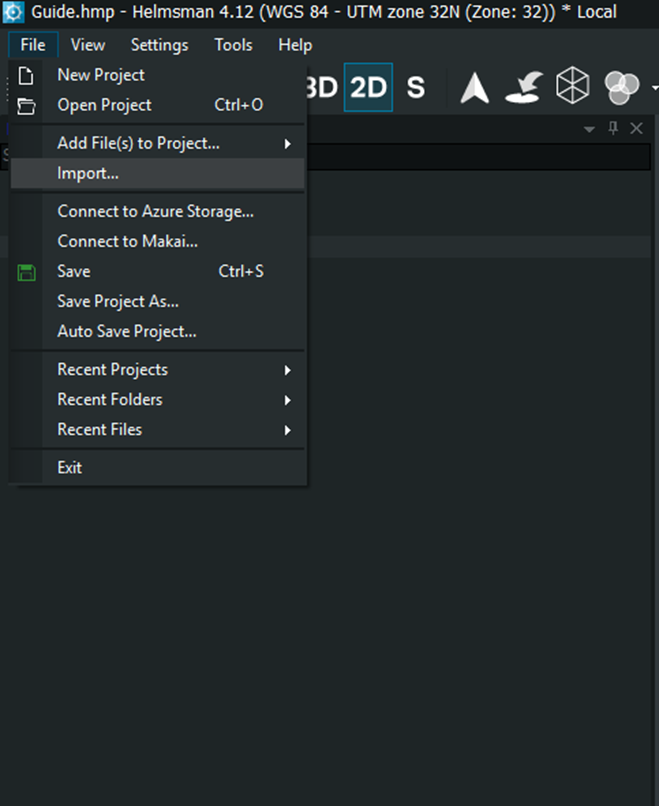
1.1.4. The Import option is used to bring in survey- related data that must be converted, reprojected or structured before it can be displayed in the project
The ASCII import window allows users to bring in generic text based data, or navigation logs, and convert them into Helmsman compatible objects.
File(s)- The path to the input text file. You can type it directly or use Browse to locate it
Object List (left panel) – lists the available object types that can be created from the imported data.
Template buttons:
New – create a new import template defining column structure, delimiters and coordinate mapping
Copy- duplicate an existing template for quick modification
Save- save changes to the selected template
Delete- remove an unused or outdated template
Information panel at the bottom displays guidance for the text import
Compact view- when checked, hides the template details and advanced mapping options, showing only essential controls for quick imports
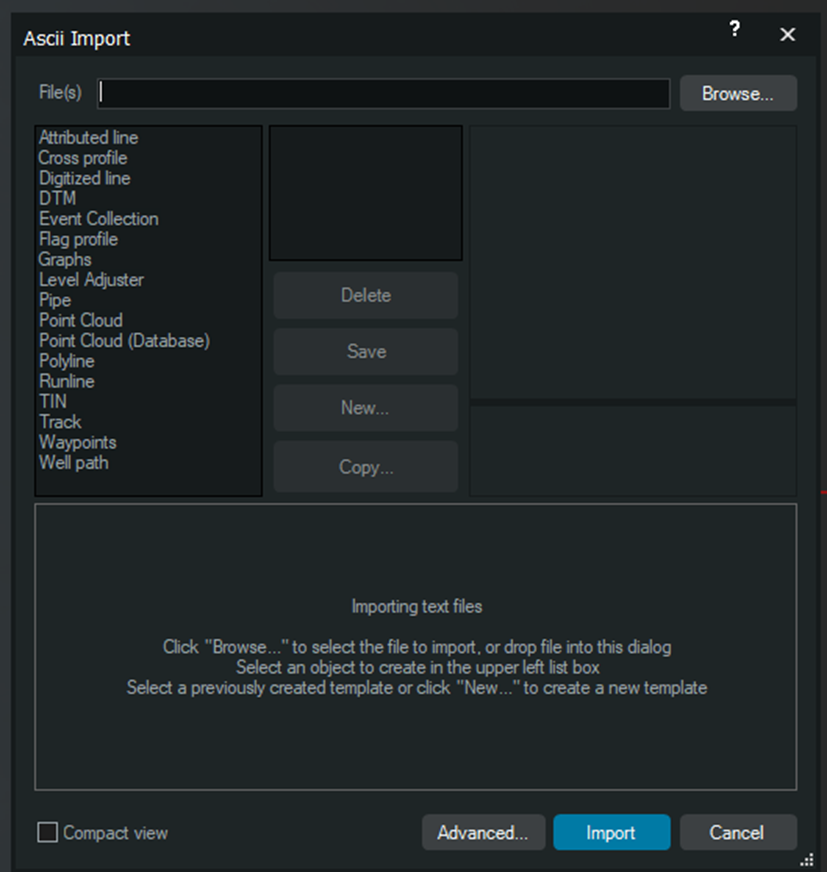
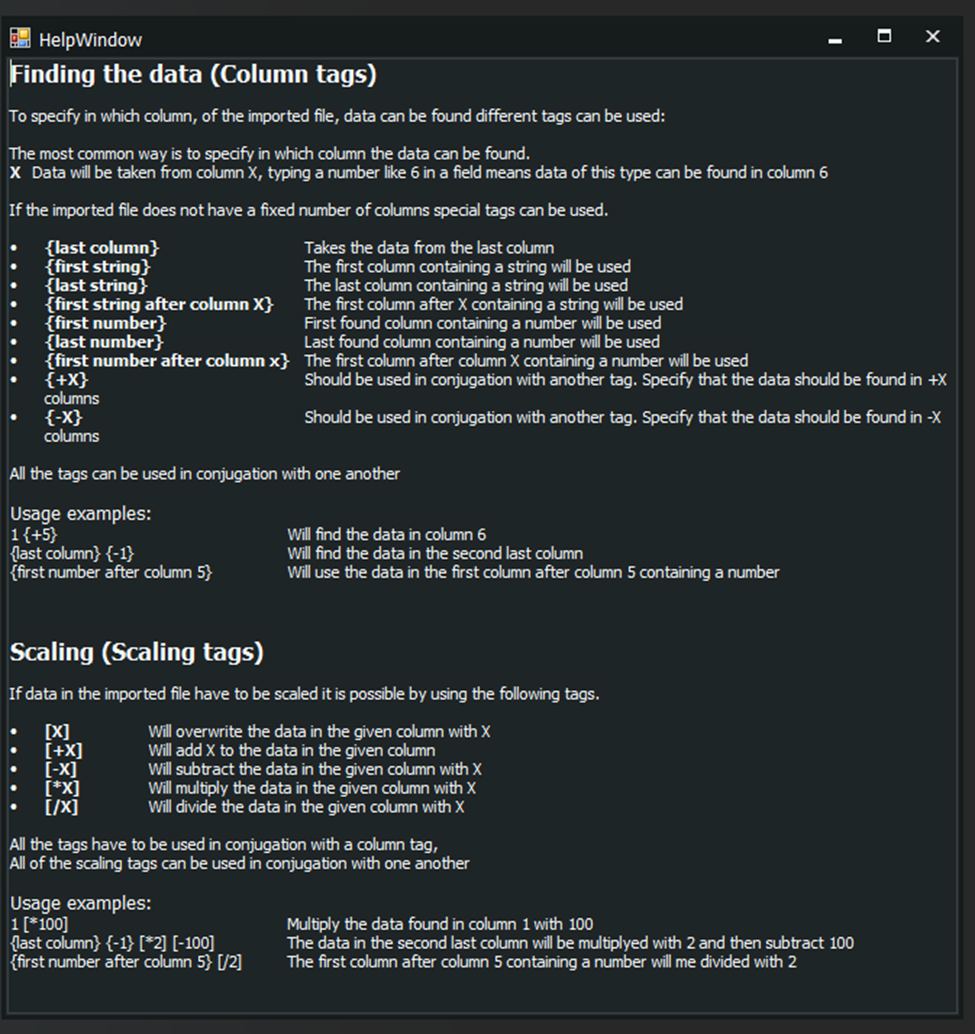
Advanced – opens detailed settings for delimiter type (comma, tab, semicolon, space), text qualifiers, coordinate order and unit selection.
The Import/Cancel- Use Import to confirm and load the file according to the selected template, or Cancel to close without importing
1.1.5 Connect to Azure Storage- allows you to connect your Helmsman project to an Azure Blob Storage container, enabling cloud based storage and synchronization of project files. It is useful when multiple users collaborate on the same project or when a centralized backup is required.
Refer to the link below:
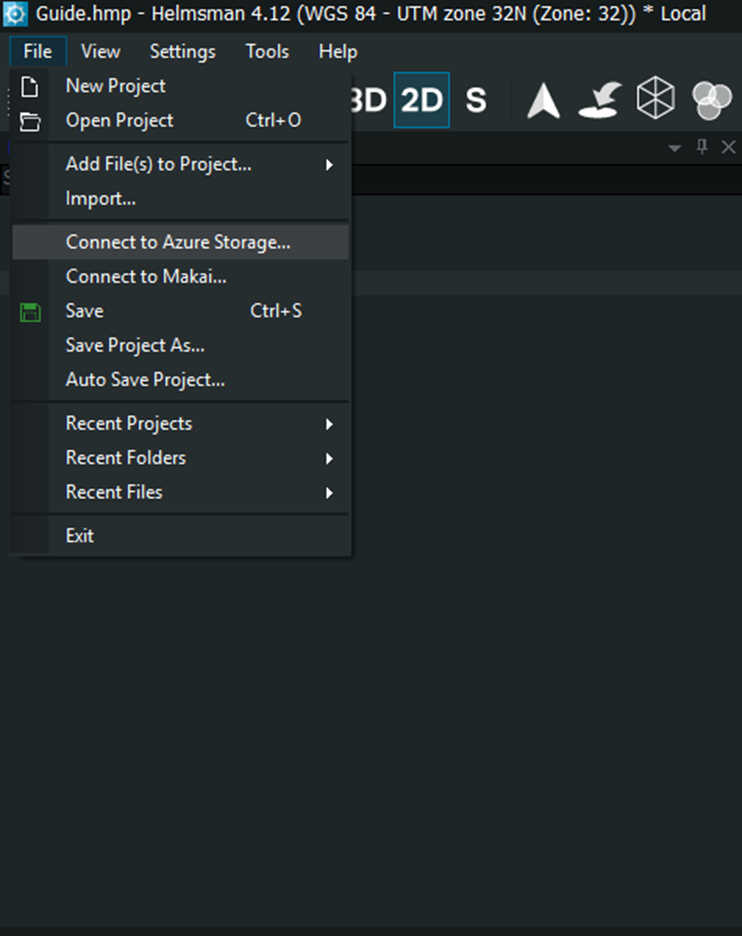
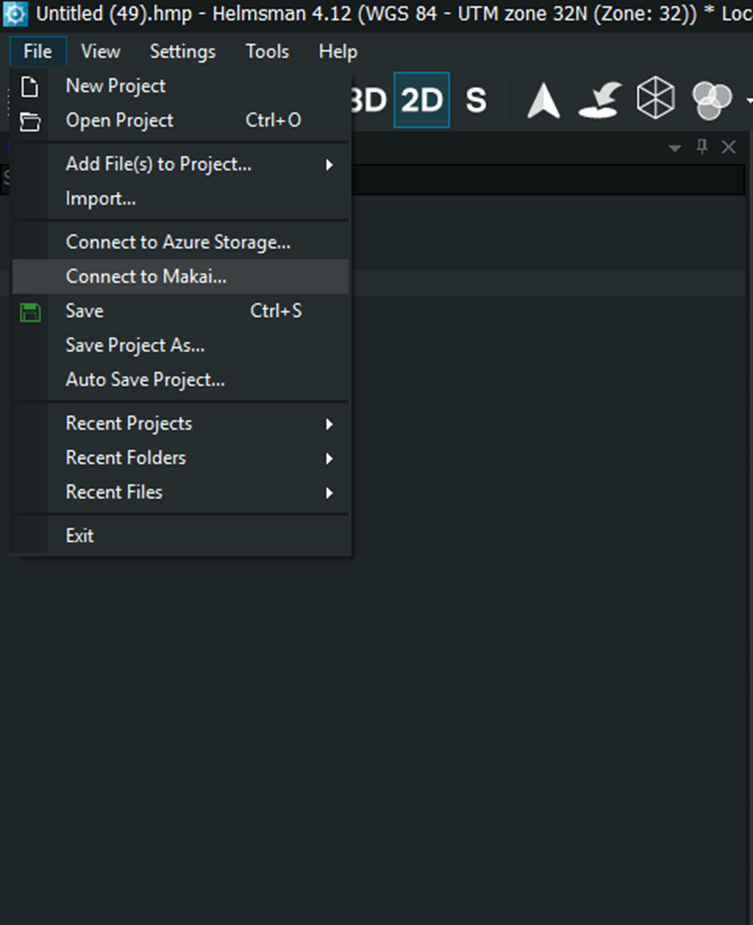
1.1.6 Connect to Makai – refers to establishing a link between Helmsman and MakaiLay cable -lay planning and monitoring software (developed by Makai Ocean Engineering)
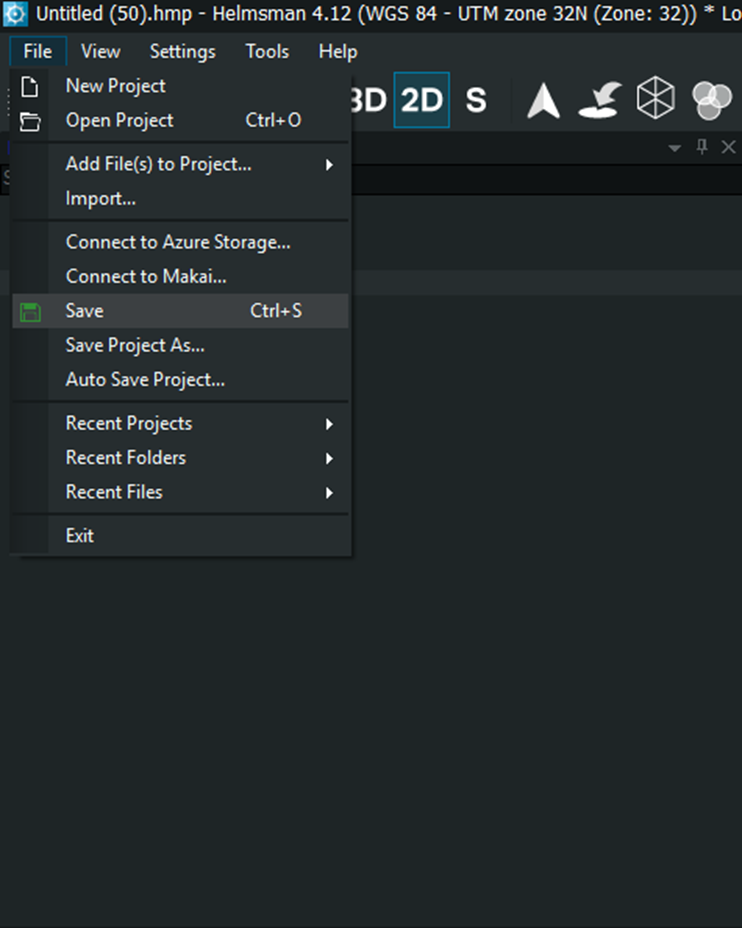
1.1.7 Save – option in the File menu saves the current Helmsman project (.hmp)
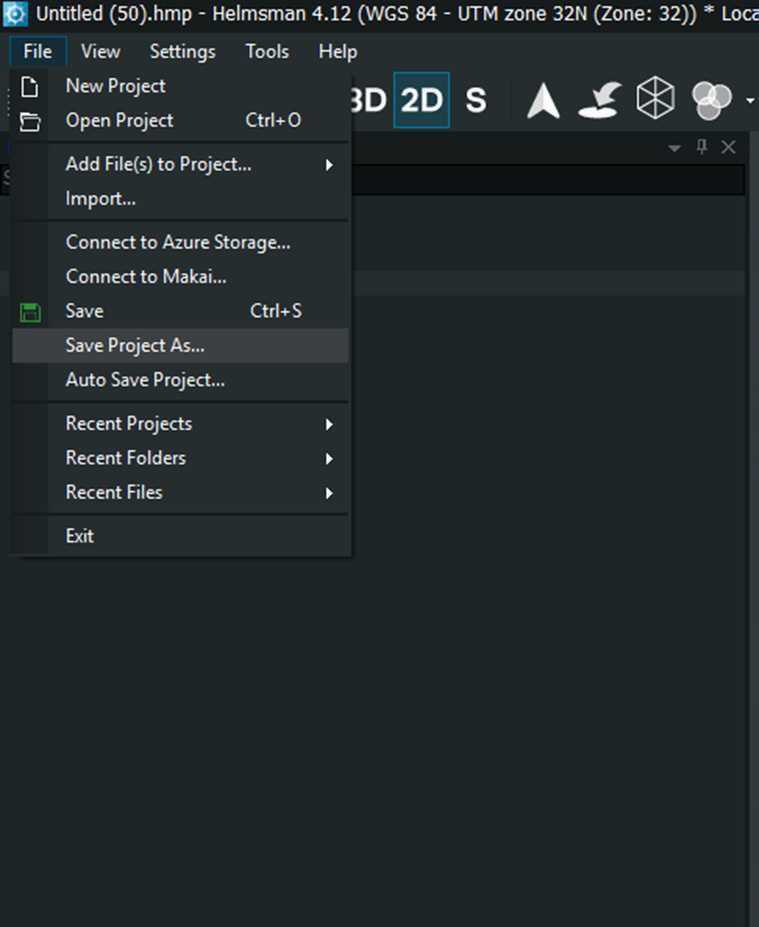
1.1.8 Save Project As- creates a new copy of your current Helmsman project under a different name or in a different location.
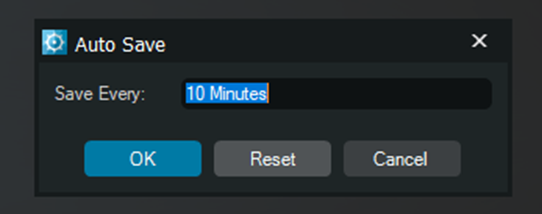
1.1.9 Auto Save Project- allows you to set up automatic saving to your current .hmp project file at defined time intervals
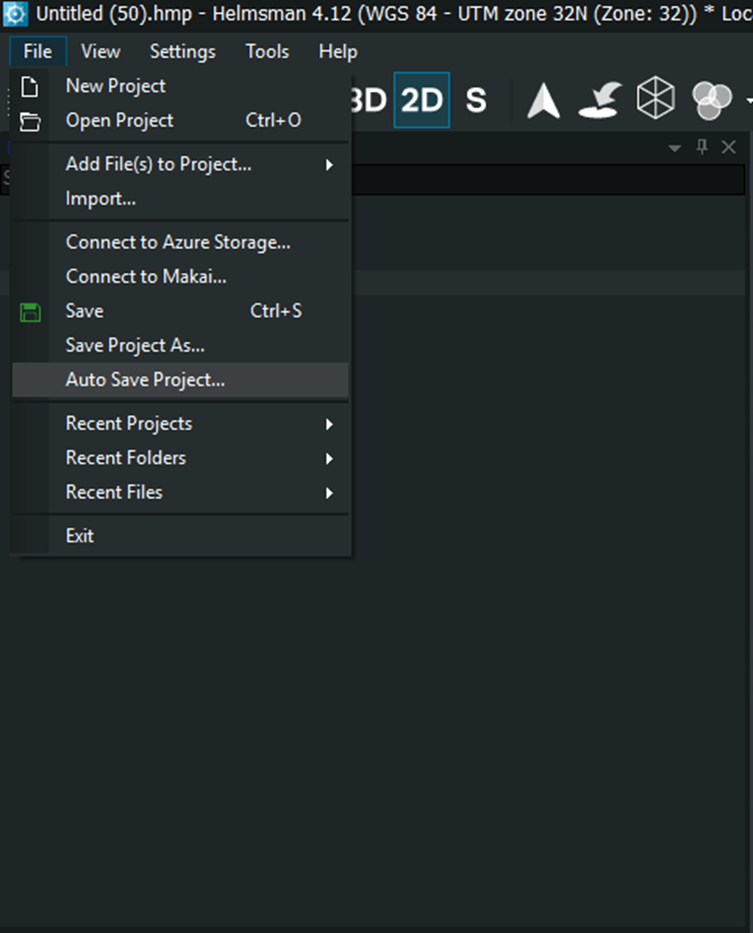
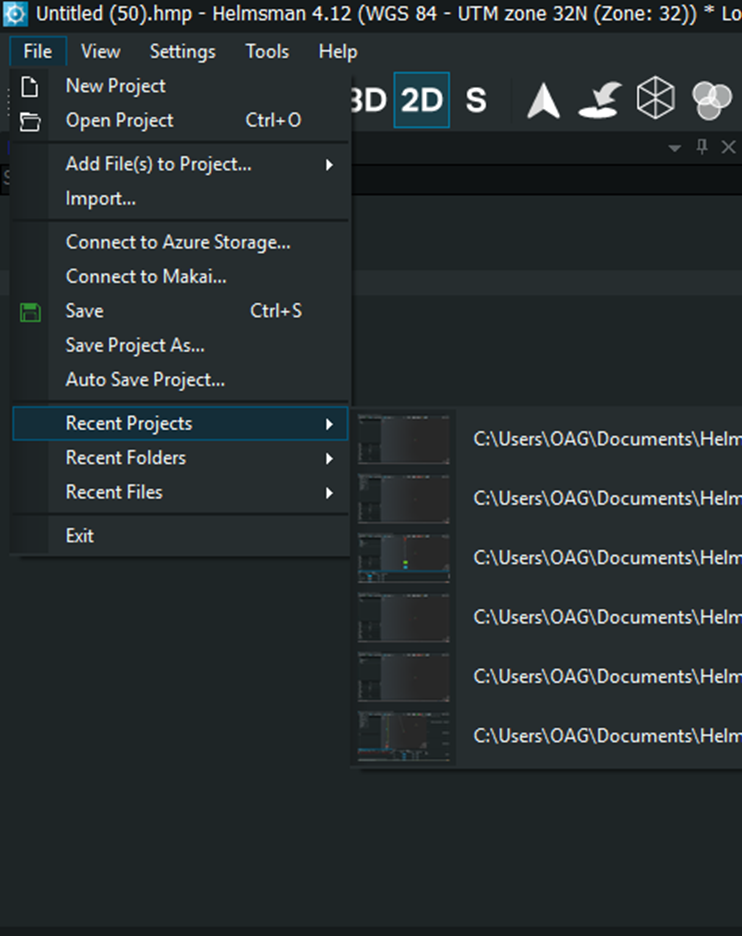
1.1.10 Recent Projects- lists the most recently opened .hmp project files
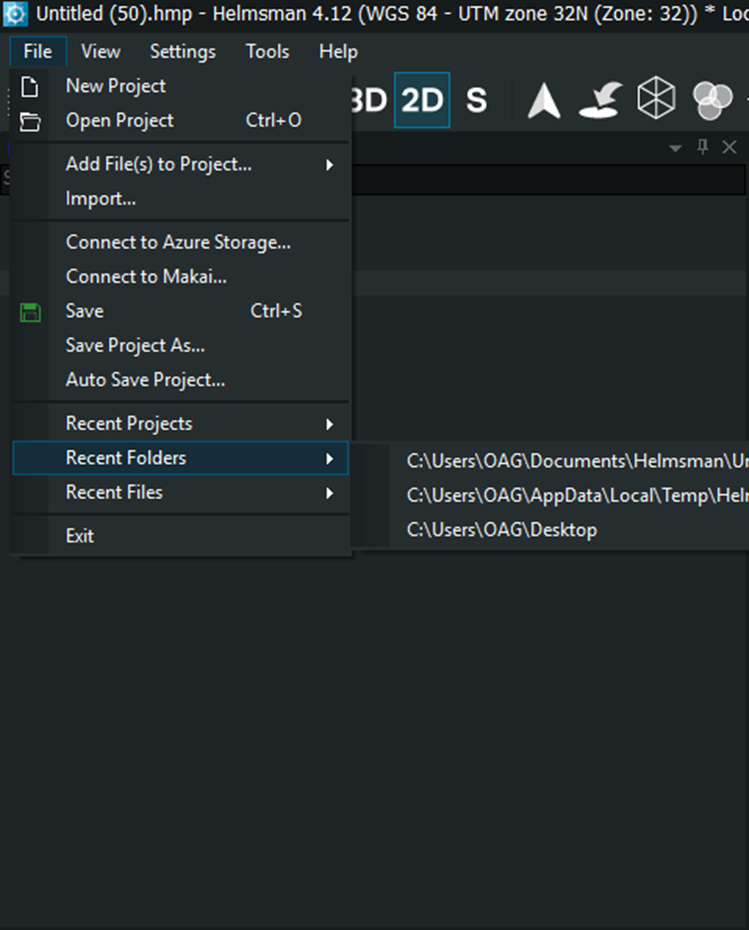
1.1.11 Recent Folders- shows a list of the last folders you accessed in Helmsman, allowing you to quickly reopen them without browsing them manually.
1.1.12 Recent files- shows a list of the last files you accessed in Helmsman, allowing you to quickly reopen them without browsing them manually.
1.1.13 Exit- closes Helmsman app completely. Any unsaved changes will prompt a save confirmation before closing
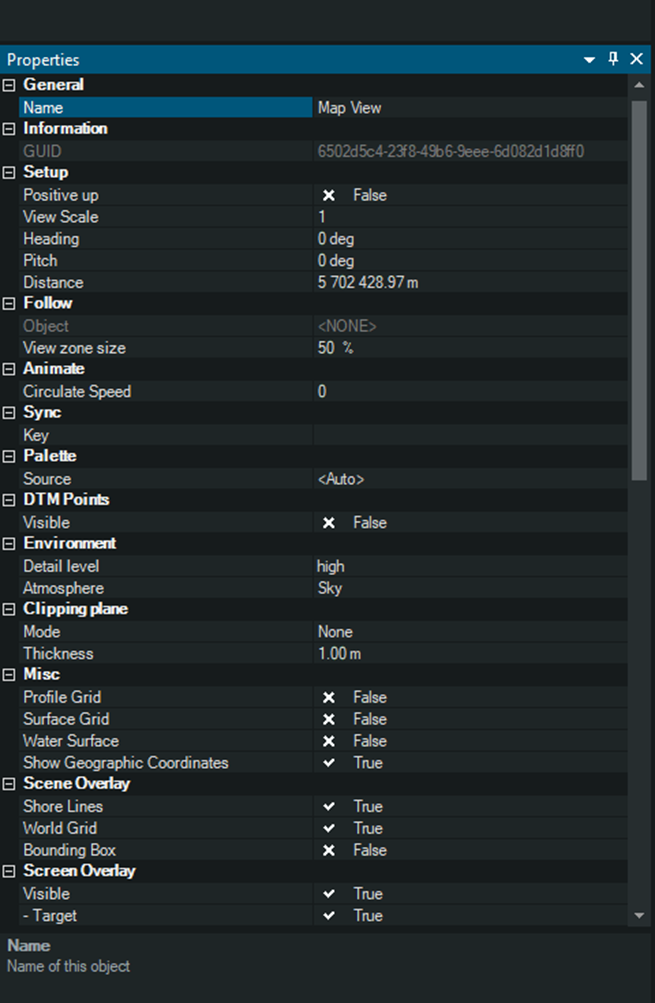
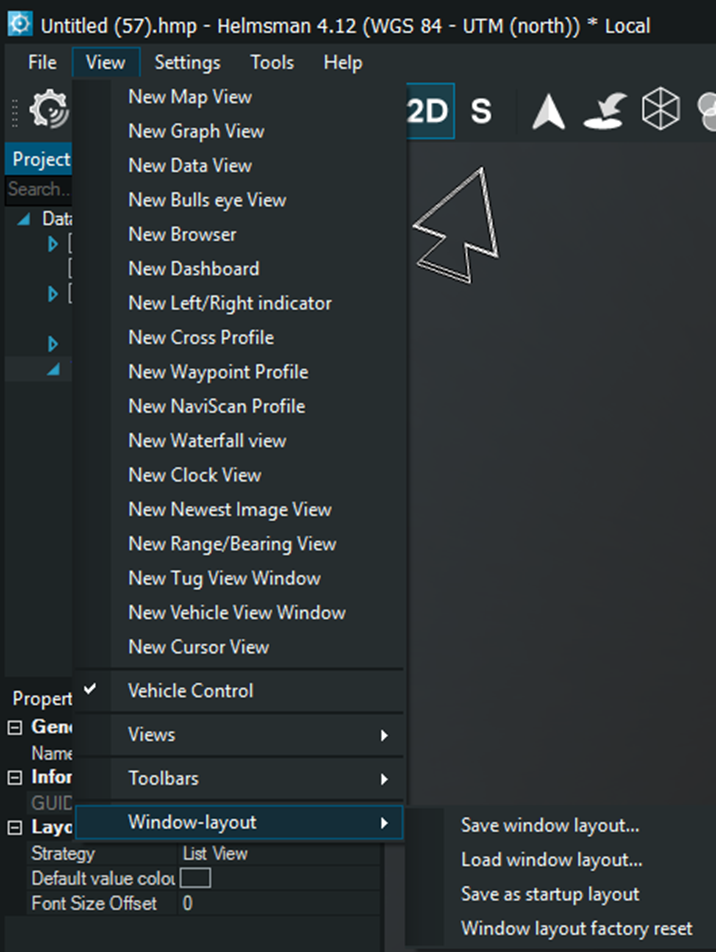
1.2.1 New MapView- is the main both in 2D and 3D navigation and survey display Window in Helmsman Display. It shows the vessel, background charts, objects in real time.
Map View Properties- When a Map View is selected in the Project Tree, its configuration appears in the properties panel. These parameters control how the map behaves and what elements are visible. The main properties sections are General, Information, Setup, Sync, Palette/key, Source, Visible, Environment, Misc, Scene Overlay, Screen Overlay
1.2.2 New Graph View- Plots any selected system parameter as a time-based graph. It updates in real-time or playback and can show multiple curves at once. It is used for monitoring sensor behaviour, spotting dropouts or drift.
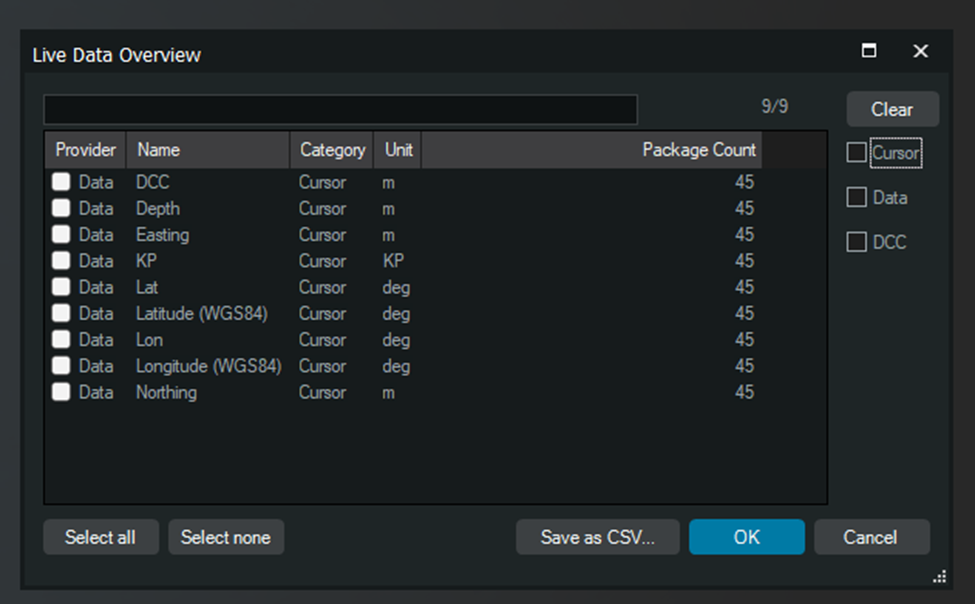
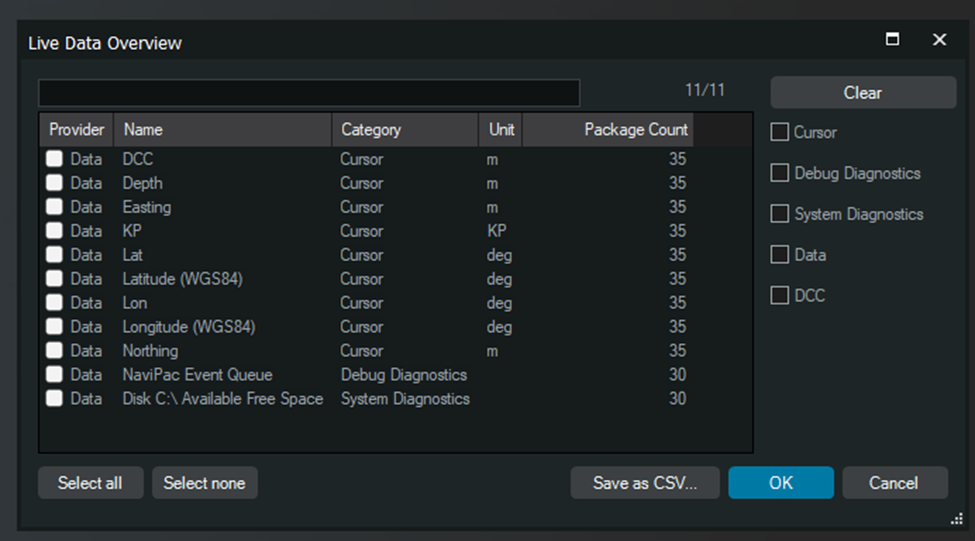
1.2.3 New Data View shows all incoming data streams in real time. It lists each parameter together with its unit and the number of received packets. It’s used for QC and troubleshooting before adding the data into views or graphs.
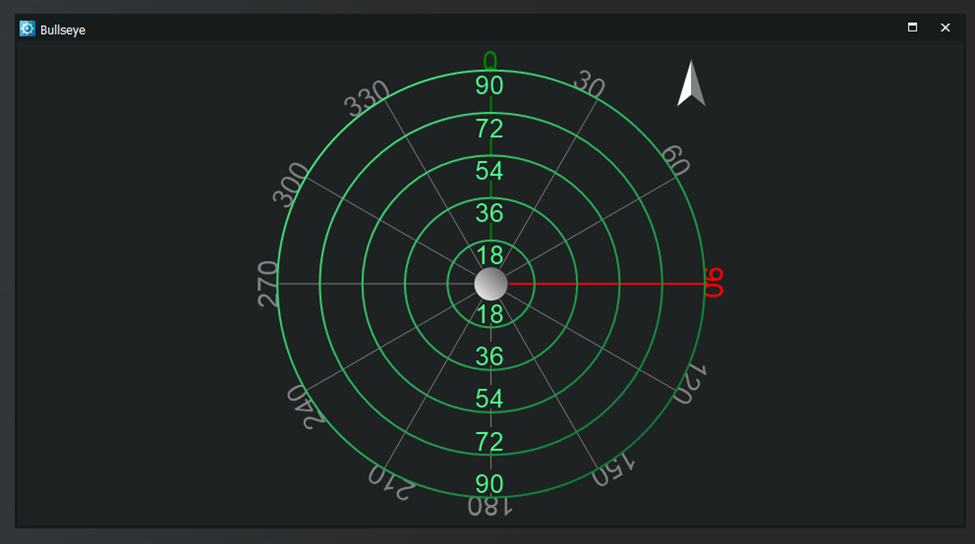
1.2.4 New Bulls Eye View opens a circular target-style display showing the vessel or ROV position relative to a central point. It is used for quick visual tracking of offsets, approach, and alignment during operations
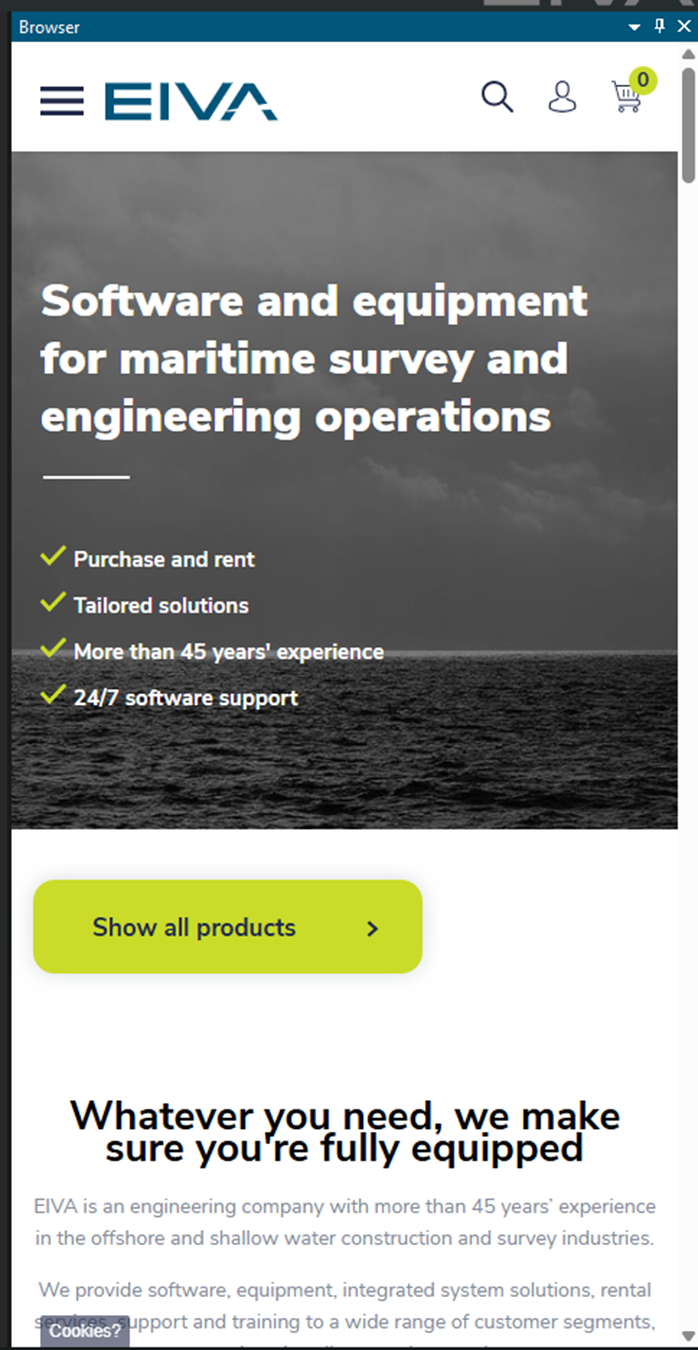
1.2.5. New Browser opens a built-in web browser inside Helmsman. It is mainly used to view online documentation, manuals or support pages without leaving the software.
1.2.6 New Dashboard- creates a panel for displaying numeric readouts, gauges and status indicators in a compact layout. It is used to monitor key parameters such as speed, depth, heading or sensor quality.
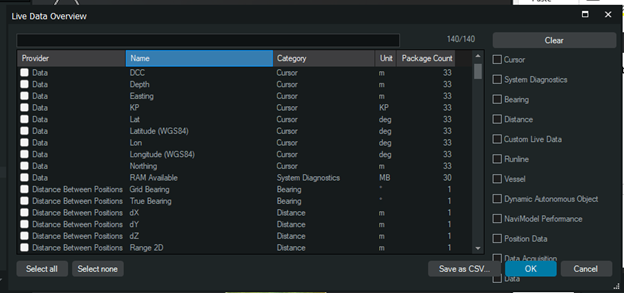
Live data Overview shows all incoming data streams with their units and packet rates. It helps you confirm that sensors are sending valid values and is used mainly for quick QC and troubleshooting
1.2.7 New Left/Right Indicator adds a simple bar-style display showing how far the vessel or ROV is offset to the left or right of the planned line. It is used for quick steering corrections during line following.

1.2.8 New Cross profile – opens a dedicated window showing a transverse section of the seabed or route, aligned with the vessel heading or a selected line. The view displays the depth profile (DTM), the vessel position, and any target line or planned run
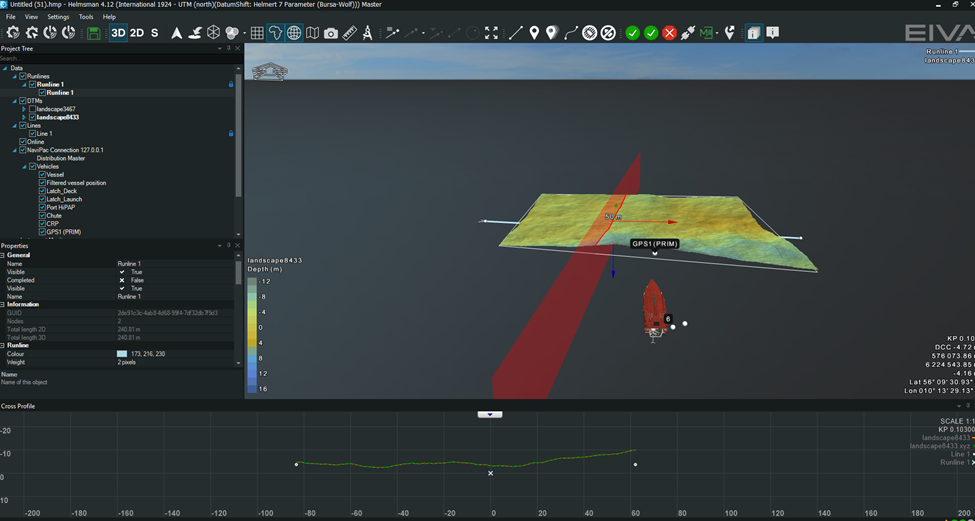
1.2.9 New Waypoint Profile- shows a longitudinal profile between waypoints or along a selected route. It displays the seabed depth, planned route elevations, and vessel’s current position along that line.
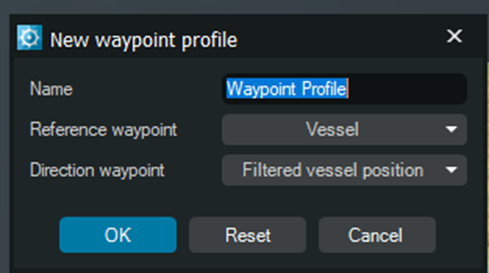
1.2.10 New NaviScan Profile- Imports key parameters from a connected NaviScan instrument. You can create a profile if there is at least one active NaviScan Instrument in your setup.
1.2.11 New Waterfall View- Displays the incoming acoustic data as a continuously scrolling image. Each new ping is drawn at the top of the panel, while older pings move downward, creating a real-time ‘’ waterfall’’ of the raw signal. It is mainly used for quick signal – quality assessment.
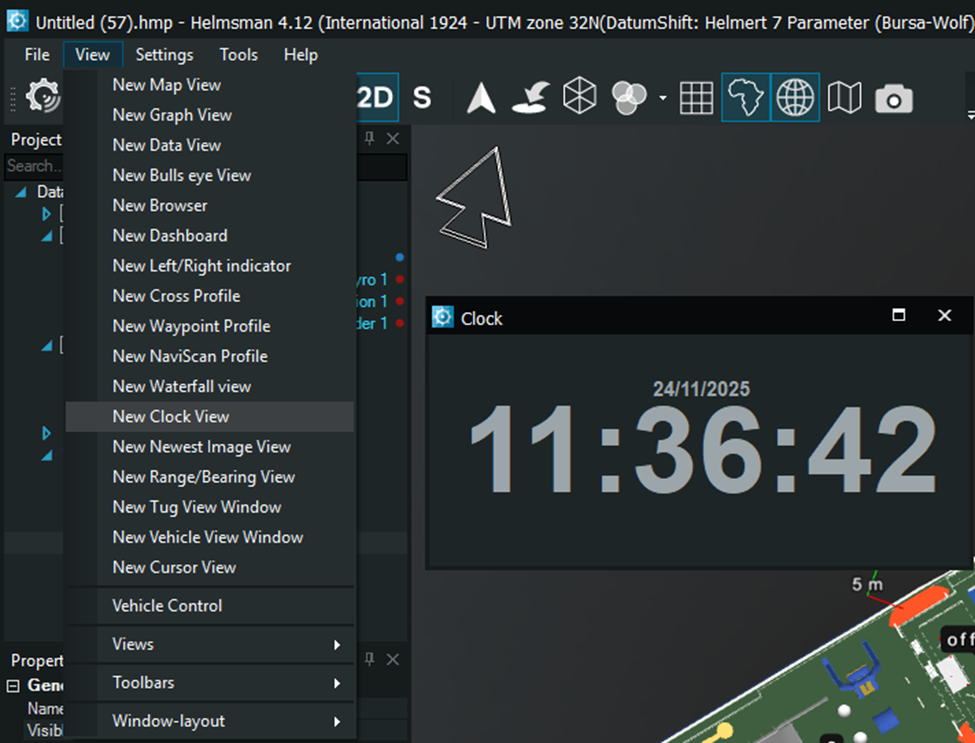
1.2.12 New Clock View – Shows the current system time inside Helmsman. It updates every second and is useful when you need a visible time reference while monitoring data or coordinating with external logging systems.
1.2.13 New Newest Image View – displays the most recently received image from an external camera or imaging sensor connected to Helmsman. When a new image arrives, the view updates automatically and replaces the previous one. It is designed for quick visual confirmation of camera input during survey operations.
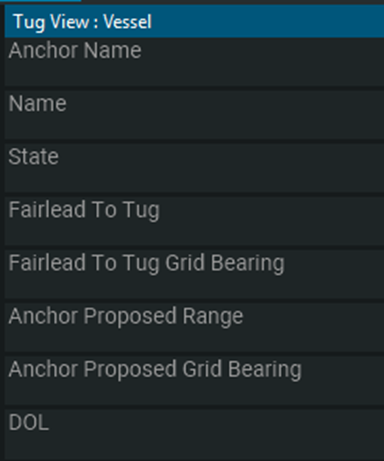
1.2.14 New Tug View Window – is a dedicated window that shows the vessel geometry and all tug-related objects. It helps the operator monitoring tug heading, wire direction, forces and relative positions while keeping the main navigation view uncluttered.
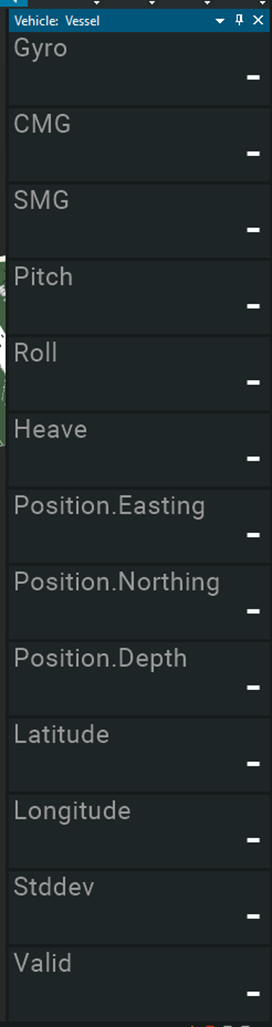
1.2.14 New Vehicle View Window - displays the live navigation and motion parameters of the selected vehicle. It is often used during operations where the operator needs a constant view of orientation, position and quality indicators without switching between larger windows
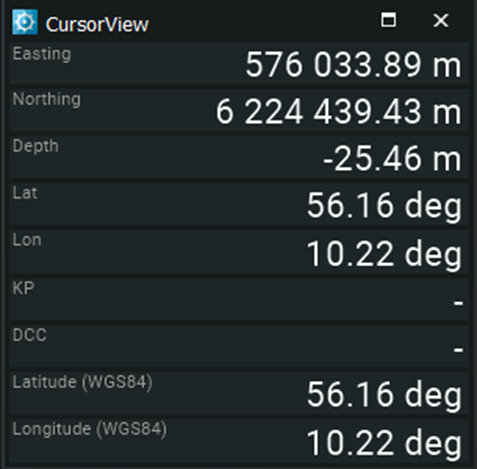
1.2.15 New Cursor View – Shows the exact position and coordinates of the cursor anywhere on the map or layout. It helps during the inspection, QC, and measurement tasks by giving a precise read-out of easting, northing, depth, and other active layers at the cursor location. It is useful when you need accurate point by point information without switching tools or interrupting the main view.
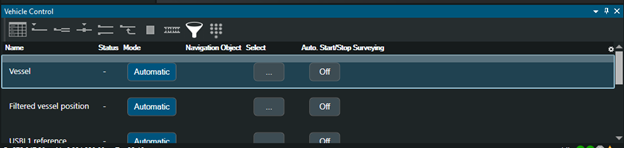
1.2.16 Vehicle Control – provides a dedicated panel for controlling the active vessel or ROV. It shows the current navigation source, status, filtered position and any steering or auto control options available for that platform. Operators use this window to switch navigation inputs, enable or disable automatic steering modes.
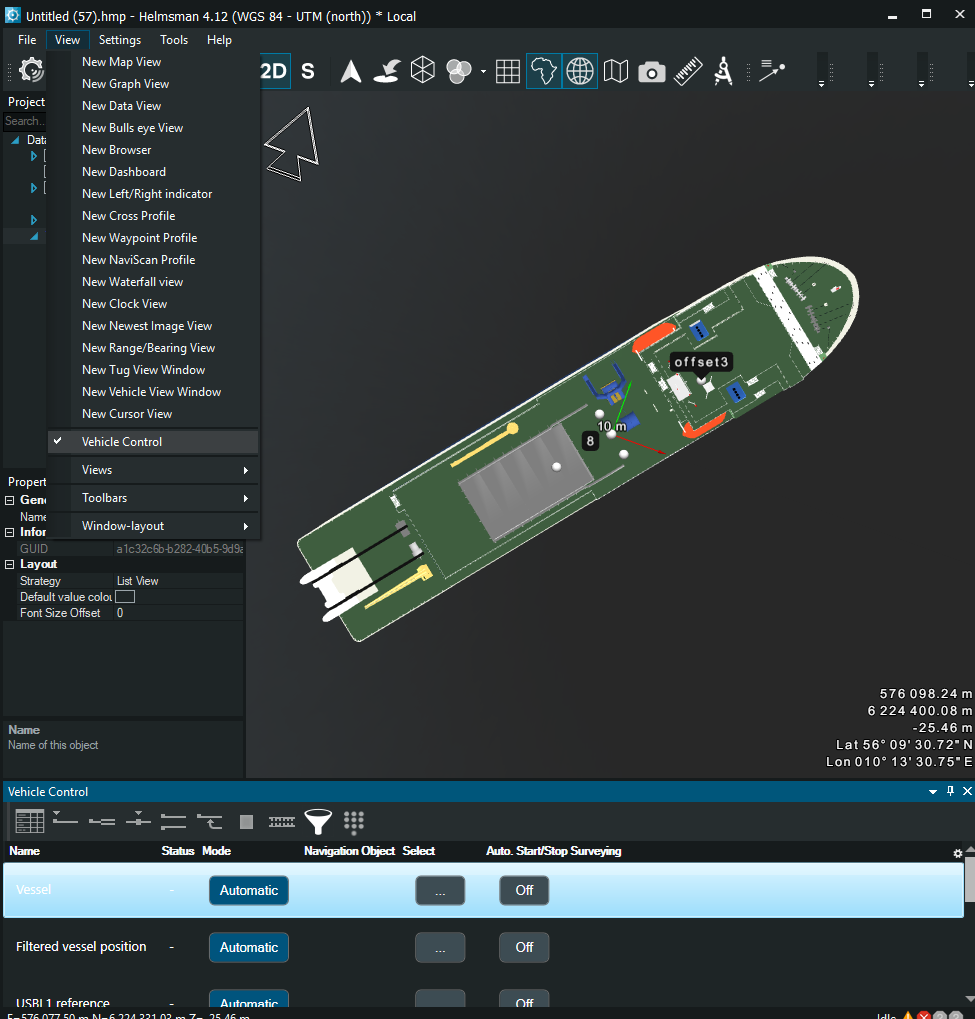
1.2.19 Views – The views menu lets you show or hide the main interface panels in Helmsman. From here you can toggle elements such as the Project Tree, Properties Panel, Job List, Log Window, KP axis, Long Profile, Video and Event Window, and other workspace components. It helps you customize the layout so only the panels you need are visible during navigation or acquisition.
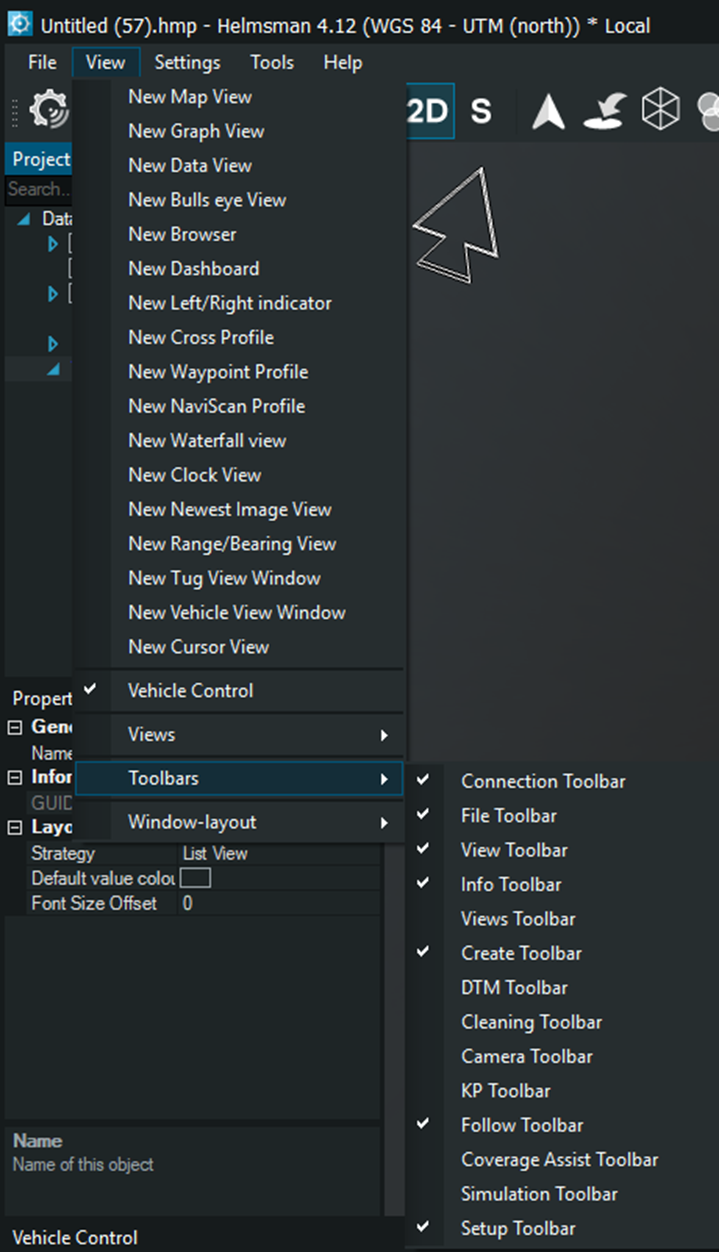
1.2.20 Toolbars – The toolbars menu lets you show or hide the individual toolbars in Helmsman. Each toolbar contains shortcuts for a specific group of actions, such as file operations, view controls, KP navigation, DTM tools, camera tools, coverage assistance or simulation controls. By enabling only the toolbars you need, you can keep the interface clean and adapt it to your workflow.
1.2.21 Window-layout menu is used for the Window-layout menu allows you to save, load, and reset the overall interface layout in Helmsman. You can store your preferred arrangements of windows, views, and toolbars as a layout file, reload it later, or set it as a default layout when the program starts. A factory reset option is available if you want to return to the original workspace configuration
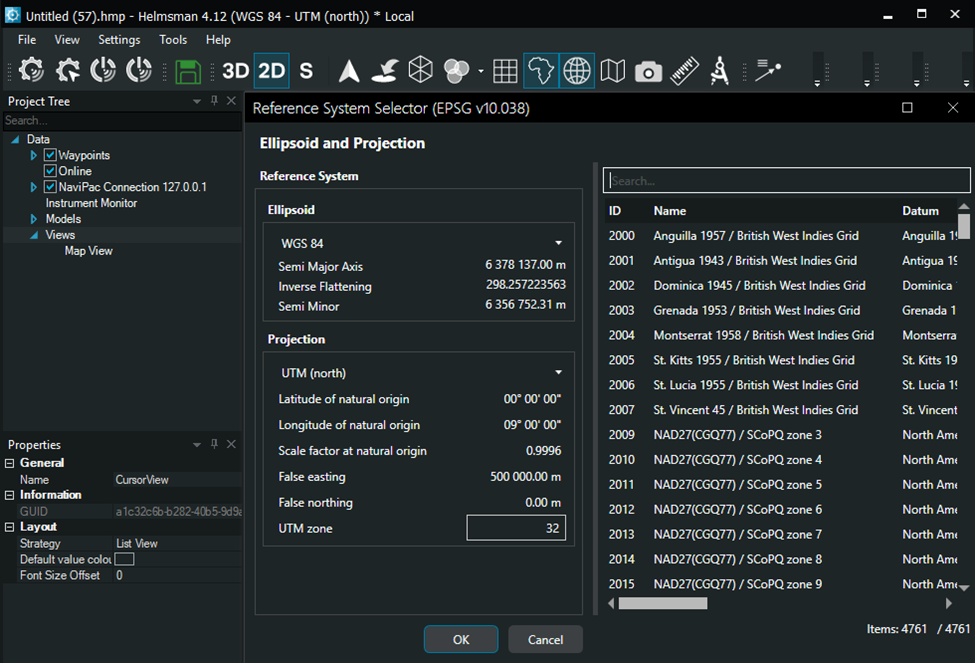
1.3.1 Geodesy – settings define the coordinate reference system used in your Helmsman project. Here you can select the ellipsoid and the map projection, such as WGS 84 with a specific UTM zone. These parameters control how positions are calculated, displayed, and stored. Choosing the correct reference system ensure that vessel positions, waypoints, sensor data and exported files align with the survey specifications and navigation systems. It is controlled by the NaviPac Config. When using the Helmsman without it, the geodesy can be configured for line planning or other work before starting the project.
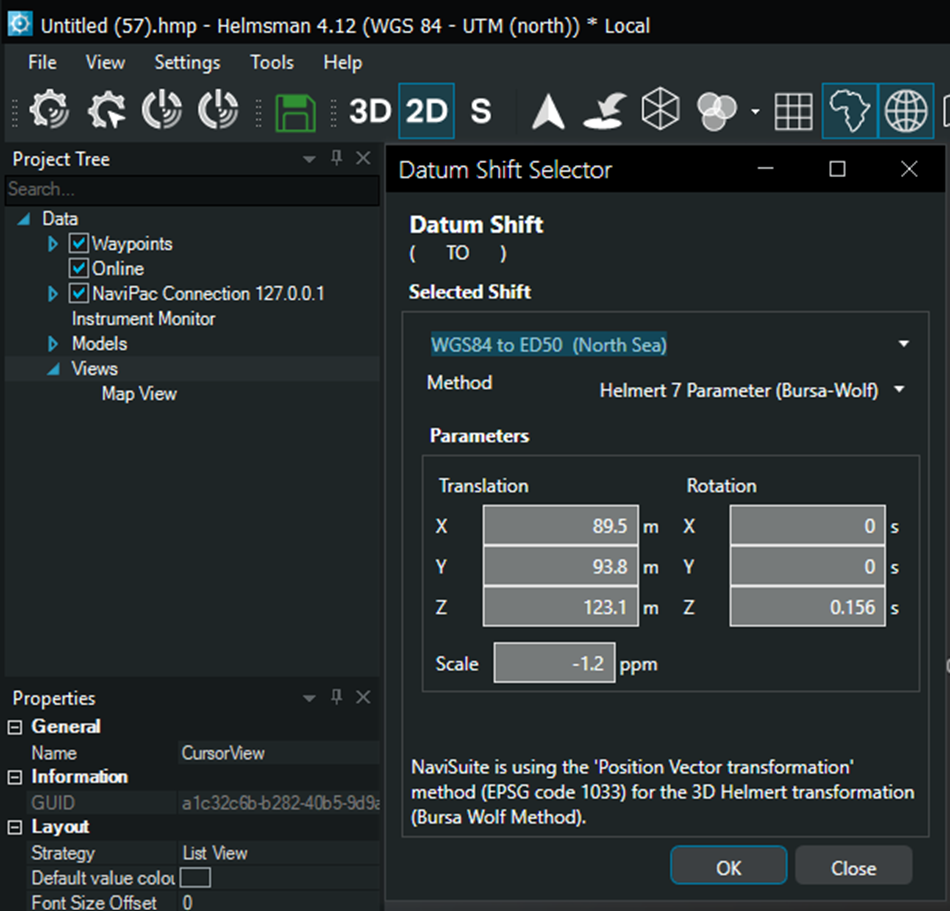
1.3.2 Datum Shift – settings define how coordinates define how coordinates are transformed between two horizontal datums, from example from WGS84 to ED50. The dialog shows the Helmert 7 parameter values used in the transformation: three translations, three rotations and a scale factor. NaviSuite applies these parameters when converting positions so that all data matches the target survey datum. This ensures consistency between GPS data, charts, external datasets, and delivered products. Controls the shift from the defined geodesy and the geodesy of the background map.
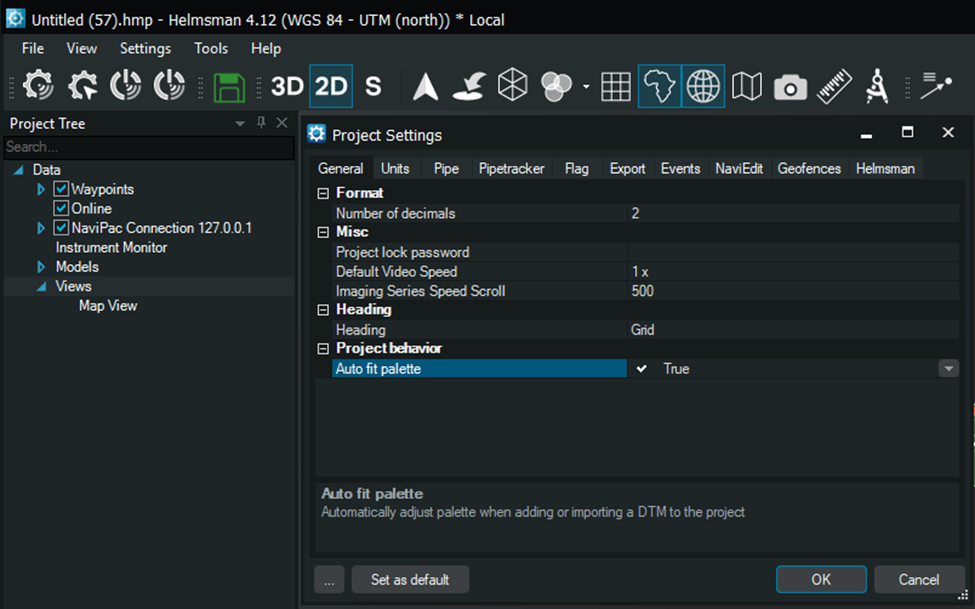
1.3.1 Project settings -General, contains the basic display and behaviour settings of the project. Here you define the number of decimals shown, optional project password protection, default video playback speed and the scroll speed used in Imaging series. This tab also includes options for heading display, grid behaviour and automatic palette adjustment when adding or importing DTMs. These settings control how information is presented while working in the project
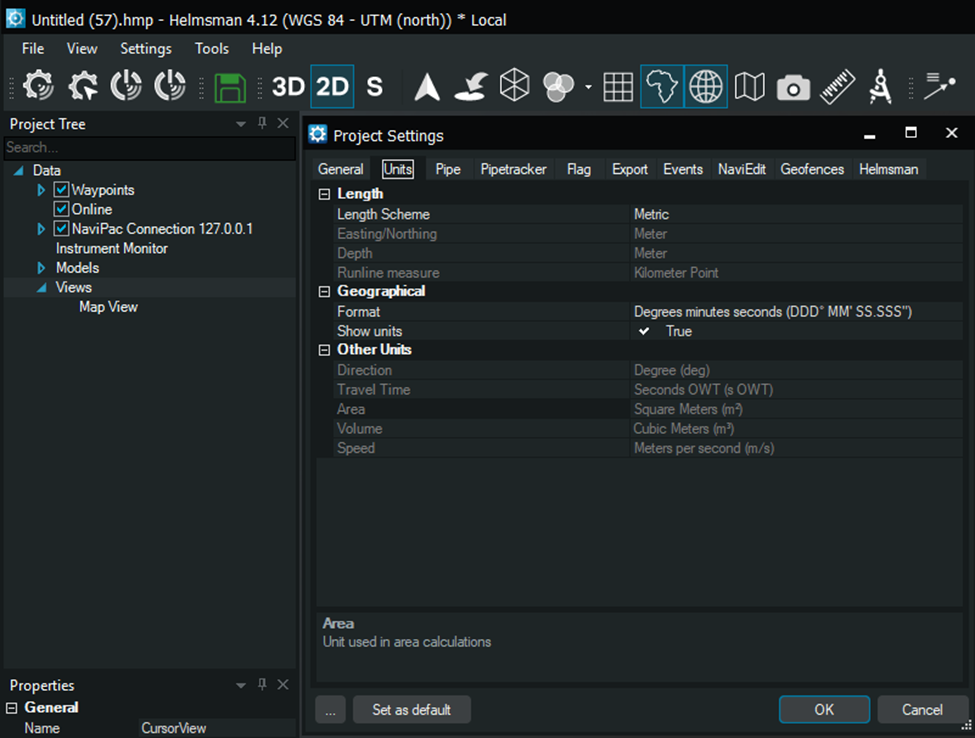
Project settings – Units, defines how all distances, coordinates, angles, measurements are displayed across the project. You can select the length scheme, units for easting and northing, depth and runline measures. The tab also includes the geographic coordinate format, with options such as degrees-minutes-seconds, and a setting to show or hide unit labels . Additional fields let you set units for direction, travel time, area, volume and speed.
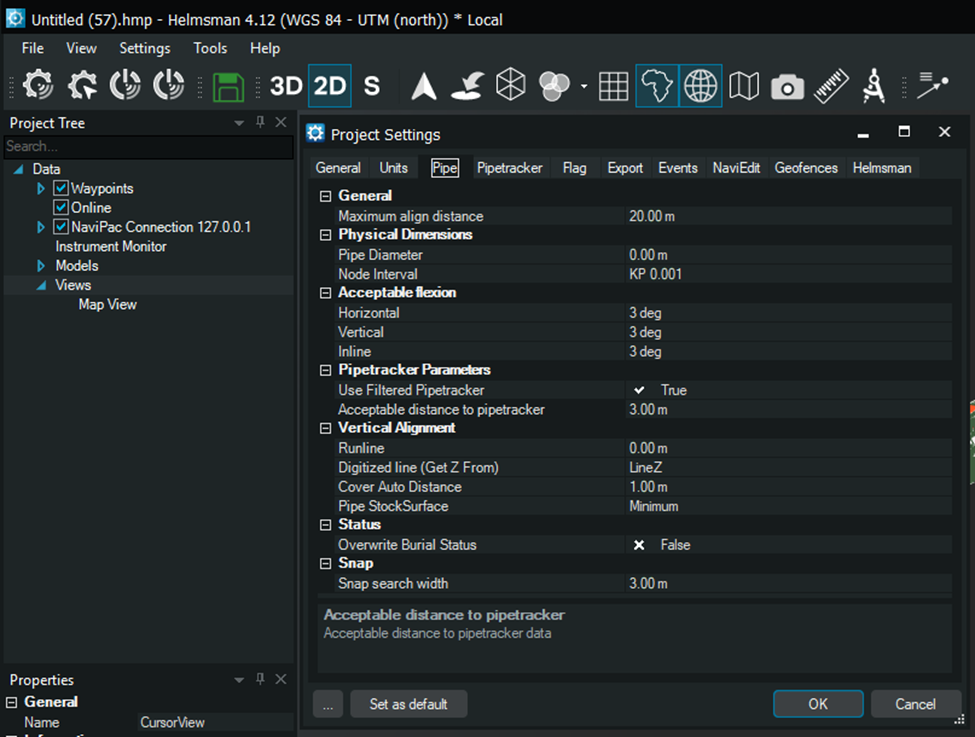
Project settings – Pipe, contains settings that control how pipeline data is interpreted, aligned and displayed during tracking and navigation. It defines the maximum distance allowed when matching the vessel position to the pipe, the nominal pipe diameter, and the interval used for node generation along the KP chainage. It also includes acceptable deviations limits for horizontal, vertical, and inline alignment. The pipetracker section lets you choose whether to use filtered pipetracker data and set the maximum permitted distance to the tracker. Vertical alignment define how the runline and digitized profiles are handled, including cover-to-pipe distance and stock surface reference. Additional options cover burial status handling and snap behaviour when selecting or aligning to the pipe.
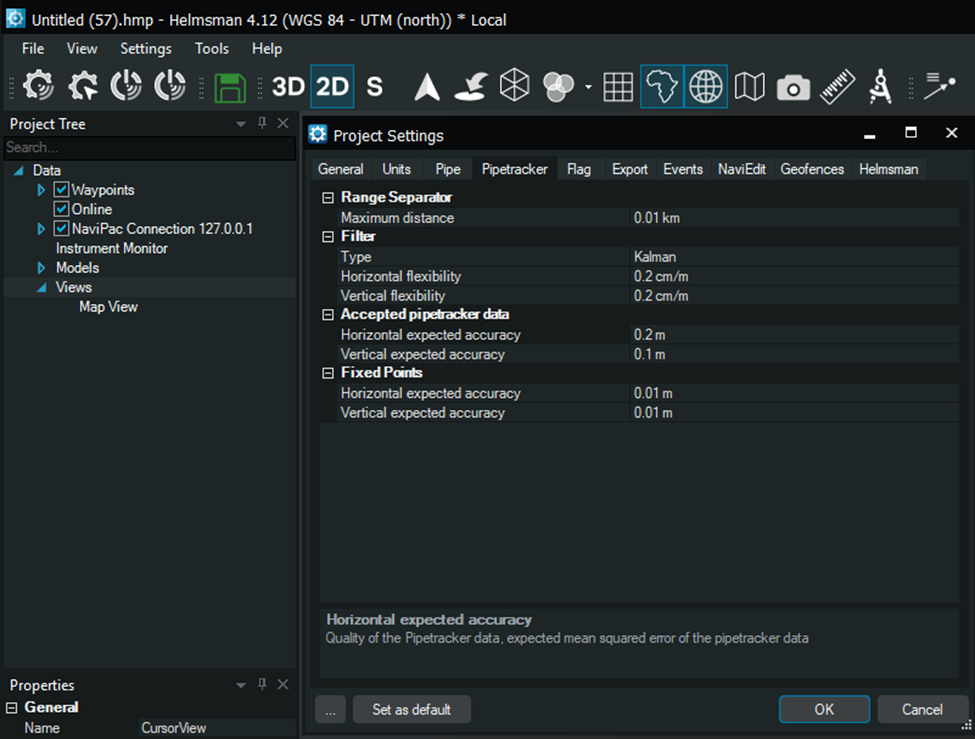
Project settings – Pipetracker, defines how Helmsman interprets and filters the incoming pipetracker data. It sets the maximum range, the filter type, the horizontal and vertical flexibility of the Kalman filter, and the expected accuracy for both pipetracker data and fixed point. Applicable only on NaviModel Producer.
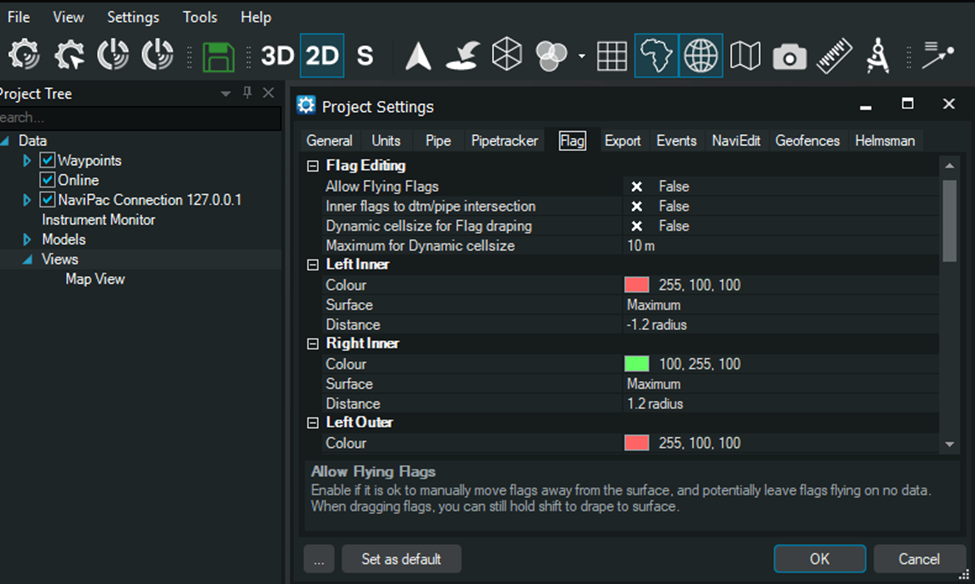
Project settings – Flag, controls how flags snap to the surface, how they drape on the DTM, and the colours and distances used for left and right inner or outer flag zones. It also includes an option to allow ‘’flying’’ flags that are not forced onto the surface. Applicable only on NaviModel Producer with 3D pipe option.
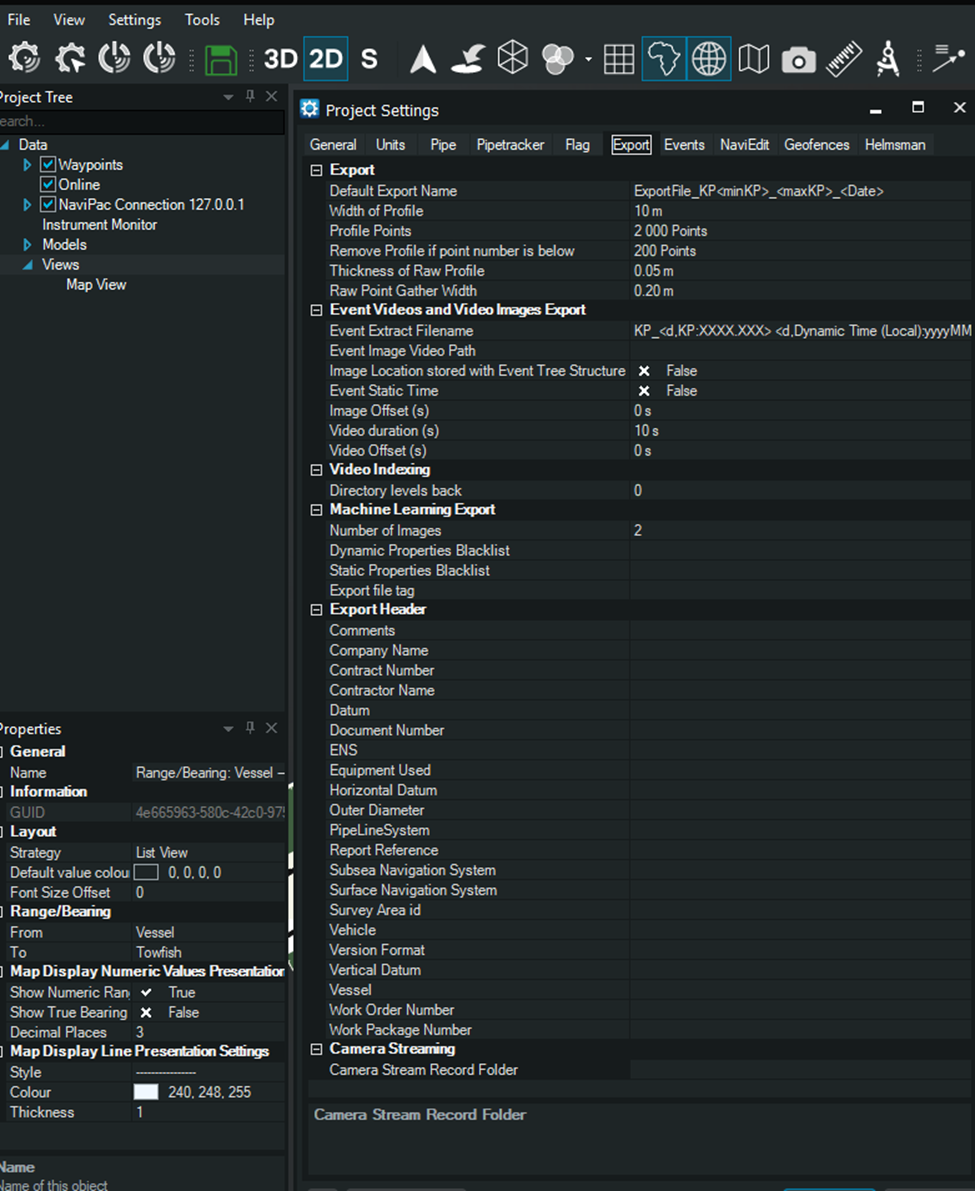
Project settings – Export, controls how profiles, points, and event related media are written out. It defines the profile width, point density, minimum point count, raw profile thickness. Gather width, filename pattern, video and image export options, the number of exported images and which header fields are included in the final output
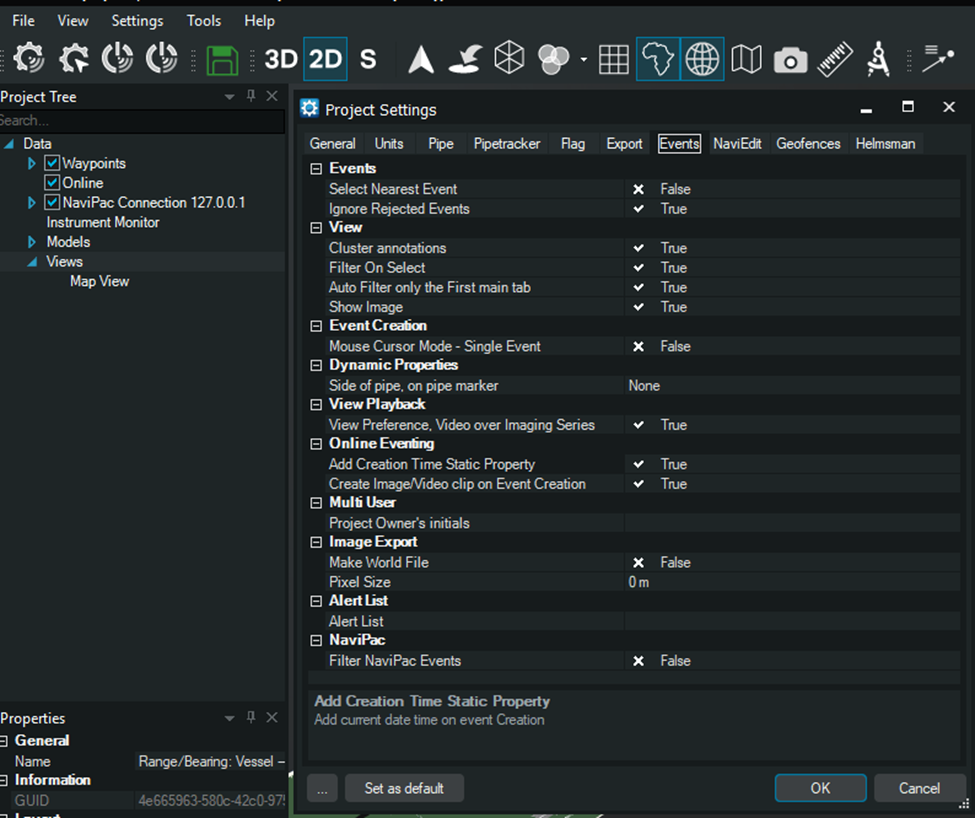
Project settings – Events tab defines how events are selected, displayed and recorded. It controls automatic filtering, whether images or video clips are created when an event is made, how dynamic properties behave, what is shown during playback, and which event lists or NaviPac events are included.
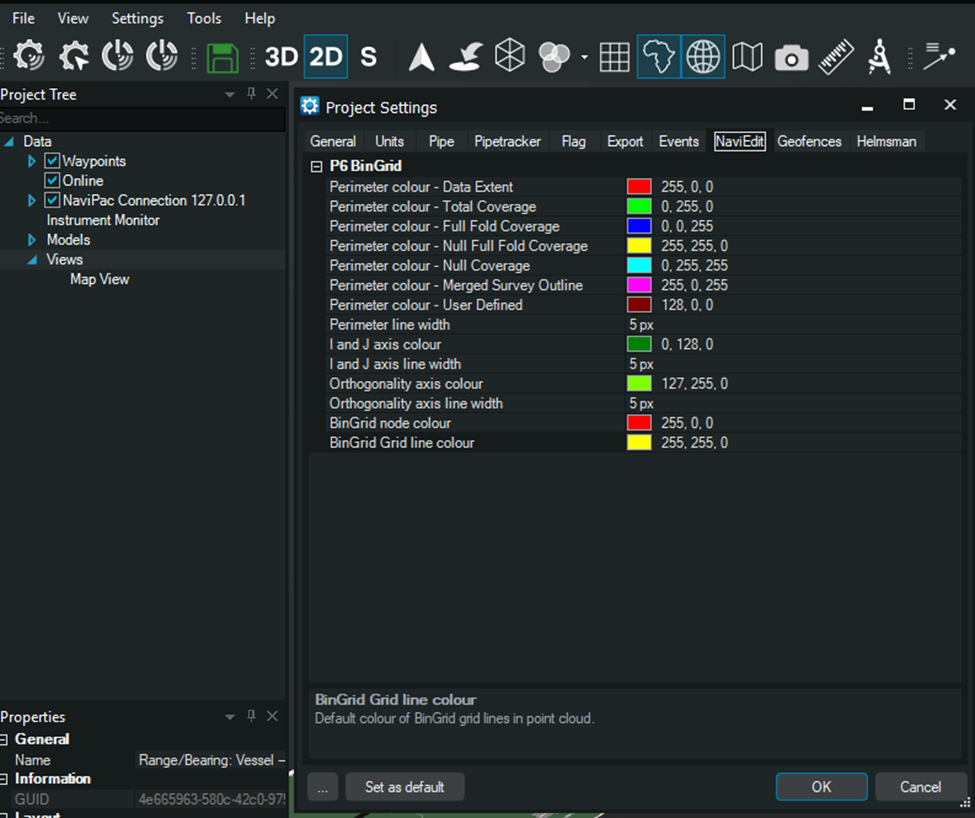
Project settings – NaviEdit, tab sets the colour and line widths used for BinGrid and survey perimeters when viewing edited data. It defines how data extent, coverage types, orthogonality axes, and BinGrid nodes and lines are visually represented in Helmsman. Applicable for NaviModel Producer for UKOOA P6 files.
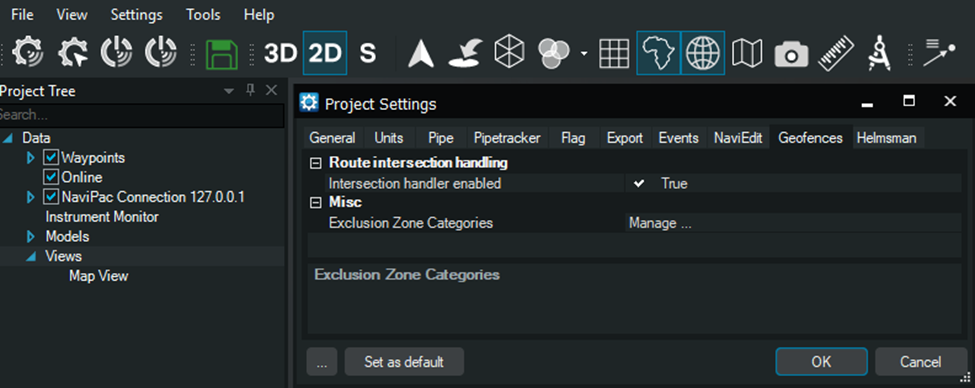
Project settings – Geofences, tab controls intersection handling and exclusion zones. It enables or disables automatic route intersection detection and lets you manage the categories used for exclusion zones.
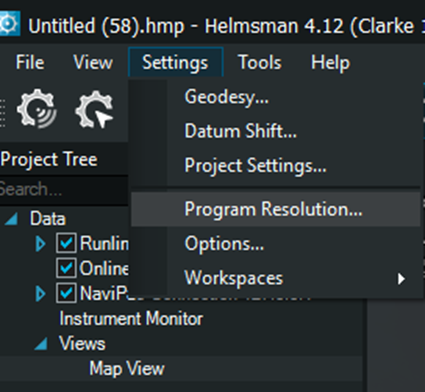
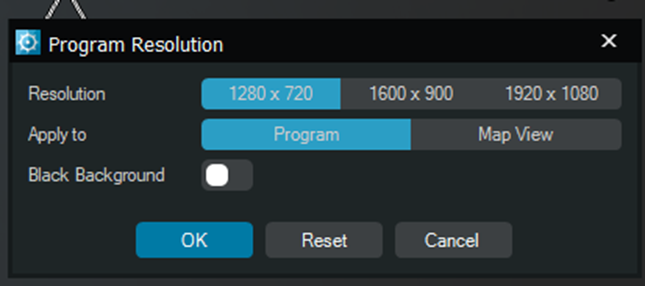
1.3.2. Program Resolution controls the working resolution used by Helmsman 4.12. You can choose between predefined sizes and apply them either to the entire interface or only the Map View. The black background toggle switches the interface background to a dark mode, which can improve in bright environments.
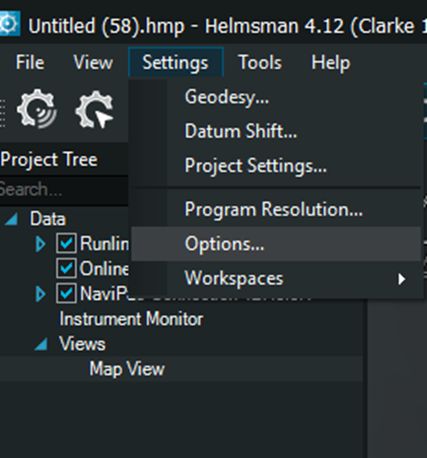
1.3.3 Options – General, you find the core configuration blocks that control Helmsman’s overall behaviour. This section includes:
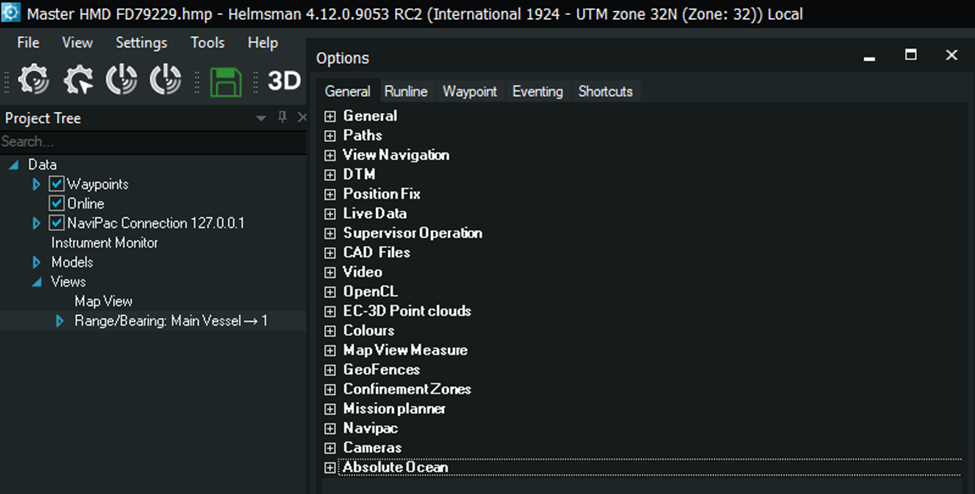
Path settings for how runlines, tracks, and related navigation paths are handled.
View Navigation -controls for map interaction, such as zoom, pan, and orientation
DTM- options for loading and displaying DTM surfaces
Position Fix- configuration of fix points, calculation method and coordinate display
Live Data -default values and timeouts related to real-time data streams
CAD files- rules for loading and drawing CAD layers and geometry
Video- basic controls for pausing, moving, and stepping through video
EC-3D Point Clouds- settings that define how many points are used in the 3D preview and whether full detail is allowed
Live Data – General control of live data display and update behaviour
Supervisor Operation – defines behaviour when operating in supervisor mode
CAD files – general settings for handling imported CAD files
Video – Controls video playback and synchronization
OpenGL – Graphics rendering configuration
EC-3D Pointclouds – Settings for 3D for interactive elements
Colours – Color definition for interactive elements
Map View Measure – Options for map measurement tool behaviour
Geofences – Settings related to exclusion zones and alerts
Confinement zones – configuration of confinement zone display and logic
Mission Planner – General options for mission planning tools.
Navigation – navigation related behavior configuration
Absolute ocean – Global ocean reference and environmental context settings
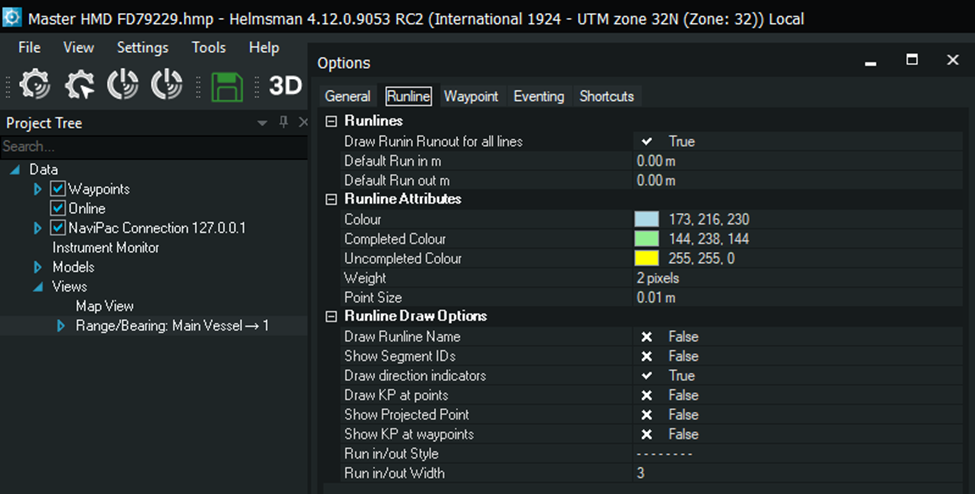
Runlines – general defaults and behavior for runline handling
Runline attributes – visual styling applied to runlines
Runline draw options – Controls additional runline display elements
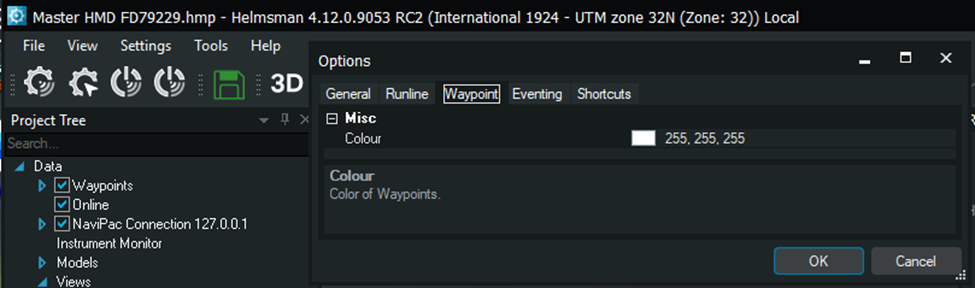
Waypoint – general options for waypoint display and handling
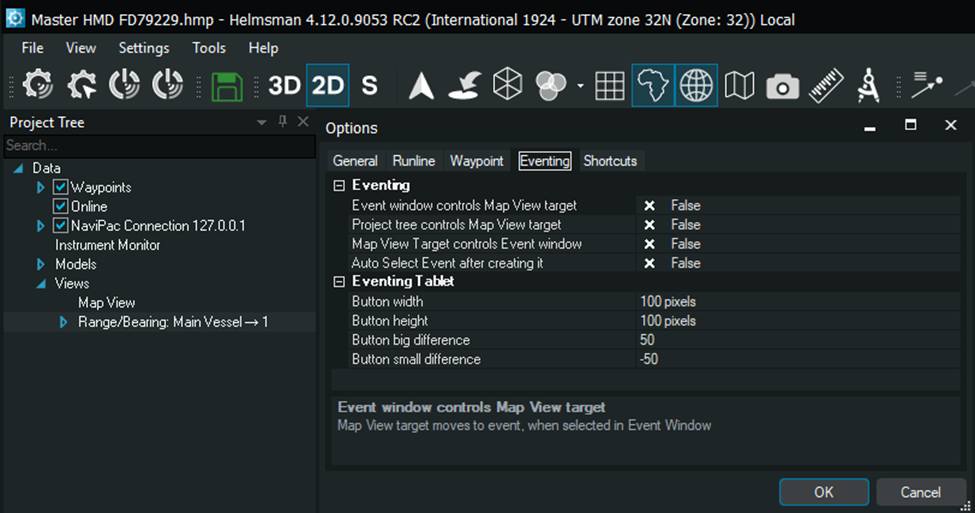
Eventing – controls interaction between Event Window, Map View, and Project Tree
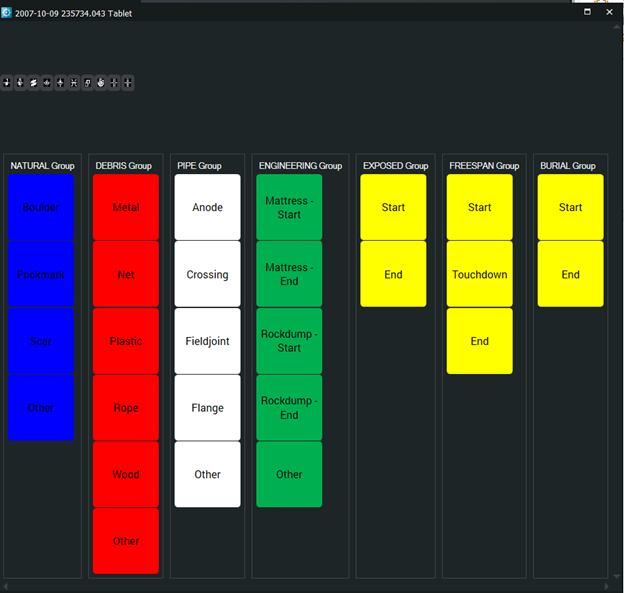
Eventing Tablet – defines button size and spacing for touch-based eventing
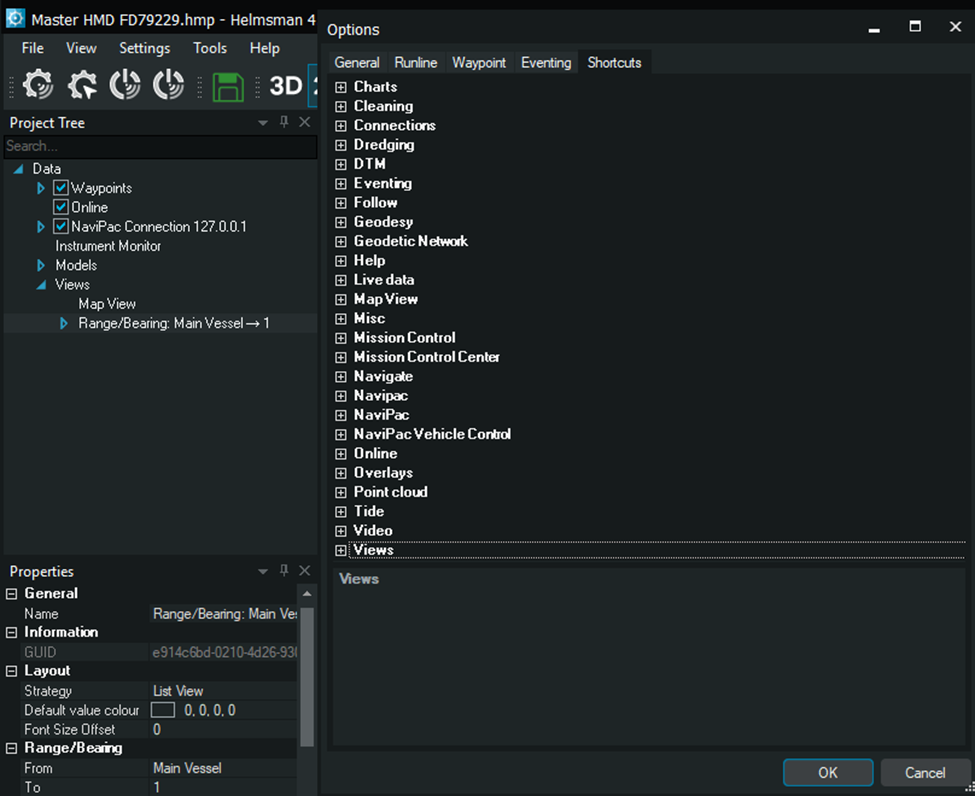
Shortcuts – defines keyboard shortcuts for faster access to commands and tools
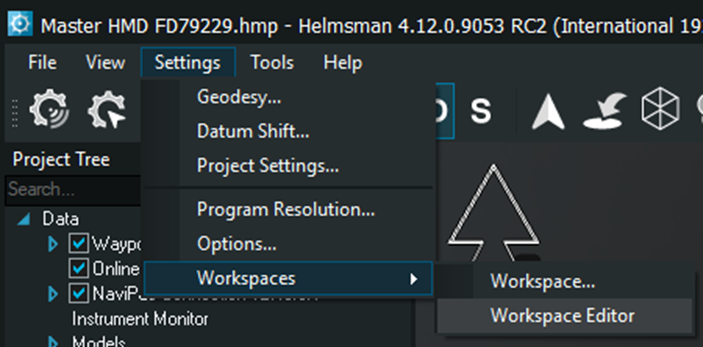
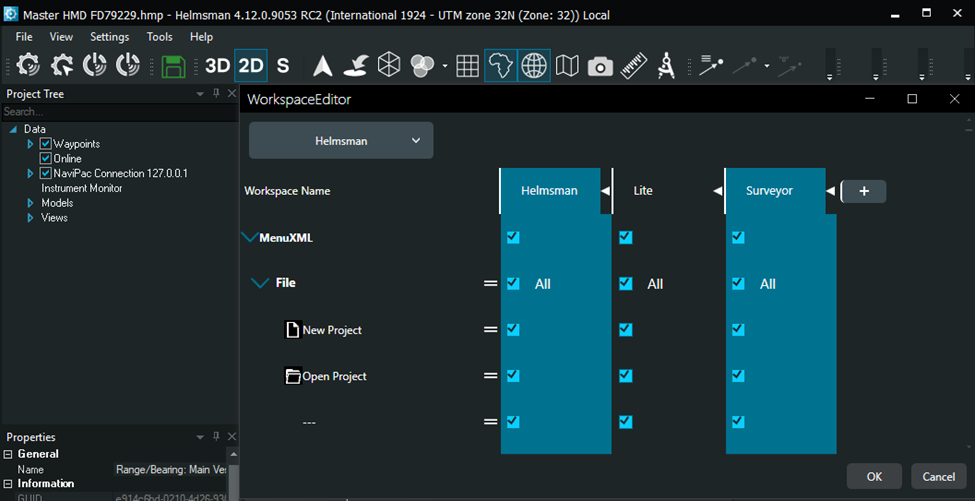
Workspaces – are predefined interface layouts tailored to specific roles and task
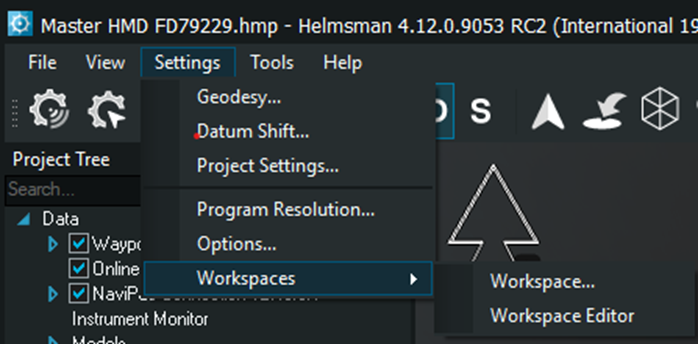
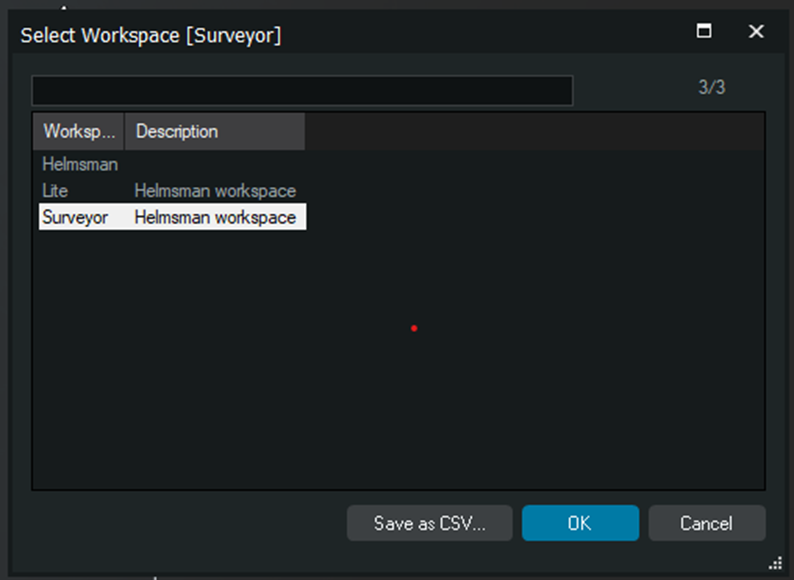
Workspace editor – customize menus and tools for each workspace role
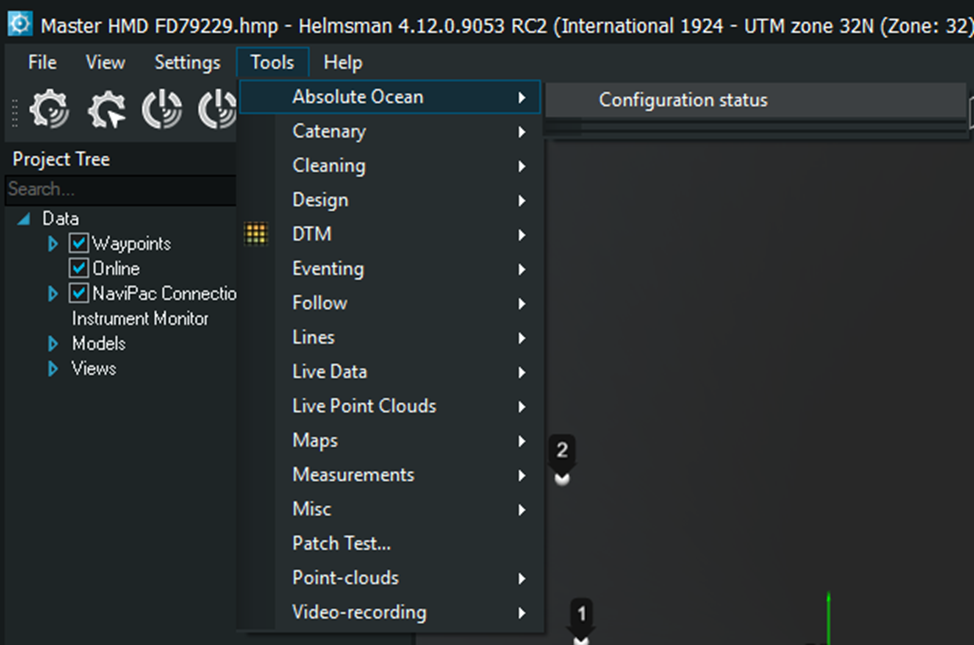
1.4.1 Tools - Absolute Ocean, from here, you can check the configuration status and manage tools that rely on an Absolute Ocean reference, ensuring consistent handling of ocean based depth, surfaces, and related data across the project
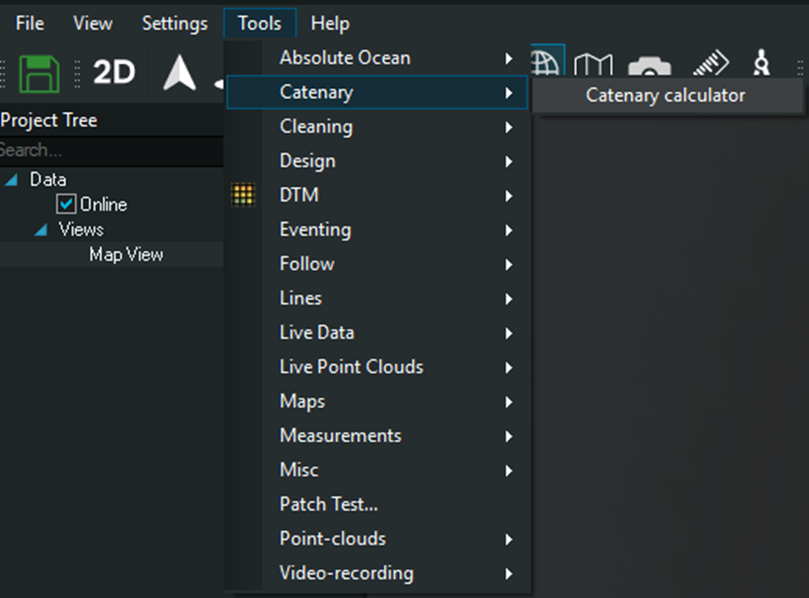
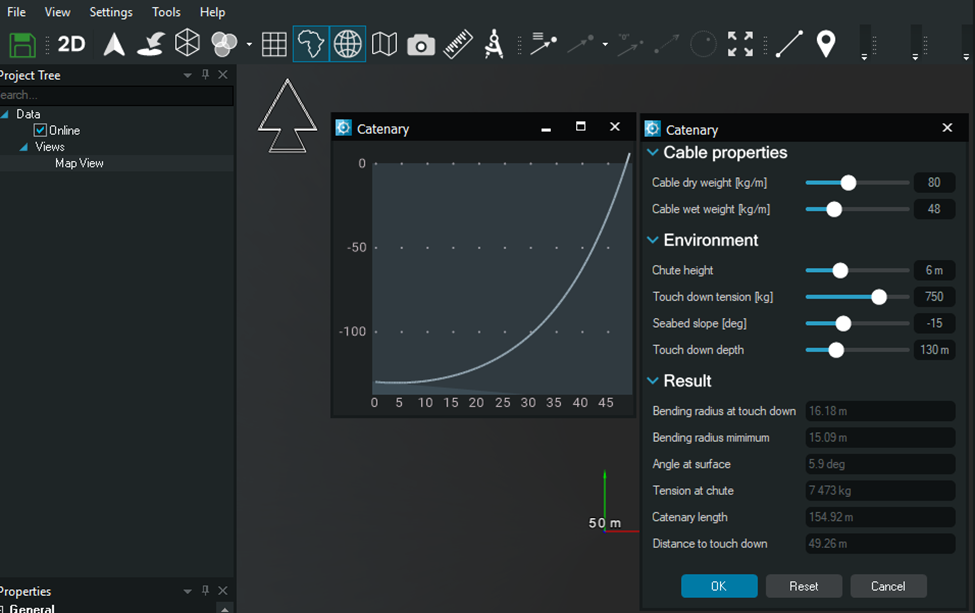
1.4.2 Catenary – Catenary calculator, calculates and visualizes the catenary shape of a cable or line in the water. It uses cable properties and environmental parameters to estimate touch-down point, tension, bending radius, and overall cable geometry for planning and analysis
https://eiva.freshdesk.com/support/solutions/articles/43000734541-scanfish-cable-configuration
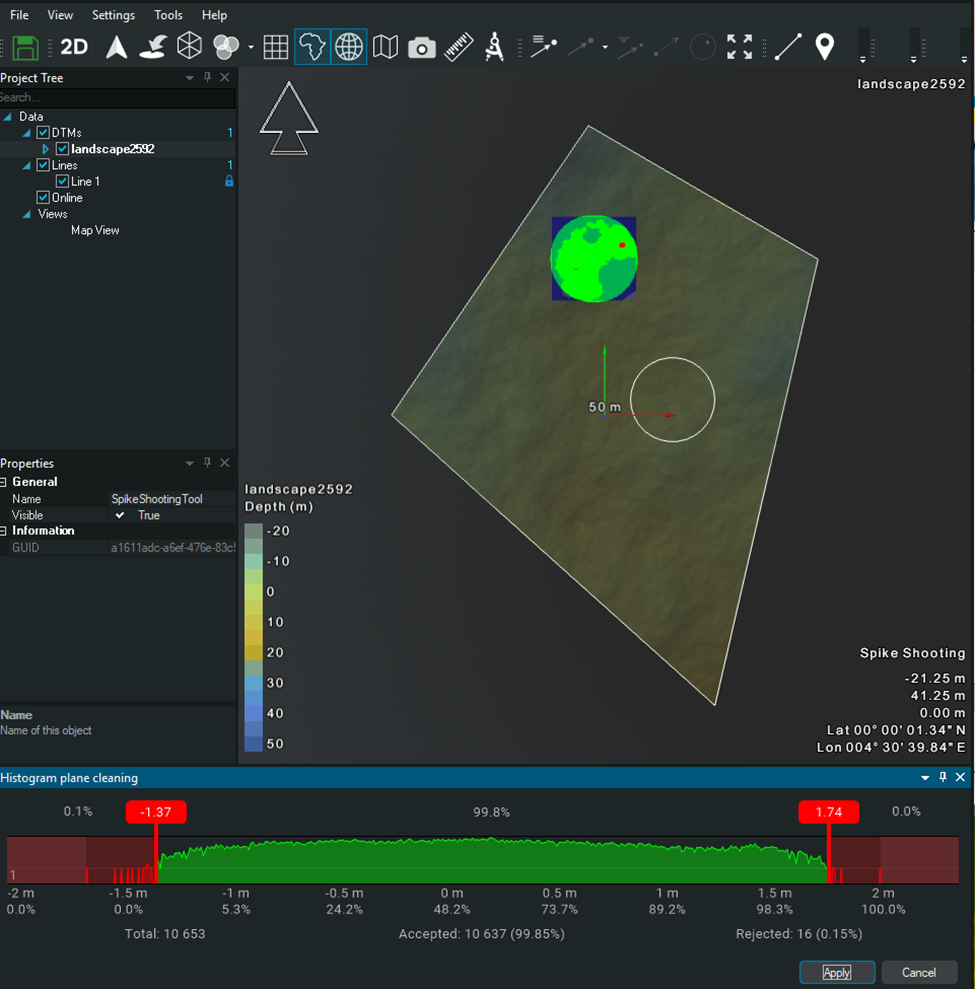
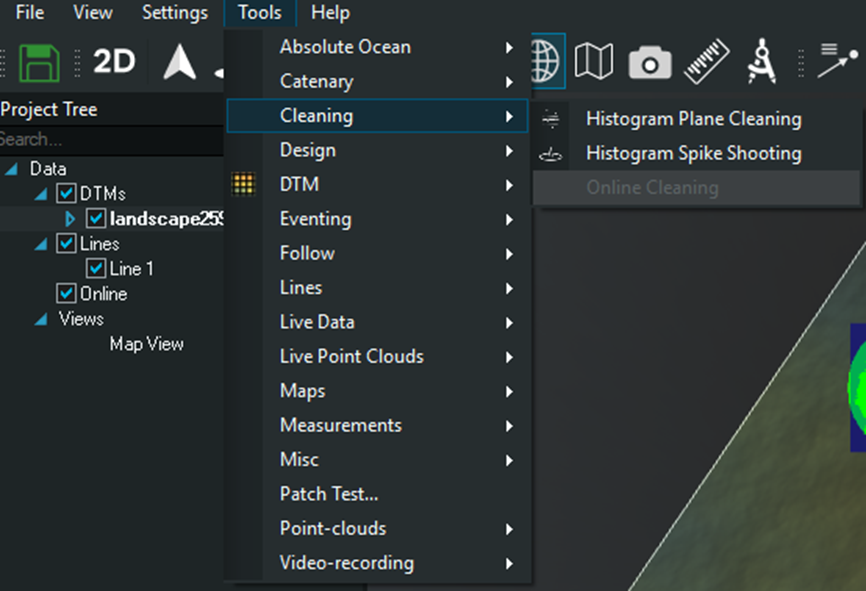
1.4.3. Cleaning – Histogram Plane cleaning, removes unwanted data by fitting a reference plane and using a histogram-based filter. It helps clean DTMs or point data by excluding outliers above or below the selected plane, improving surface quality before analysis or design
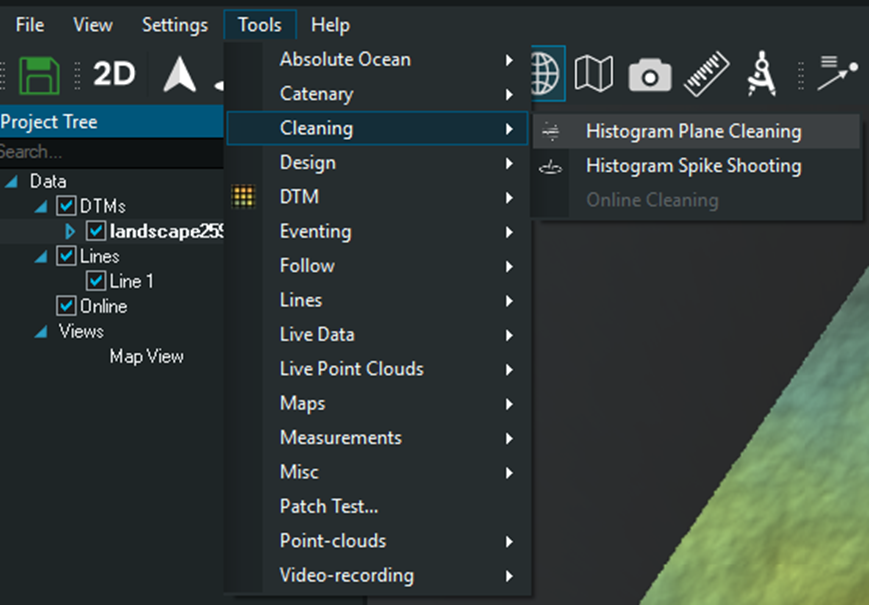
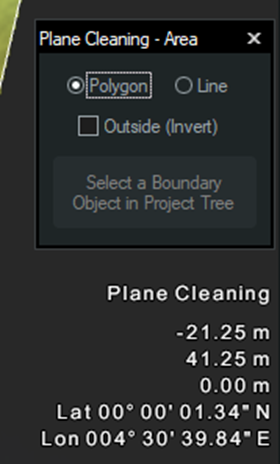
Histogram Spike shooting- detects and removes isolated spikes in DTM or point data using a histogram-based threshold. It targets sharp depth anomalies while preserving the surrounding surface, helping to clean noise without flattening valid seabed features
Online Cleaning- applies real time cleaning during data acquisition. It filters spikes and outliers as data is received, helping maintain a cleaner DTM or surface while logging, with minimal impact on valid measurements
1.4.4 Design trencher route – creates and edits planned trencher routes based on existing lines, DTMs, and design constraints. It supports route refinement for safe and efficient trenching operation
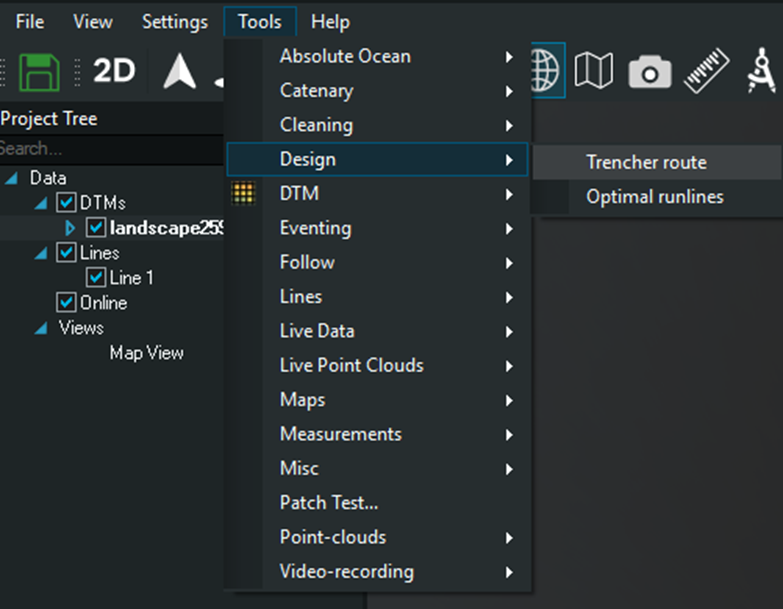
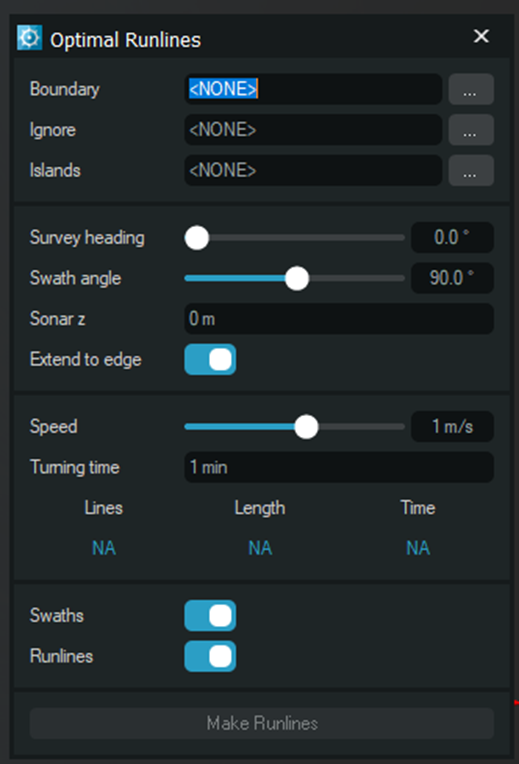
Design optimal runlines – defines and generates runlines automatically within a selected boundary. It uses survey heading, swath angle, speed and turning time to estimate coverage, line length and survey time, helping plan efficient acquisition with consistent swath overlap
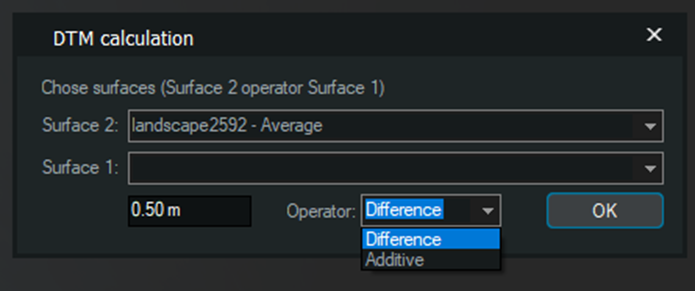
1.4.5 DTM – DTM calculations, creates a new DTM by combining two existing surfaces using a selected operator, such as difference or additive. It is used to analyze seabed changes, cut and fill, or height differences between reference an comparison DTMs
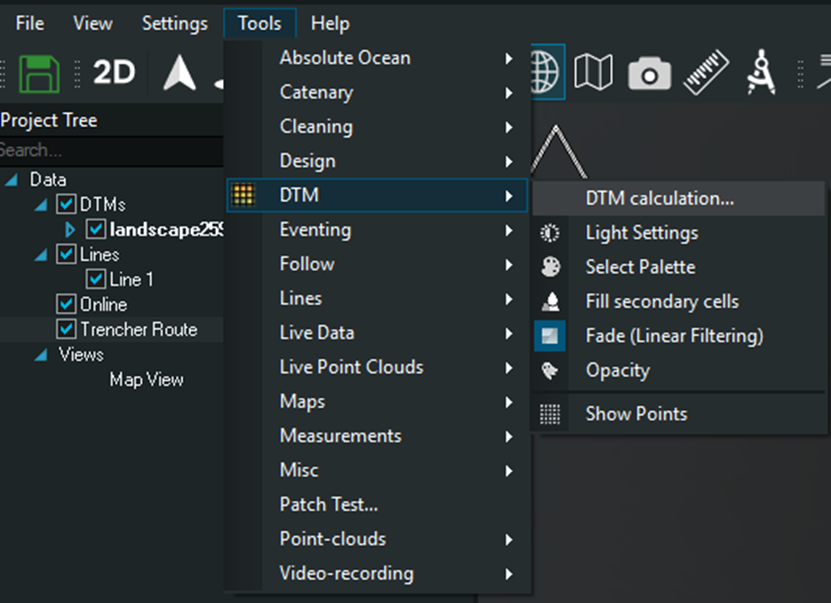
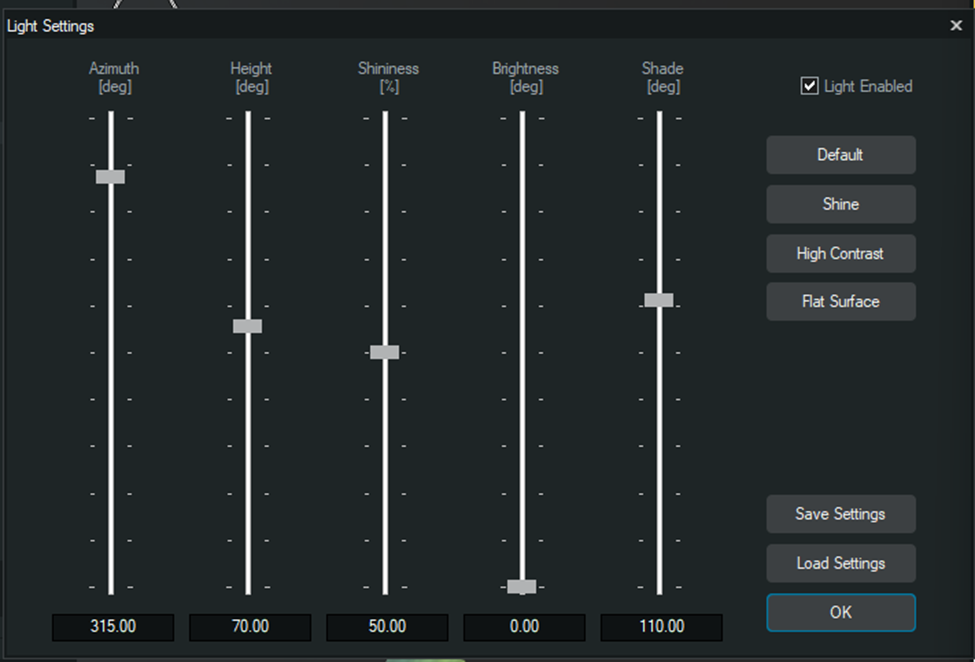
DTM – Light settings, controls how the DTM is visually shaded. It adjusts light azimuth, height, brightness, shininess and shadow to enhance relief and seabed features, improving interpretation without changing the underlying data
DTM – Select palette, defines the color palette used to display the DTM. It allows switching between predefined palettes to highlight depth ranges and seabed features, improving visual interpretation without modifying the DTM data
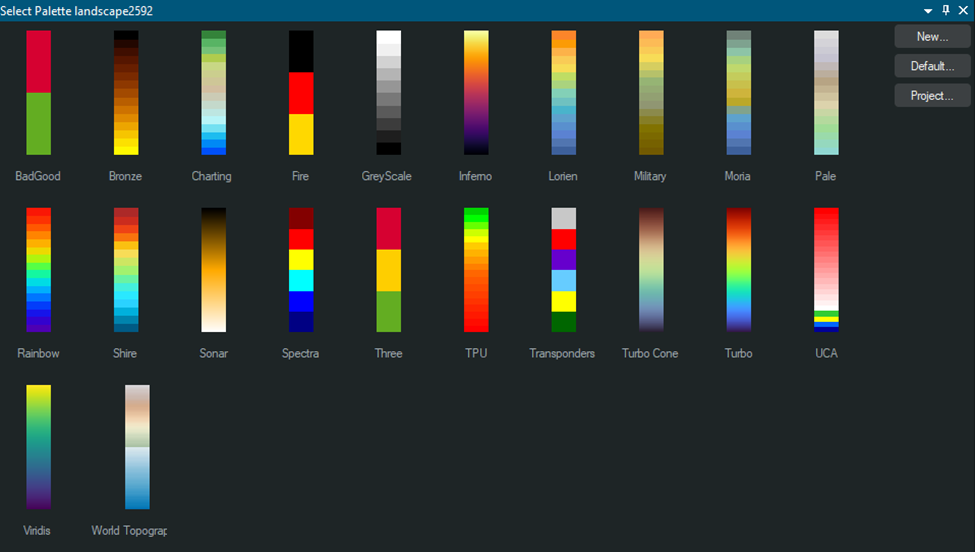
DTM – Fill secondary cells, fills empty or secondary grid cells in a DTM using surrounding data. It helps remove gaps in the surface and creates a more continuous DTM for visualization and further analysis, without altering primary measured cells.
DTM – Fade (linear filtering), applies a linear fade to the DTM to smooth transitions and reduce visual noise. It filters sharp variations for clearer display while keeping the original DTM data unchanged.
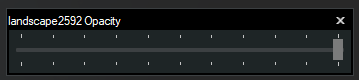
DTM – Opacity, adjusts the transparency of the DTM display. It allows the surface to be made more or less transparent to better view underlying objects, lines or other map layers without modifying the DTM itself
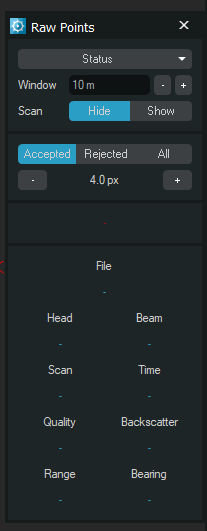
DTM – Show points, displaying the raw or filtered points used to build the DTM. It allows toggling accepted and rejected points to inspect data quality, identify outliers and verify cleaning results without modifying the surface
1.4.6 Tools – Eventing – New – New event collection for storing detected or manually created events.
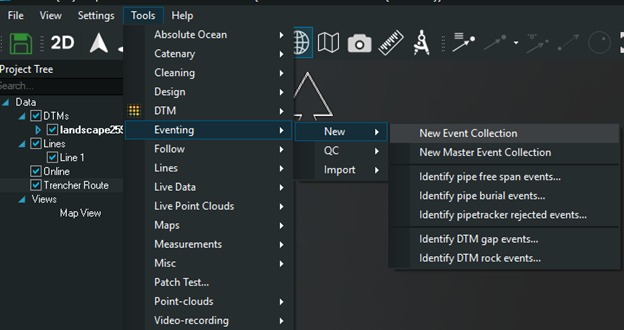
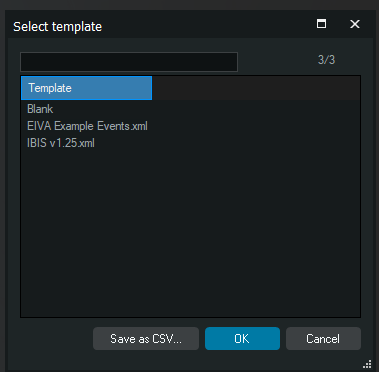
New Master Event Collection – creates a master collection used to group and manage multiple events collections
Identify pipe free span events -automatically detects free spans along a pipeline based on defined criteria.
Identify pipe burial events – Identifies sections where the pipe is buried relative to the seabed or DTM.
Identify pipetracker rejected events – flags events rejected by the pipetracker processing
Identify DTM gap events – detects gaps or missing data areas in the DTM
Identify DTM rock events – Identifies rock or hard seabed features based on DTM characteristic
Eventing QC – KP Axis, displays events along KP axis for linear review and consistency check
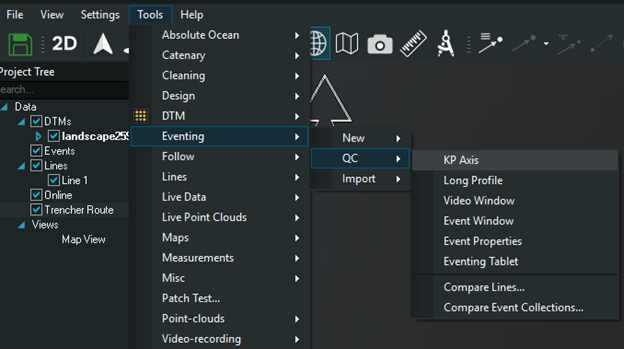
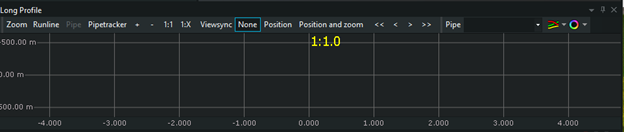
QC - Long Profile – Shows events in a longitudinal profile view against depth or elevation
QC – Video Window – Links events with synchronized video for visual verification
Event Window – Lists events in a dedicated window for quick review and navigation
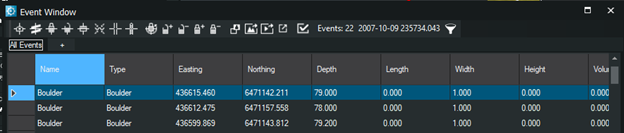
Event properties – Opens detailed attributes of selected events for validation or editing
Eventing table – presents events in a tabular format for sorting, filtering and QC check
https://eiva.freshdesk.com/support/solutions/articles/43000732008-eventing-in-navisuite
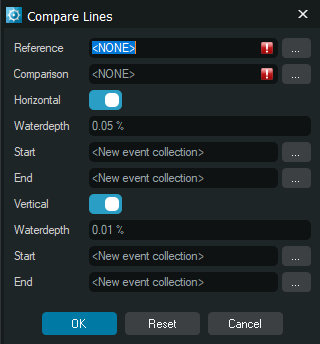
QC – Compare Lines, compares two selected lines against each other. It checks horizontal and vertical differences using user defined thresholds and generates events where tolerances are exceeded
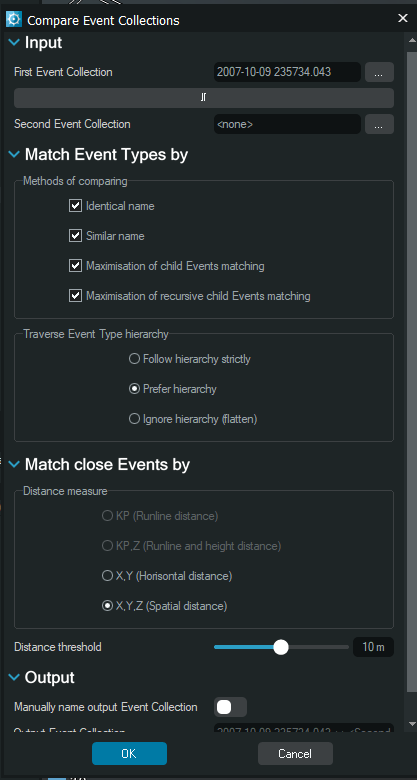
QC – Compare events collections, compares two event collections to identify matching, missing, or changed events. It matches event types by name and hierarchy, checks spatial proximity using configurable distance rules, and outputs a new collection for QC review
QC import – Import Event Hierarchy, is a predefined event structure into the project. Used to apply a consistent event setup across projects, including event groups, naming, colors and attributes. Helpful when reusing a standard company or vessel event configuration without recreating it manually.
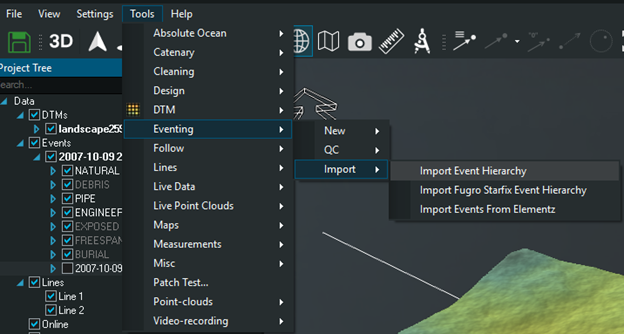
QC import – Import Fugro Starfix Event Hierarchy, imports an event hierarchy compatible with Fugro Starfix event structure so events logged in Helmsman align with Fugro workflows, naming conventions and reporting requirements.
QC import – Import Events From Elementz, generates events from existing elements in the project. Converts selected elements into event entries with their position and basic properties, allowing and event log to be created from already defined objects
1.4.7 Follow- Select Objects to Follow, defines which object the view will follow. The camera stays centered on the selected object while it moves, keeping it in focus during operations.
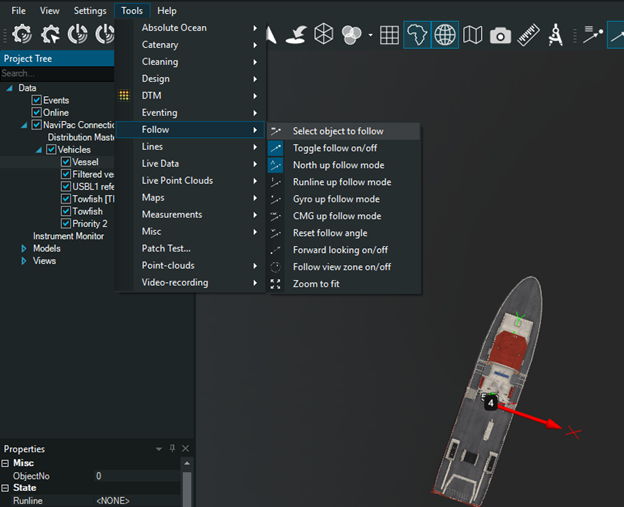
Follow – Toggle follow on/off, enables or disables follow mode. When on, the view continuously follows the selected object. When off, the view remains static.
Follow – North up follow mode, keeps North fixed at the top of the view while following the selected object. The object moves within a north-oriented frame, preserving geographic orientation.
Follow- Runline up follow mode, aligns the view with the active runline while following the selected object. The display rotates so the runline direction is up, supporting line-based operations and steering along the route.
Follow – Gyro up follow mode, keeps the view orientation locked to the vessel’s gyro heading. As the vessel turns, the display rotates accordingly, with the vessel always pointing ‘’up’’ on the screen. Useful for Helmsman-style operation and for maintaining spatial awareness during maneuvers.
Follow- CMG up follow mode, orients the view according to the Course Made Good derived from the applied navigation data. The display follows the actual track over ground rather than the instantaneous heading, giving a stable view when the vessel experiences yaw, drift or short-term heading variations.
Follow – Reset follow angle, resets the follow angle to its default value, restoring the standard view orientation used by the active follow mode.
Follow – Forward looking on/off, enables or disables the forward-looking view. When enabled, the display is oriented ahead of the vessel or object, keeping the direction of movement in front of the screen. When disabled, he view follows the standard orientation defined by the active follow mode.
Follow – Follow view zone on/off, when enabled, the display automatically follows the active View Zone, keeping it centered in the view as the vessel or object moves. When disabled, the View Zone remains static while the vessel or object moves independently.
Follow – Zoom to fit, adjusts the zoom level automatically so that all relevant objects in the current view are fully visible on screen.
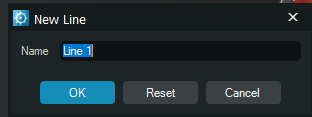
1.4.8 Tools – Lines – New line, creates a new user defined line and activates interactive digitizing in the view
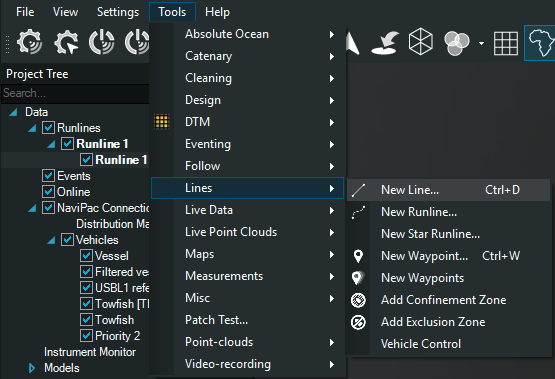
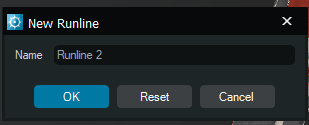
Lines – New Runline, creates a new runline object used for navigation, line-up and follow operations
Lines – New star runline, generates multiple runlines radiating from a center point using defined length, bearing, and angular step.
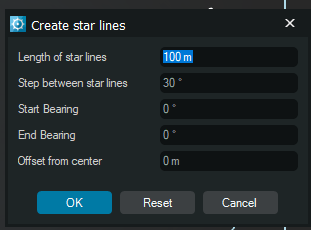
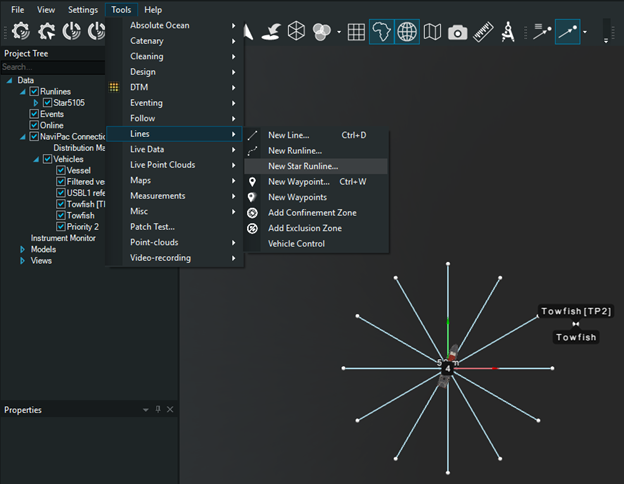
Lines -New Waypoint, creates a single waypoint used as a navigation target or reference point.
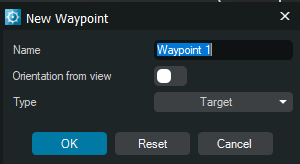
Lines – New Waypoints, creates multiple waypoints in one operation, based on the active view and selected orientation.
Lines – Add confinement zones, defines a vessel confinement area using one or more boundary lines
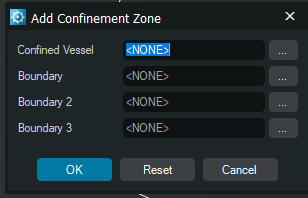
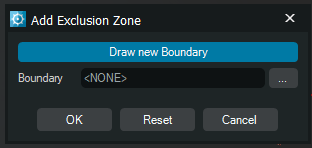
Lines – Add exclusion zone, defines a restricted area using a boundary line to prevent navigation or operations inside the zone
Lines – Vehicle control, assigns a vessel to a line and enables automated line-based control and steering logic.
1.4.9. Tools – Live Data
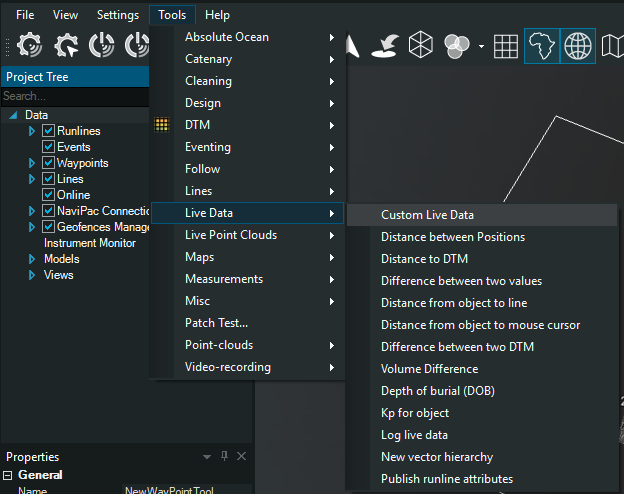
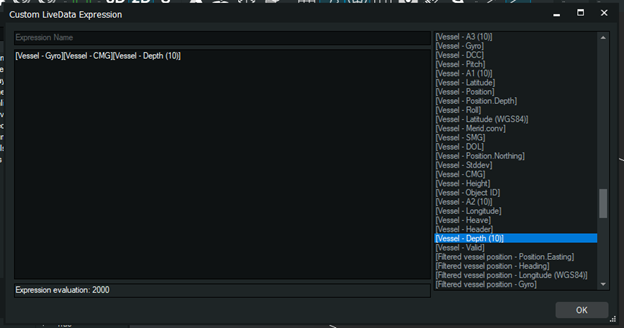
Custom Live Data, creates user defined live calculations that are updates in real time and can be displayed or logged.
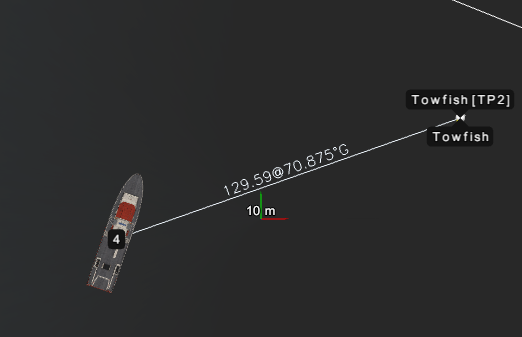
Distance Between Positions, calculate the real-time horizontal distance and bearing between two selected live positions, for example vessel to Towfish. The result is updated continuously and can be displayed on screen or logged as live data
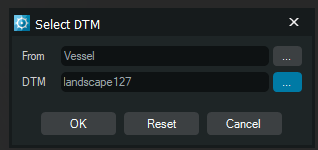
Distance to DTM, shows the vertical distance between a selected live position for example the vessel and a chosen DTM surface. The value updates in real time.
Distance between two values, calculates the real-time difference between two selected live data values. It is typically used to compare sensors with the result
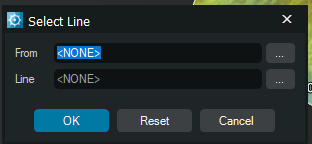
Distance from object to line, calculates in real time the perpendicular distance between a selected object, for example vessel and a chosen line. The value is available as live data and can be displayed.
Distance from object to mouse cursor, calculates in real time the distance between a selected object and the current mouse cursor position. The value is provided as live data and updates continuously as the cursor moves
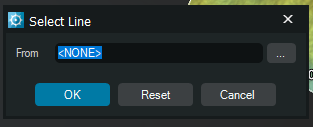
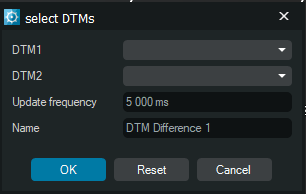
Difference between two DTMs, calculates the vertical difference between two selected DTMs at the same position. Used to compare surfaces, such as pre-lay versus post-lay or design versus as-built seabed.
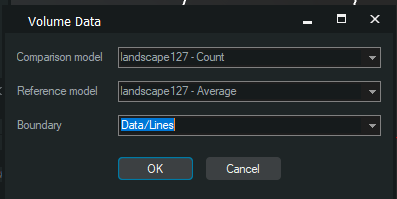
Volume difference, calculates the volume change between two DTMs within a predefined boundary. Used to quantify cut and fill, dredged versus deposited material or changes between pre and post survey surfaces.
Depth of Burial (DOB) computes the burial depth of an object relative to the active DTM, as the vertical difference between the object position and the seabed surface. Used for live monitoring and logging of burial depth along routes or specific points.
KP for object, displays chainage ( KP) of the selected object along the active runline. Used to reference the object position relative to project alignment and reporting KP.
Log live data, records selected live data values to file during operation. Used for later analysis, and documentation of measured or computed parameters.
New Vector Hierarchy, for organizing lines, points, and related vector objects, helping structure and manage project data.
Publish runline attributes, as live data, making them available for display, logging and use in calculations during operations.
1.4.10 Tools – Live Point Clouds,
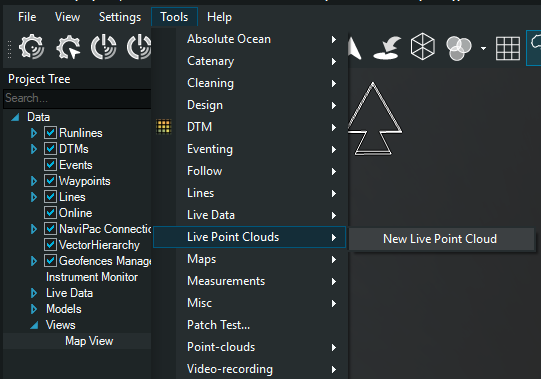
New Live Point Cloud, creates a new live point cloud object and starts ingesting incoming 3D data in real time. Here you define the source, position reference, depth input, and basic display settings. Once confirmed , the live point cloud is updated continuously during acquisition.
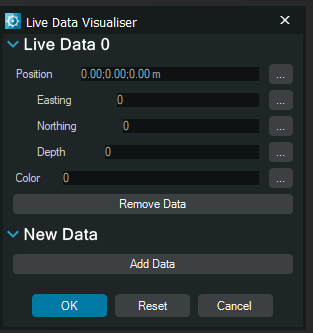
1.4.11 Tools- Maps
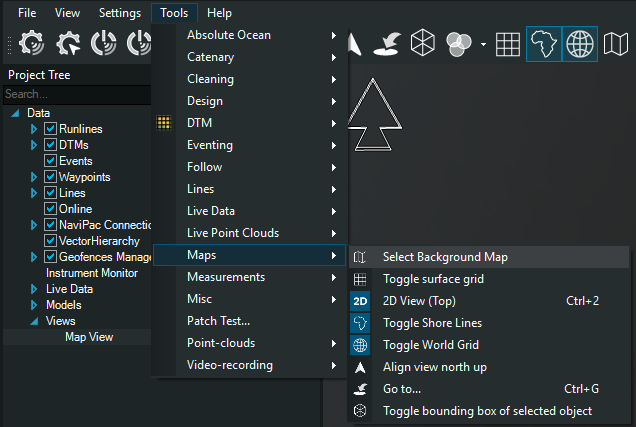
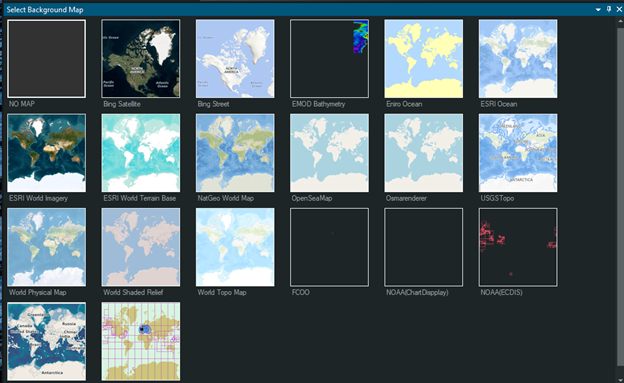
Select Background Map, lets you choose the map source used in the Map View. You can switch between available online and offline maps to provide geographic context for navigation and point clouds
Toggle surface grid – shows or hides the surface grid overlay in the Map View. The grid helps with spatial orientation and distance estimation without affecting any data calculations
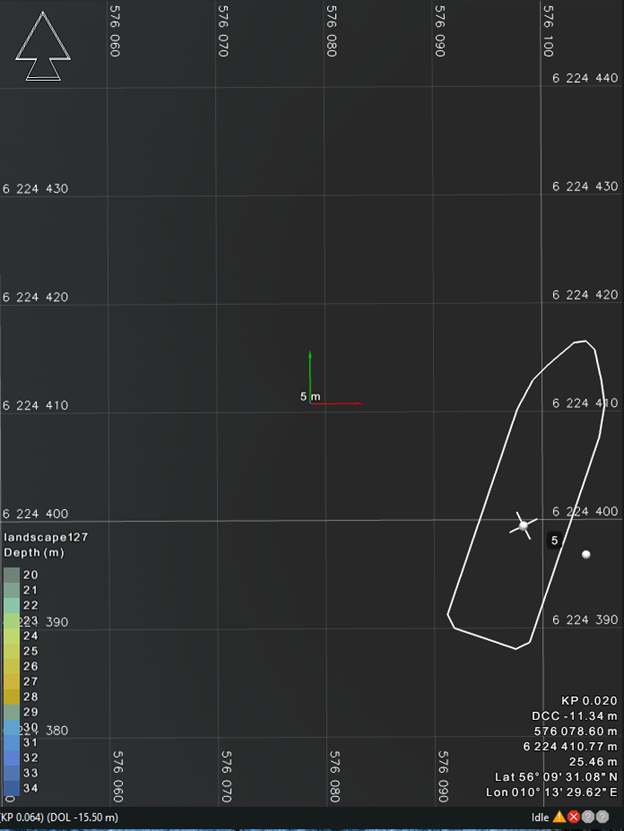
Toggle 2D view (top), switches the Map View to a fixed top-down 2D view. The camera is locked vertically, with no perspective, which makes horizontal positions and distances easier to interpret.
Toggle Shore Lines, shows or hides shorelines outlines on the background map. This provides a clear land-sea boundary for orientation, without affecting positioning or measurements.
Toggle World Grid, shows or hides the global world grid in the Map View. This grid is aligned to geographic coordinates and helps with large scale orientation and positioning, without influencing data or calculations.
Align View North Up, rotates the view so that geographic north is always at the top of the screen. This provides a fixed orientation reference and does not affect navigation data or measurements.
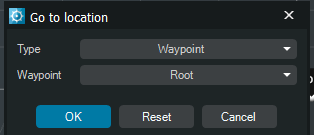
Go to, moves the view to a selected object or position. You can choose the type, for example waypoint, and the target from the Project Tree. The view recenters on that location without changing data, layers, or acquisition state
Toggle Bounding box of selected object, shows or hides the bounding box around the currently selected object. The bounding box helps visualize the object’s spatial extent.
1.4.12 Tools- Measurements
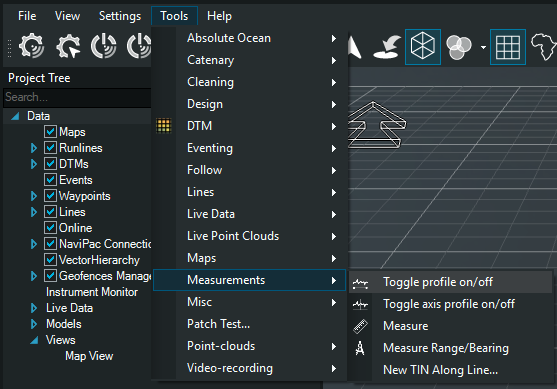
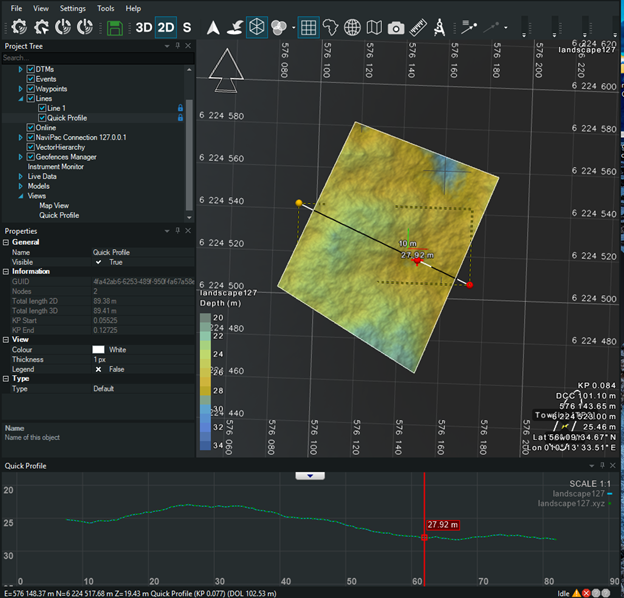
Toggle profile on/off, shows or hides the profile view linked to the current measurement or selection. When enabled, a profile window is displayed for quick inspection of depth or elevation changes along the measured line
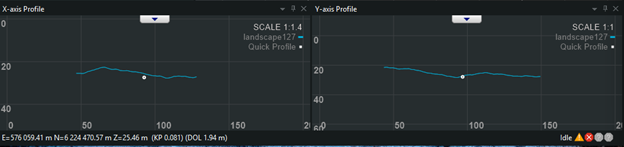
Toggle axis profile on/off, shows or hides the profile axes in the profile view. When enabled, the horizontal and vertical axes with scale values are displayed, improving interpretation or distances and depths along the profile.
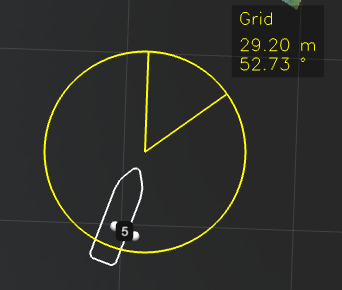
Measure, measure distance and bearing between two points in the view. The result is shown directly on screen, including length and azimuth and is intended for quick checks without creating permanent objects
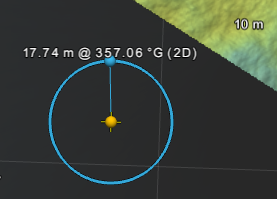
Measure range and bearing, measures the range and bearing from a reference point to a target. The tool displays distance and azimuth in real time, useful for quick spatial checks without creating or modifying objects
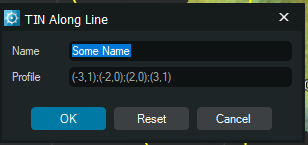
New TIN along line, creates a TIN surface sampled along a selected line. The TIN is generated from existing point data or DTM and is typically used for profile analysis and inspection along runlines, pipelines or other linear features
1.4.13 Tools - Misc
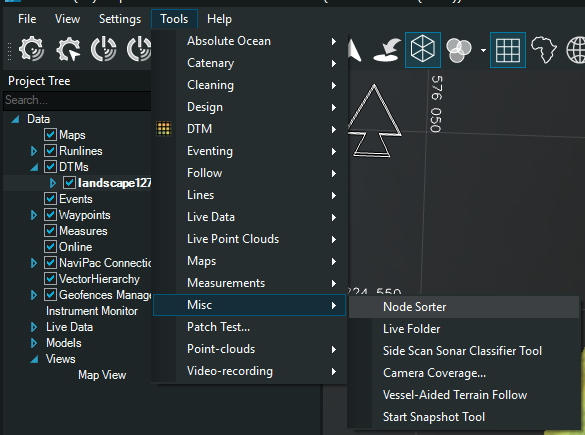
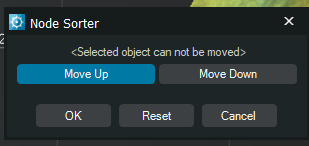
Node sorter, uses Move up/down to change node sequence. This adjusts node order only, without modifying coordinates or geometry.
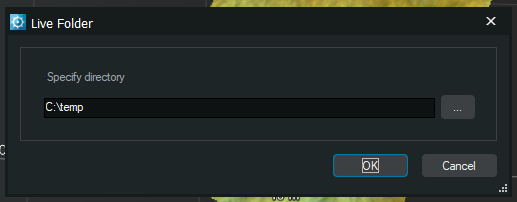
Live folder, defines a dedicated folder that is populated automatically with objects created from live data. During acquisition, new items are added to this folder in real time, keeping the project tree structured without manual intervention
Side Scan Sonar Classifier tool, Opens the tool for classifying side scan sonar data. It allows interpretation and categorization of seabed features or targets detected inside scan imagery, supporting consistent annotation and review without altering the underlying sonar data.
Camera Coverage displays the camera field of view and coverage area in the map or model view. It uses the camera mounting and parameter settings to visualize what the camera can see, supporting coverage checks and alignment without affecting recorded data.
Vessel aided terrain follow, enables depth- adaptive following of the seabed based on the vessel position and available terrain data. It is used to maintain a consistent altitude or clearance by applying terrain information to the follow logic, supporting safer and more stable operations during survey or inspection
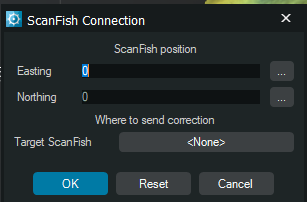
Start snapshot tool captures a static snapshot of the current view, including visible objects, layers and annotations. It is used to document the current scene for reporting, quality control, or later reference, without affecting the project data.
1.4.14 Patch test
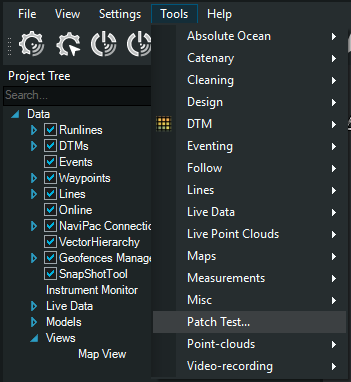
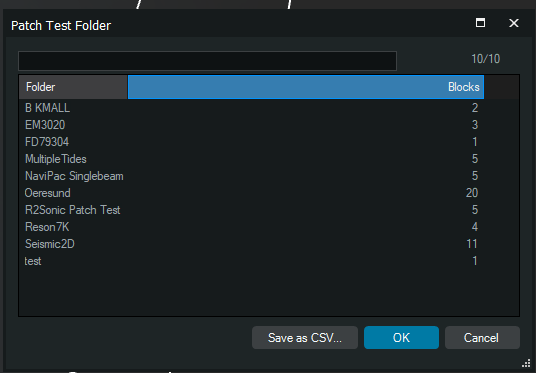
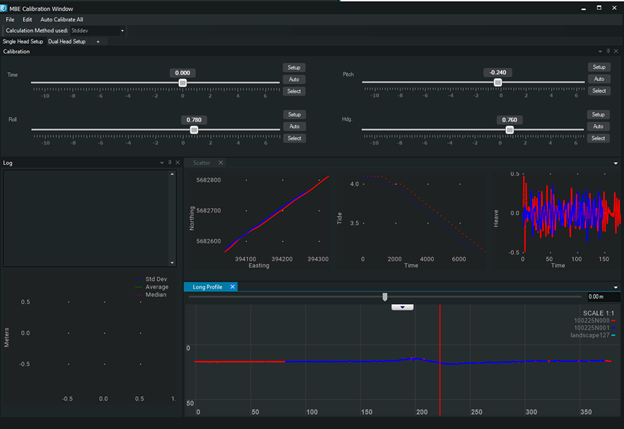
Patch test opens the patch test workspace used to analyze and calibrate multibeam alignment parameters, typically roll, pitch, yaw and timing. It allows comparison of overlapping lines, visual inspection of offsets, and adjustment of calibration values to improve data consistency
1.4.15 Point - Clouds
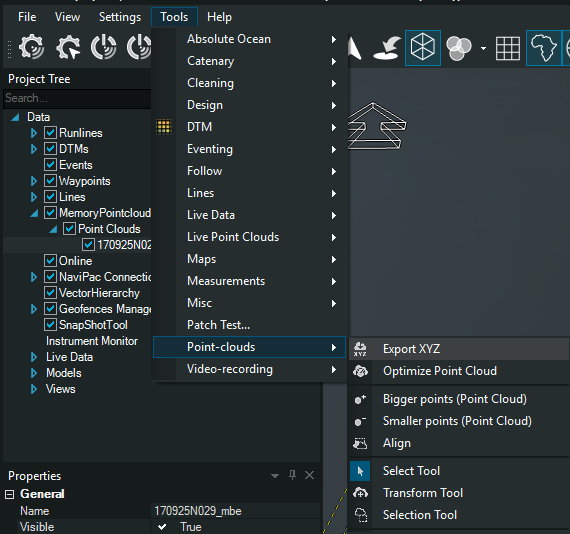
Export XYZ exports the selected Point Cloud to an ASCII XYZ file containing coordinates and depth values. It is used to deliver point cloud data to external software for further processing, analysis or archiving.
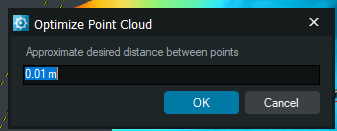
Optimize Point Cloud reduces point density by removing points closer than a user defined spacing. It is used to simplify dense datasets, improve performance, and reduce file size while preserving the overall shape and geometry of the point cloud.
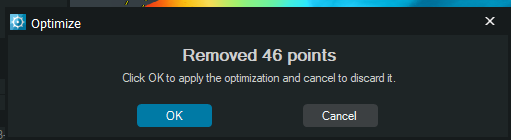
Bigger Points (Point Cloud) increases the on-screen size of point cloud points. It affects only visualization, making dense or sparse datasets easier to inspect, without changing the underlying data.
Smaller Points (Point Cloud) decreases the on-screen size of point cloud points. It is display-only option, used to improve visual clarity in dense point clouds without modifying the data.
Align, aligns the selected point cloud to a reference, such as another point cloud or a surface, by applying a spatial transformation. It is used to improve relative positioning and consistency between datasets without altering the original source data.
Select tool, allows interactive selection of points or objects in the point cloud. It is used to isolate, inspect, or prepare subsets of data for further actions such as transform, delete or export.
Transform tool, applies a geometric transformation to the selected point cloud or objects, such as translation or rotation. It is used to adjust position or orientation during alignment or correction workflows, without modifying the original source data.
Selection tool, defines an area or subset of the point cloud for focused operations. It is used to limit actions such as editing, analysis, or export to the selected points only, without affecting the rest of the dataset.
1.4.16 Video-recording
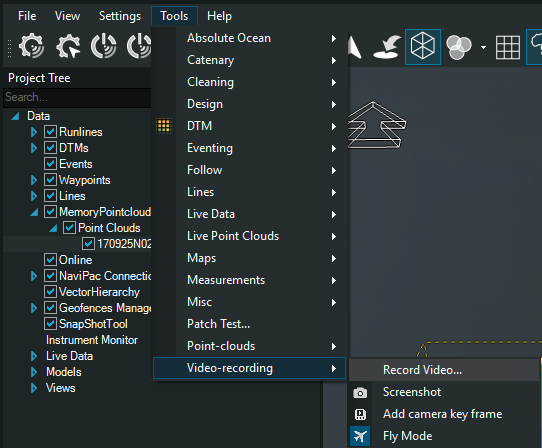
Record Video…starts recording the current 3D view as a video. It captures camera movement, visible layers, and interactions, and it is used for documentation, presentations, or reviewing workflows without affecting the project data.
Screenshot captures a still image of the current view, including visible objects and layers. It is used for quick documentation or reporting and does not modify the project data.
Add camera key frame saves the current camera position and orientation as a key frame. It is used to build smooth camera paths for animations or video recordings by interpolating between saved viewpoints.
Fly mode enables free camera navigation in the 3D view. It allows smooth movement and rotation through the scene for inspection or video capture, without affecting any project data.
1.5 Help
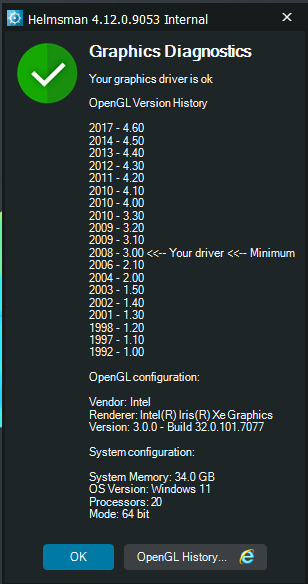
1.5.1 Graphics opens the graphics diagnostics and settings. It is used to check OpenGL support, graphics driver status, and system compatibility, helping to troubleshoot display or performance issues.
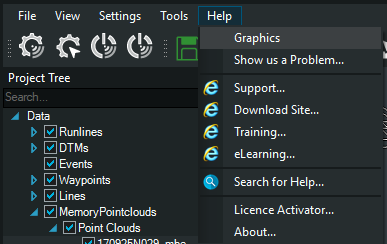
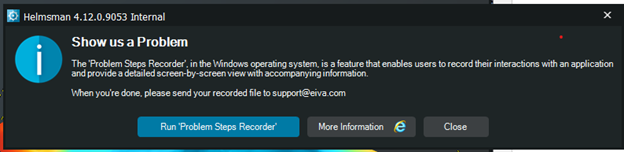
Show us a Problem opens the issue reporting dialog. It is used to send feedback or report a problem directly to support, typically including system details and optional screenshots or logs
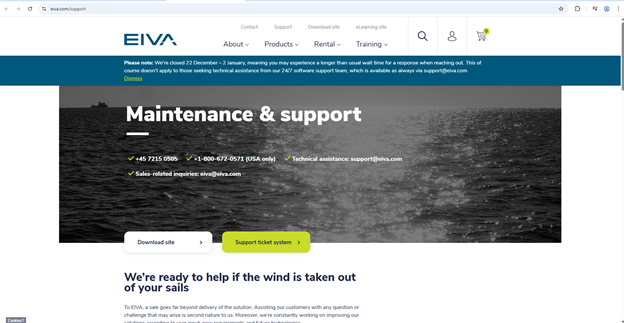
Support opens access to EIVA support resources. It provides contact options and links for obtaining technical assistance related to Helmsman and other NaviSuite applications.
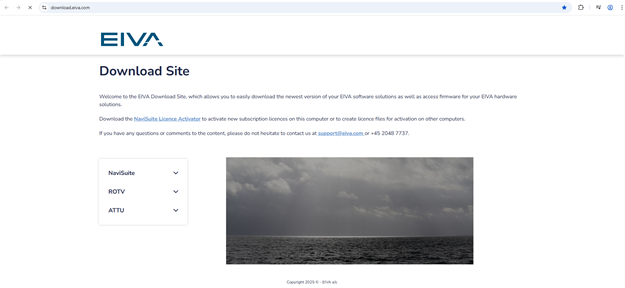
Download Site opens the EIVA download portal. It is used to access software installers, updates and related resources.
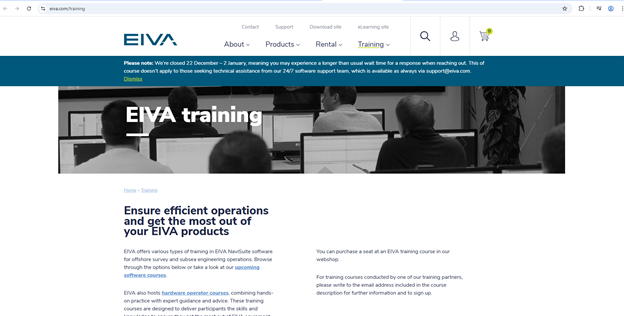
Training opens EIVA training resources. It provides access to courses and materials for learning how to use Helmsman and other NaviSuite applications.
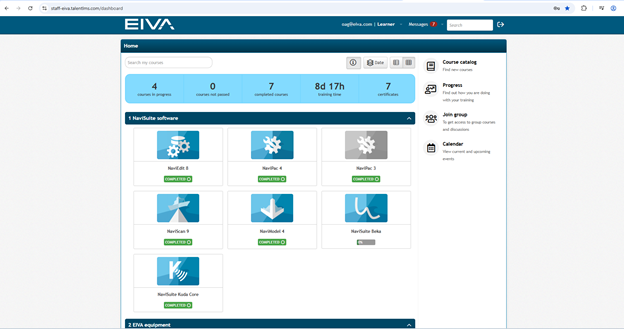
eLearning opens the EIVA online learning platform. It provides self-paced course, tutorials, and documentation for Helmsman and NaviSuite software.
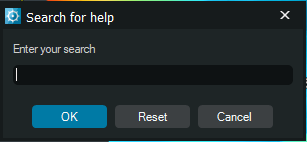
Search for Help opens the Help search function. It allows you to quickly find relevant documentation, guides, and support topics related to Helmsman and its tools.
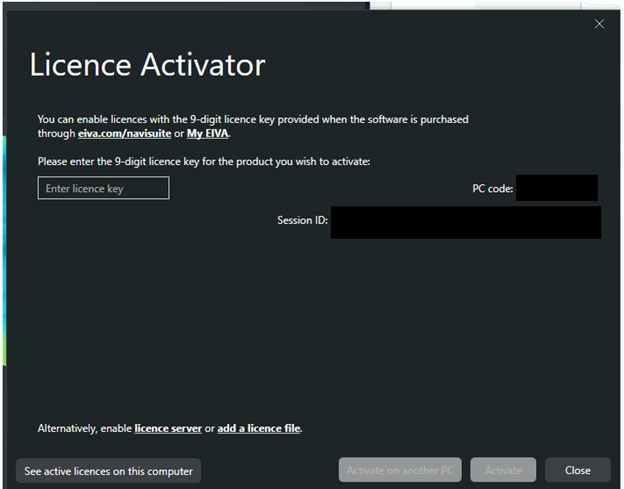
Licence Activator opens the information about the installed Helmsman version. It displays version number, build details and basic system information, useful for support and trubleshooting
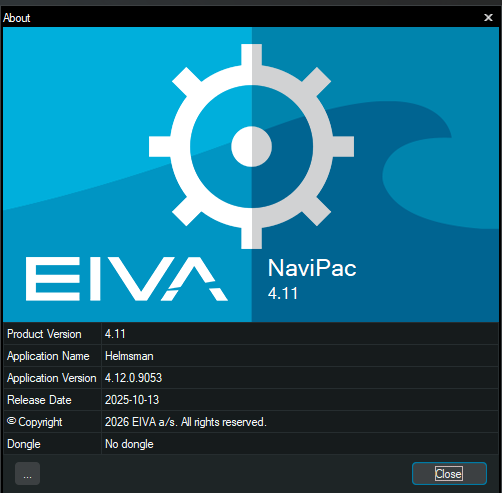
About section displays information about the application and its licence. It shows the application version, release date, and current licence status. This is mainly used to verify the installed version and to provide accurate information when contacting technical support or reporting issues.